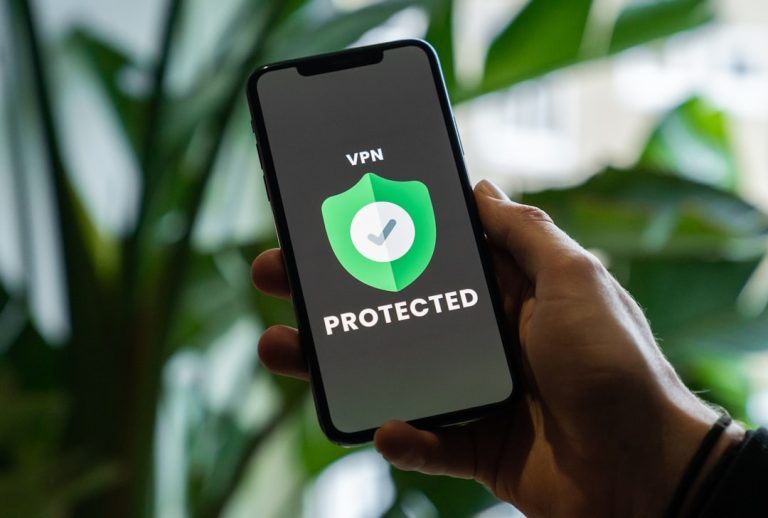
The fastest way to disable a VPN in Chrome is to first check whether it is only a Chrome extension or a full device VPN. A browser extension affects Chrome traffic, while a system VPN can affect every app on the device. Chrome extensions can be managed from the Extensions page, including chrome://extensions [source: Google].
TLDR: If the VPN is a Chrome extension, a user can turn it off in about 3 clicks from Chrome’s Extensions menu. If it is a system VPN, Chrome will still use the VPN until the user turns it off in Windows, macOS, Android, or iOS settings. For example, someone trying to access a local banking site may disable the Chrome VPN extension in 20 seconds, but the site may still show the wrong country if a device VPN is active. The key is to check both places before blaming Chrome.
Browser VPN Extensions vs System VPNs
A Chrome VPN extension usually works only inside Chrome. It may appear near the address bar as a small icon. It might offer a simple On or Off switch, server locations, or a pause button.
A system VPN is different. It is installed as an app or set up inside the device’s network settings. It can cover Chrome, email apps, game launchers, cloud drives, and anything else using the internet. This is where confusion starts. A user may disable the Chrome add-on, refresh a page, and still see the VPN location. Honestly, it feels like Chrome is ignoring the setting, but the device VPN is usually still running in the background.
How to Disable a VPN Extension in Chrome
If the VPN lives inside Chrome, the fix is simple:
- Open Chrome.
- Click the three-dot menu in the top-right corner.
- Select Extensions, then Manage Extensions.
- Find the VPN extension.
- Turn off the blue toggle.
The user can also type chrome://extensions into the address bar and press Enter. This opens the same extensions page faster. If the VPN icon is pinned to the toolbar, the user may click the icon and switch it off there. Some VPN extensions hide the real disconnect button inside a small menu, which is annoying when a quick site check turns into a 60-second hunt.
If the VPN is no longer needed, the user can click Remove. That deletes the extension from Chrome. This is better than leaving unused VPN tools sitting around, especially if several privacy extensions are installed at once.
How to Disable a System VPN
If Chrome still appears to use a VPN after the extension is off, the user should check the device settings.
- Windows: Open Settings, go to Network & Internet, then VPN. Select the VPN and click Disconnect.
- macOS: Open System Settings, choose VPN, then switch the active VPN off.
- Android: Open Settings, go to Network & Internet or Connections, then tap VPN and disconnect it.
- iPhone or iPad: Open Settings, tap VPN, and turn the VPN status off.
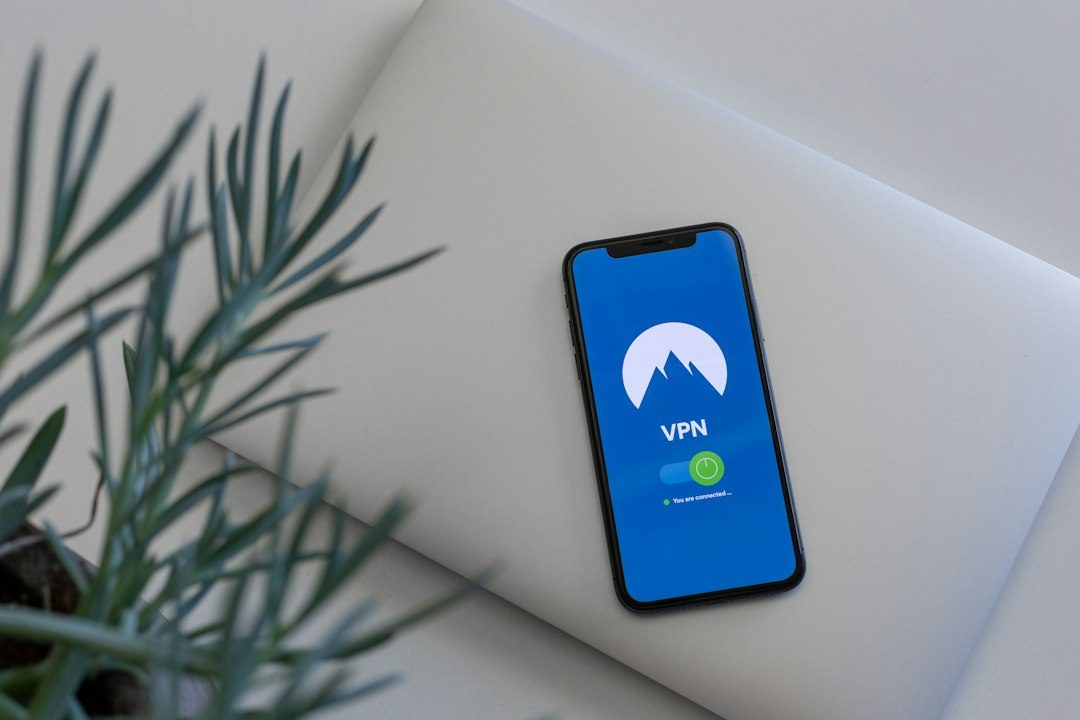
Some VPN providers also run from their own app. In that case, the user should open the VPN app and press Disconnect. If the app has a kill switch, the internet may stop working after the VPN is turned off. That feature blocks traffic when the tunnel drops. It is useful for privacy, but it can make a simple disable step feel broken.
How to Tell Which VPN Is Active
The easiest check is the location shown by an IP lookup site. The user can search “what is my IP” before and after disabling the VPN. If the country or city stays the same after turning off the Chrome extension, a system VPN is probably still active.
Another clue is app behavior. If only Chrome shows a VPN location, the VPN is likely an extension. If Chrome, streaming apps, email, and messaging tools all show the same VPN location, it is probably system-wide.
Common Problems After Turning Off a VPN
- Sites still show the wrong location: The browser may be using cached location data. Closing Chrome and reopening it can help.
- Streaming sites still block access: The account, cookies, or DNS cache may still show old region signals.
- Chrome feels slow: A proxy, Secure DNS setting, or another privacy extension may be affecting traffic.
- The VPN turns itself back on: The VPN app may have auto-connect enabled on public Wi-Fi or startup.
Users should also check Chrome’s extension list for more than one VPN tool. Running two VPN extensions is a mess. One may be off while another is still active. It can add failed logins, slow page loads, and strange CAPTCHA checks.
When Should a VPN Be Disabled?
A user may turn off a VPN when a local service blocks foreign IP addresses, when work tools require a normal office region, or when a site keeps asking for extra security checks. Banking apps, government portals, and streaming platforms are common examples.
Still, disabling a VPN lowers privacy. Traffic may go back through the normal internet provider or local network. On public Wi-Fi, a user should avoid turning it off unless there is a clear reason.
FAQ
Does disabling a Chrome VPN extension turn off the VPN for the whole device?
No. It only affects Chrome if the VPN is an extension. A system VPN must be turned off in the device settings or VPN app.
Why does Chrome still show another country after the VPN is off?
A system VPN may still be running. Cookies, cached data, or DNS settings may also hold old location signals.
Is removing a VPN extension better than disabling it?
Removal is better if the extension is no longer used. Disabling is fine for a short break.
Can Incognito mode disable a VPN?
No. Incognito mode only changes local browsing history and cookies. It does not turn off a VPN.
Should a user disable a VPN on public Wi-Fi?
Usually no. Public Wi-Fi is risky. A VPN should stay on unless a trusted site requires it to be off.