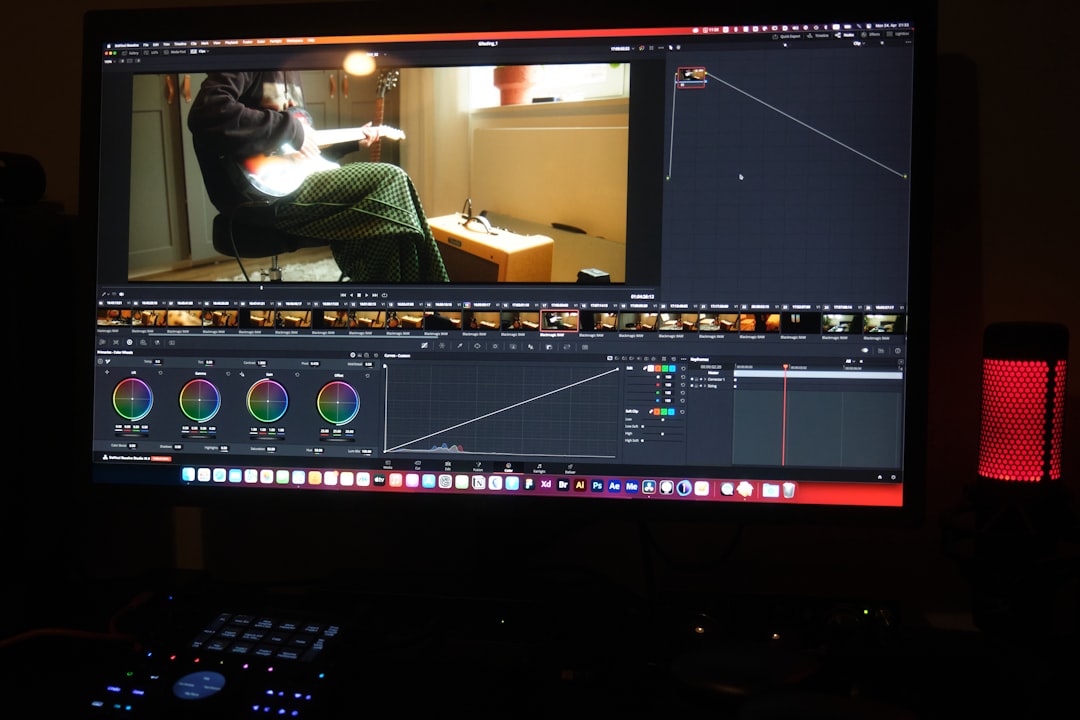
So, you’ve heard about iMovie? It’s Apple’s awesome video editing app. Great for creating stunning home movies, vlogs, school projects—you name it! But if you’re brand-new and wondering how to get it on your device, no worries. This guide is here to help you every step of the way.
TLDR
To download iMovie, all you need is a Mac, iPhone, or iPad. Just go to the App Store, search for “iMovie,” and tap the download button. It’s free and easy to install. Editing videos has never been more fun!
What is iMovie?
iMovie is a free video editing app for Apple users. It’s available on Mac computers, iPhones, and iPads. You can use it to clip videos, add music, include text, and even apply cool transitions.
If you’ve always wanted to try making your own movie trailer or a polished travel vlog, this is your ticket.
Step 1: Check if You Have a Compatible Device
You need an Apple device. That’s step one.
- MacBook, iMac, or Mac Mini (running macOS 11.5.1 or later)
- iPhone (with iOS 15.2 or later)
- iPad (with iPadOS 15.2 or later)
Most recent Apple devices already qualify. If you’re not sure, go to your device’s settings and check the software version.
Step 2: Open the App Store
Yes, that colorful “A” icon on your home screen. Tap or click on it—it’s your gateway to alllll the apps.

Step 3: Search for iMovie
Once inside the App Store, use the Search tab (you’ll see a magnifying glass).
Type “iMovie” and hit search!
Step 4: Download the App
Find iMovie in the search results. It should be right at the top.
Click or tap the button that says one of the following, depending on your device:
- “Get” (if you never downloaded it before)
- Cloud icon with a downward arrow (if you had it previously)
- “Update” (if it’s already on your device but needs updating)
Wait a moment while it downloads. Sip tea. Do a dance. Stretch. It’s quick!
Step 5: Open and Start Exploring
After installation, tap “Open”. Or find the iMovie icon on your home screen or Launchpad.
Voila, you’re inside! Time to make movie magic.
Troubleshooting Tips (Just in Case)
If things don’t go as planned, don’t panic. Here are a few things you can check:
- Low storage space? Try deleting unused apps or files.
- Software out of date? Go to Settings and update your iOS or macOS.
- Not available in your region? Make sure your App Store region is compatible.
- Family Sharing turn-off? Ask the household’s Apple ID manager to allow the download.
Extra Tip: iMovie Might Already Be There!
Pssst… Some Apple devices come with iMovie already installed.
Before going to the App Store, search your app list or Launchpad. You might have it ready to go!
Bonus: What You Can Do in iMovie
Now that it’s downloaded, what’s next? Here’s a peek at the fun stuff:
- Clip and trim your videos
- Add music (even your favorite tunes from iTunes)
- Create slow motion or time-lapse effects
- Use built-in themes and templates
- Add transitions between scenes
- Overlay text and captions
- Export in HD or even 4K!
It’s a playground for would-be directors—like you!
How About iMovie on iPhone vs Mac?
Good question! The iMovie experience is slightly different depending on your device.
iMovie on iPhone/iPad:
- Touch controls make editing a breeze
- Great for editing on the go
- Limited to fewer advanced effects
iMovie on Mac:
- Full-featured timeline and extra audio/video layers
- Better for big projects
- More powerful export options
You can even start your project on one device, then finish it on another. Yep, Apple thought of everything!
Common Questions
Is iMovie free?
Yes! 100% free on all Apple devices. No hidden fees.
Can I get iMovie on a Windows PC or Android?
Sadly, no. iMovie is exclusive to Apple devices. But there are similar apps for Windows and Android like Shotcut or Kinemaster.
Does iMovie need an internet connection?
Nope! You can use it fully offline after it’s been downloaded. Super handy when you’re editing in those Wi-Fi dead zones.
Pro Tips for Beginners
Want to make your videos stand out? Here are a few beginner-friendly tips:
- Keep clips short and sweet. Avoid long drawn-out scenes.
- Add background music. It brings energy to your project.
- Use transitions wisely. Don’t overdo the fancy fades.
- Tell a story. Even short videos work better with a clear beginning, middle, and end.
The more you play around, the better you’ll get. Your first few videos might be simple—but just wait. You’ll be creating masterpieces in no time.
Conclusion
And there you have it: your simple, fun guide to downloading iMovie.
It’s easy. It’s free. And it opens the door to endless creativity. So go ahead—edit that family trip video, whip up a cool birthday message, or start your YouTube channel. The camera is rolling, and you’re the director!
Happy editing!