Plex has become one of the most widely used media server platforms for streaming personal content across devices. As more users integrate Plex into home theaters, workstations, and smart TV setups, a common question emerges: does Plex support media keyboard controls? For users who rely on dedicated media keys—such as play, pause, skip, and volume—understanding compatibility is essential for creating a seamless viewing experience.
TLDR: Plex does support media keyboard controls in most desktop and app-based environments, though functionality depends on the device, operating system, and playback method. Native apps like Plex for Windows and macOS typically respond well to standard media keys, while browser playback may require additional configuration. Smart TVs and streaming devices vary in support depending on remote compatibility. Proper setup ensures smooth, responsive playback control.
Understanding Media Keyboard Controls
Media keyboard controls refer to dedicated keys found on many modern keyboards that allow users to manage playback without interacting directly with on-screen controls. These typically include:
- Play/Pause
- Next Track
- Previous Track
- Stop
- Volume Up/Down
- Mute
Some keyboards also integrate advanced shortcut combinations using function keys or programmable macro buttons. For users who watch or listen to content frequently, media keys provide a faster and more intuitive way to manage playback.
Plex Desktop App: Media Key Support
The Plex for Windows and Plex for macOS applications offer strong native support for media keyboard controls. When using the official Plex desktop app instead of a browser tab, standard media keys usually function automatically.
This native integration works because the Plex app hooks into the operating system’s media session APIs, which allow multimedia applications to respond directly to hardware key inputs.
Image not found in postmetaWindows Compatibility
On Windows 10 and Windows 11:
- Play/Pause keys immediately control active Plex playback.
- Next and previous buttons navigate media in playlists or series.
- Volume keys control system-level audio output.
- The Windows media overlay displays current Plex content information.
In most cases, no special configuration is required. However, if multiple media applications are open (for example, Spotify and Plex), Windows may prioritize whichever app was most recently active.
macOS Compatibility
On macOS, Plex integrates with the system media controls available in:
- The Touch Bar (on supported MacBooks)
- The top-row media keys
- Control Center playback widget
Older versions of macOS may require Plex to be the active application window for full functionality, while newer versions allow background control more reliably.
Plex Web App: Browser-Based Playback
Using Plex through a web browser introduces additional complexity. Browser playback depends heavily on:
- The browser used (Chrome, Edge, Firefox, Safari)
- The operating system
- Browser permissions for handling media hardware keys
In Google Chrome and Microsoft Edge, media key support is generally robust due to native integration with Windows and macOS media frameworks. However:
- You must have the browser tab active or recently active.
- Background tab suspension may interrupt controls.
- Some browser extensions can override media key behavior.
Firefox sometimes requires enabling specific media hardware key settings in its configuration panel. Safari on macOS typically works well but can occasionally default to Apple Music or another active service.
In short, while Plex Web often supports media keys, it is less consistent than the dedicated desktop application.
Smart TVs and Streaming Devices
When Plex is used on smart TVs or streaming platforms such as:
- Roku
- Amazon Fire TV
- Apple TV
- NVIDIA Shield
- Game consoles
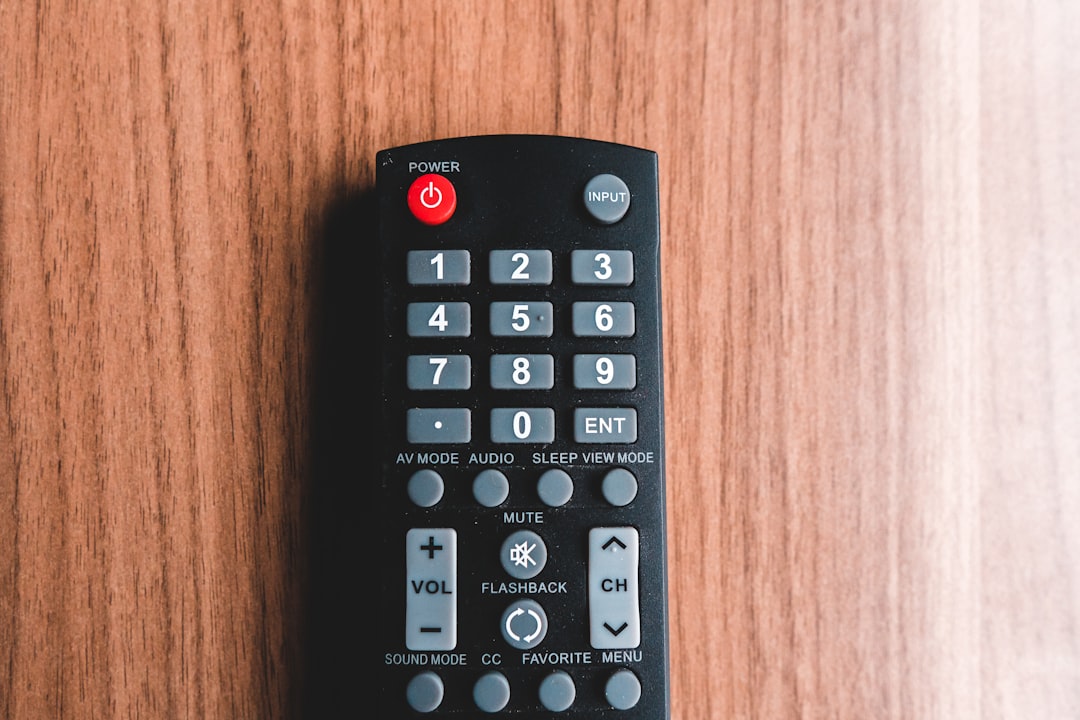
The system relies on the remote control rather than a physical keyboard. In these cases, media control support depends entirely on the device’s operating system and hardware integration.
Apple TV
Apple TV provides highly responsive playback control through:
- The Siri Remote
- Bluetooth keyboards
- Control Center integration on iPhone
When a Bluetooth keyboard is connected, play and pause keys generally function properly within Plex.
Roku and Fire TV
These devices do not typically support external keyboard media keys in the same way computers do. Instead, playback is managed exclusively through the remote interface.
NVIDIA Shield
Because NVIDIA Shield runs on Android TV, it offers stronger keyboard compatibility. Bluetooth keyboards with media keys can control Plex playback in many cases.
Mobile Devices and External Keyboards
Plex on iOS and Android also supports external input devices in varying degrees.
iPad with Keyboard
When using an iPad with:
- Magic Keyboard
- Bluetooth keyboard
- Third-party keyboard case
Play and pause buttons typically control Plex if the app is open and active.
Android Devices
Android tablets and phones often support Bluetooth keyboard media controls, but behavior can vary depending on manufacturer customizations of Android.
Common Limitations and Conflicts
Even though Plex supports media keyboard controls in many environments, users may encounter issues such as:
- Another application intercepting media key commands
- Driver conflicts with specialized keyboards
- Background app restrictions
- System-level audio routing changes
For example, gaming keyboards with proprietary software sometimes override default key behavior. In these situations, users may need to configure shortcuts manually through the keyboard software.
How to Ensure Media Keys Work with Plex
If media keys are not functioning correctly, several troubleshooting steps can help.
1. Use the Native Plex App
The desktop version offers the most dependable support.
2. Check Default Media Player Behavior
Ensure no competing application (Spotify, VLC, YouTube in background) is hijacking media key commands.
3. Update Drivers and Operating System
Outdated keyboard drivers or system updates can affect input recognition.
4. Adjust Browser Settings (If Using Web)
In Chrome, confirm that hardware media key handling is enabled via flags or settings.
5. Review Keyboard Software
If using Logitech, Razer, Corsair, or other programmable keyboards, verify that media keys are assigned to standard system commands instead of custom macros.
Image not found in postmetaAdvanced Customization Options
For power users, additional customization is available:
- AutoHotkey (Windows) to remap keys for Plex-specific controls
- AppleScript (macOS) to automate playback behaviors
- Third-party macro software to bind advanced shortcuts
These solutions can extend functionality beyond simple play and pause, such as skipping intro segments or toggling full-screen mode.
Does Plex Pass Affect Media Key Support?
It is important to clarify that Plex Pass does not impact media keyboard compatibility. Media key support is tied to the application and operating system—not subscription tier.
Whether using the free version or Plex Pass, hardware media controls function the same way.
Performance Considerations in Home Theater PCs
Many advanced users integrate Plex into home theater PC (HTPC) systems. In these builds:
- Wireless keyboards with touchpads are common
- Media remotes with USB receivers are widely used
- Custom hotkey mapping enhances usability
In a properly configured HTPC environment, Plex responds quickly and consistently to dedicated playback buttons. The key is ensuring that Plex remains the primary active media session.
Final Assessment: Is Plex Media Key Friendly?
Yes—with qualifications.
Plex supports media keyboard controls effectively across most desktop and app-based environments. The experience is strongest within the dedicated Plex application on Windows and macOS. Browser playback is generally functional but can be less reliable depending on system configuration.
On streaming platforms and smart TVs, playback depends primarily on remote control hardware rather than keyboard integration. Users who rely heavily on media key controls should consider:
- Using the native Plex desktop app
- Keeping operating systems updated
- Avoiding background app conflicts
- Investing in a compatible Bluetooth or USB keyboard
For most users, Plex integrates smoothly into modern multimedia workflows. With proper setup, media keyboard controls work as expected, enhancing convenience and improving the overall viewing experience.
Ultimately, Plex was designed with flexibility in mind—and that flexibility extends to the way users control their media.