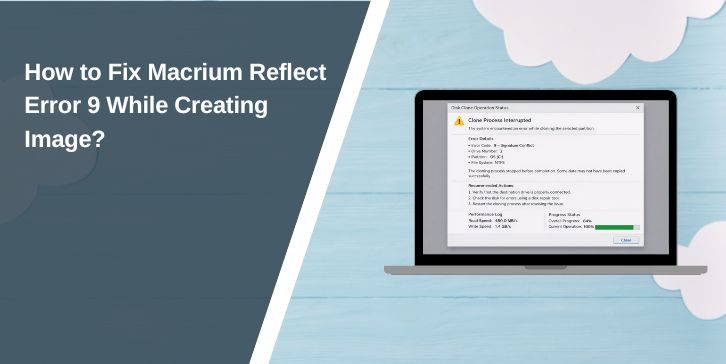
While creating a system backup, Macrium Reflect may suddenly stop the process and display Error 9. The backup job fails before completion, and the software cannot finish the disk image.
This problem usually appears when the backup software cannot read data from a hard drive, SSD, or partition during the imaging process. In this guide, you will learn what Macrium Reflect error 9 means, why it occurs, and several practical solutions that help complete the backup successfully.
What Does “Macrium Reflect Error 9” Mean?

During a disk imaging operation, Macrium Reflect reads data sector by sector from the source disk and stores it in a backup image file. The software verifies each block of data while copying it into the backup archive. If Macrium Reflect attempts to read a disk sector that cannot be accessed correctly, the software stops the process and generates Error 9, which indicates a disk read failure.
This error usually suggests a problem with the storage device, the file system, or the connection between the disk and the system.
Users often see this error inside the Macrium Reflect backup job window while creating a full system image, cloning a disk, or verifying a backup file. The message appears when the backup process reaches a problematic sector or corrupted file that cannot be read.
Common Causes of Macrium Reflect Error 9
This backup failure usually occurs when the system cannot read data from the disk correctly.
Common causes include:
- bad sectors on the source hard drive
- corrupted NTFS file system
- failing storage device hardware
- unstable connection with an external backup drive
- antivirus software interfering with disk access
- outdated Macrium Reflect software version
- disk read timeouts caused by storage errors
How to Fix Macrium Reflect Error 9?
Resolving this error often requires repairing disk problems or checking storage connections before attempting the backup again.
Fix 1 – Run the CHKDSK Disk Scan
The CHKDSK utility built into Windows scans the disk for file system errors and damaged sectors.
Follow the steps below to run the disk scan.
- Press Windows key + X.
- Open Command Prompt (Admin) or Windows Terminal (Admin).
- Type the command:
chkdsk /f /r - Press Enter.
- Allow Windows to scan and repair disk errors.
After the scan completes, run the backup again.
Fix 2 – Check Disk Health Using SMART Monitoring Tools
Storage devices store internal health information using SMART diagnostics.
Follow these steps to check disk health.
- Install a disk health monitoring tool.
- Scan the hard drive or SSD.
- Check for warnings such as bad sectors or read errors.
If the drive shows critical warnings, replacing the drive may be necessary.
Fix 3 – Reconnect the External Backup Drive
If the backup destination is an external hard drive, connection issues may interrupt the backup process.
Follow these steps to reconnect the drive.
- Disconnect the external storage device.
- Restart the computer.
- Reconnect the drive using another USB port.
- Start the Macrium Reflect backup again.
A stable connection helps prevent read and write interruptions.
Fix 4 – Disable Antivirus Temporarily
Some antivirus programs scan files during the backup process and interfere with disk access.
Try these simple steps.
- Open your antivirus software.
- Temporarily disable real-time protection.
- Run the Macrium Reflect backup again.
- Enable the antivirus after the backup completes.
Disabling antivirus temporarily helps confirm whether security software caused the error.
Fix 5 – Update Macrium Reflect
Older versions of the software may contain bugs that affect backup operations.
Follow these steps to update the program.
- Open Macrium Reflect.
- Navigate to the Help menu.
- Select Check for updates.
- Install the latest version of the software.
Updating the software ensures compatibility with newer storage drivers.
Fix 6 – Run Macrium Reflect as Administrator
Backup operations require elevated system permissions to access disk sectors.
Follow these steps to run the program with administrator privileges.
- Locate the Macrium Reflect shortcut.
- Right-click the icon.
- Select Run as administrator.
- Start the backup job again.
Administrator permissions allow the software to access protected disk areas.
Fix 7 – Verify the Backup Destination Drive
Sometimes the destination disk where the backup is stored may also have errors.
Follow these steps.
- Open This PC in Windows.
- Right-click the backup storage drive.
- Select Properties.
- Go to the Tools tab.
- Run the disk error checking scan.
Ensuring the destination drive is healthy prevents backup corruption.
Fix 8 – Replace a Failing Hard Drive
If disk read errors continue to appear, the source drive may be failing.
Follow these steps.
- Check disk health using SMART diagnostics.
- Confirm whether the drive reports bad sectors or read failures.
- Replace the failing hard disk or SSD.
- Restore data from existing backups if available.
Replacing the drive prevents future backup failures and data loss.
Prevention Tips to Avoid Macrium Reflect Backup Errors
Maintaining healthy storage devices helps ensure reliable backup operations.
Helpful practices include:
- monitor disk health regularly using SMART tools
- create backups frequently to avoid data loss
- keep Macrium Reflect updated to the latest version
- verify backup image files after creation
- maintain reliable external storage devices
- keep Windows system updates installed
- run periodic disk scans to detect errors early
These practices help maintain stable disk imaging operations.
Conclusion
Macrium Reflect error 9 usually appears when the backup software encounters a disk read problem while creating a system image. The issue often results from bad sectors, corrupted file systems, unstable storage connections, or failing hardware.
Most users resolve the error by scanning the disk with CHKDSK, verifying disk health with SMART monitoring tools, reconnecting storage devices, or updating Macrium Reflect. If the problem continues, replacing the failing drive may be necessary to protect important data.
If this guide helped you fix the backup issue, consider sharing it with others who use Macrium Reflect. You can also leave a comment explaining which solution worked for your system.