You were ready to jump back into Hogwarts. Wand in hand. Spells memorized. Then boom. A rude message appears: EMP.dll Not Found. The magic is gone. The game will not launch. Frustrating? Yes. Fixable? Also yes.
TLDR: The EMP.dll not found error in Hogwarts Legacy usually happens because of missing files, antivirus interference, or corrupted system data. Reinstalling the game, restoring quarantined files, or running system repair tools like SFC and DISM often fixes it. Always download files from official sources. Never grab random DLL files from shady websites.
Let us break this down in simple terms. No confusing tech spells. Just clear steps you can follow.
What Is the EMP.dll File?
A DLL file is a Dynamic Link Library. It helps programs run properly. Think of it like a helper elf behind the scenes. The game calls on it when needed.
If Windows cannot find EMP.dll, Hogwarts Legacy cannot start. The system throws an error instead of loading the game.
Common error messages include:
- EMP.dll not found
- The code execution cannot proceed because EMP.dll was not found
- EMP.dll is missing from your computer
Now let us fix it.
Step 1: Restart Your PC (Yes, Really)
This sounds basic. But it works more often than you think.
A restart:
- Clears temporary glitches
- Refreshes system memory
- Resets stuck background services
Restart your computer. Then try launching the game again. If it works, great. If not, keep reading.
Step 2: Check Your Antivirus
This is one of the most common causes.
Sometimes antivirus software thinks EMP.dll is suspicious. It quarantines or deletes it. Hogwarts Legacy then cannot find the file.
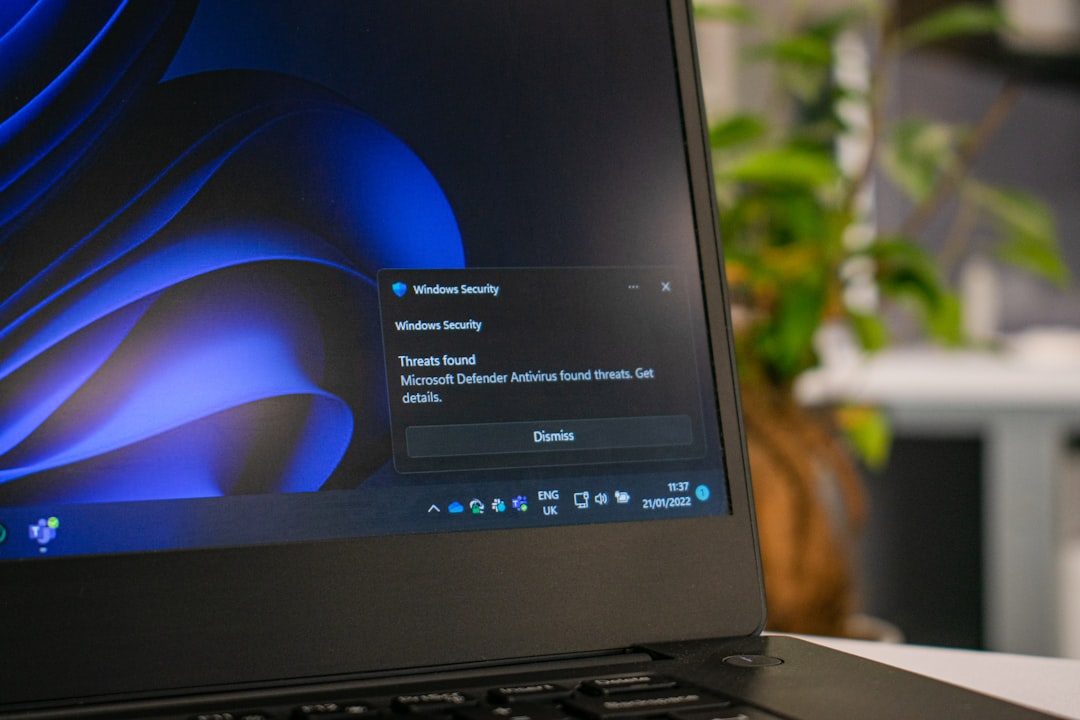
How to Check:
- Open your antivirus software.
- Go to Quarantine or Threat History.
- Look for EMP.dll or Hogwarts Legacy files.
- If found, restore the file.
- Add the game folder to the Exclusions list.
After that, launch the game again.
Important: Only do this if you trust your game source. Never restore unknown malicious files.
Step 3: Verify Game Files (Steam or Epic Games)
Game files sometimes get corrupted. Power cuts. Crashes. Interrupted downloads. It happens.
Luckily, Steam and Epic have a built-in repair feature.
On Steam:
- Open Steam.
- Go to Library.
- Right-click Hogwarts Legacy.
- Select Properties.
- Click Installed Files.
- Choose Verify integrity of game files.
On Epic Games:
- Open Epic Games Launcher.
- Go to Library.
- Click the three dots next to the game.
- Select Manage.
- Click Verify.
The launcher will scan and re-download missing files. Including EMP.dll if it belongs there.
Image not found in postmetaThis method works very often. Try it before anything complicated.
Step 4: Run System File Checker (SFC)
If Windows system files are damaged, games may fail to load DLL files correctly.
This is where SFC helps.
How to Run SFC:
- Press Windows Key + S.
- Type cmd.
- Right-click Command Prompt.
- Select Run as Administrator.
- Type: sfc /scannow
- Press Enter.
Wait. This can take 10 to 20 minutes.
It scans your system. It repairs broken files automatically.
When finished, restart your PC. Then test the game.
Step 5: Run DISM Tool
If SFC does not fix it, use DISM.
DISM is stronger. It repairs the Windows system image.
Steps:
- Open Command Prompt as Administrator.
- Type:
DISM /Online /Cleanup-Image /RestoreHealth
Press Enter.
Let it complete. It may take a while.
Restart your system afterward.
Step 6: Reinstall Hogwarts Legacy
Still broken? Time for a clean reinstall.
Yes, it takes time. But it often solves deep file issues.
Best Practice for Reinstalling:
- Uninstall the game.
- Restart your PC.
- Install it fresh from the official launcher.
- Do not interrupt the download.
A clean install ensures all required DLL files are placed correctly.
Step 7: Update Windows and Drivers
Outdated drivers can break DLL communication.
Update these:
- Windows Updates
- Graphics drivers (NVIDIA, AMD)
- DirectX
- Visual C++ Redistributables
Visit the official NVIDIA or AMD site for the latest GPU drivers. Do not rely only on Windows Update.
Should You Download EMP.dll Manually?
Short answer: No.
Many websites offer free DLL downloads. Sounds helpful. But it is risky.
These files can contain:
- Malware
- Spyware
- Trojan viruses
Even if clean, the version may not match your game build. That causes more errors.
Always fix the source. Not the symptom.
Tool Comparison Chart
Here is a simple comparison of the most common repair tools:
| Tool | What It Fixes | Difficulty Level | Safe to Use? |
|---|---|---|---|
| Verify Game Files | Missing or corrupted game files | Very Easy | Yes |
| Antivirus Restore | Quarantined DLL files | Easy | Yes (if trusted source) |
| SFC Scan | Corrupted Windows system files | Medium | Yes |
| DISM | Damaged Windows image files | Medium | Yes |
| Manual DLL Download | Attempts to replace single DLL | Easy | No (risky) |
Bonus Tip: Check for Mod Conflicts
If you use mods, this could be the problem.
Outdated or broken mods sometimes delete or override DLL files.
Try this:
- Remove all mods temporarily.
- Launch the game clean.
- Add mods back one by one.
If the error disappears, you found your culprit.
When Nothing Works
If you tried everything and the error remains:
- Check official game forums.
- Look for recent patches.
- Contact WB Games Support.
Sometimes a new update causes compatibility issues. Developers usually release a fix quickly.
Final Thoughts
The EMP.dll not found error looks scary. But it is usually simple.
Most cases are caused by:
- Antivirus interference
- Corrupted game files
- Broken Windows system files
Start with the easy fixes. Verify files. Check antivirus. Restart your PC.
Only move to deeper repairs if needed.
And remember. Never download random DLL files from unknown websites. That is dark magic you do not want.
Now go fix the error. Hogwarts is waiting.
Lumos!