In the digital age, nearly everything is connected through a network — from smartphones and laptops to smart home devices and even vehicles. However, for the average user, the underlying mechanisms of these network connections can seem mysterious or overwhelming. Understanding the basics can be empowering, helping users troubleshoot issues, optimize performance, and make informed choices about devices and services.
TL;DR: This article breaks down the essential components of network connections for everyday users. It explains what networks are, the difference between wired and wireless types, and introduces important terms like IP, DNS, and bandwidth. Whether you’re trying to fix a slow connection or just curious how your devices talk to each other, this guide will give you a clear foundation. You’ll also find a helpful FAQ section at the end for quick answers to common questions.
What Is a Network?
A network is essentially a group of two or more devices that are connected to share data. These devices — such as computers, smartphones, printers, and servers — use network connections to communicate with each other. Networks can be as small as a home Wi-Fi setup or as vast as the internet itself.
Types of Network Connections
There are several ways devices can connect within a network. These types can be categorized primarily into wired and wireless connections.
Wired Connections
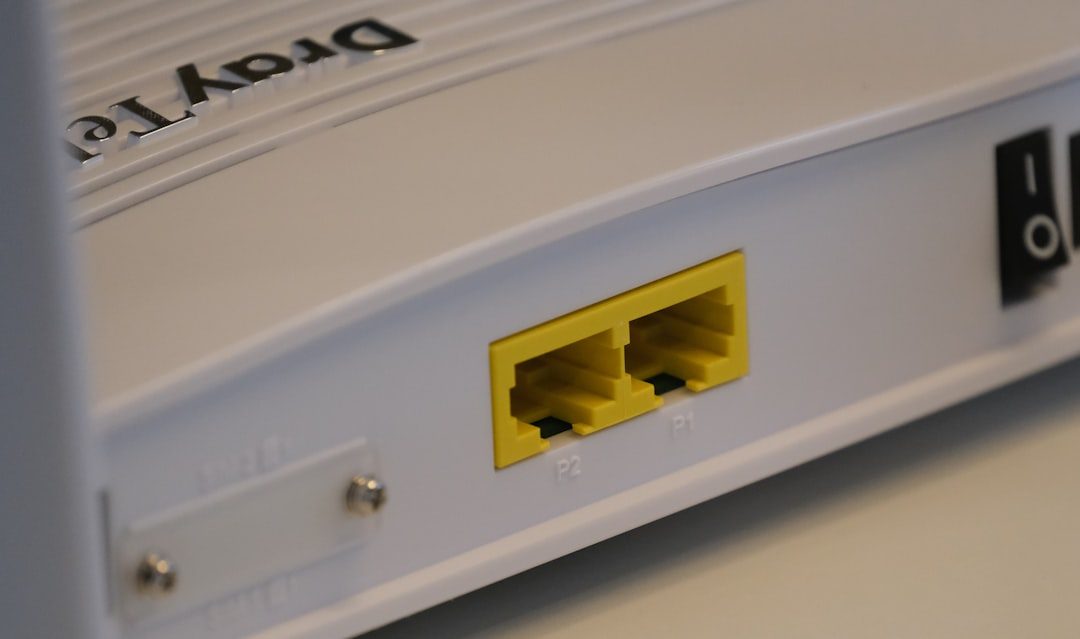
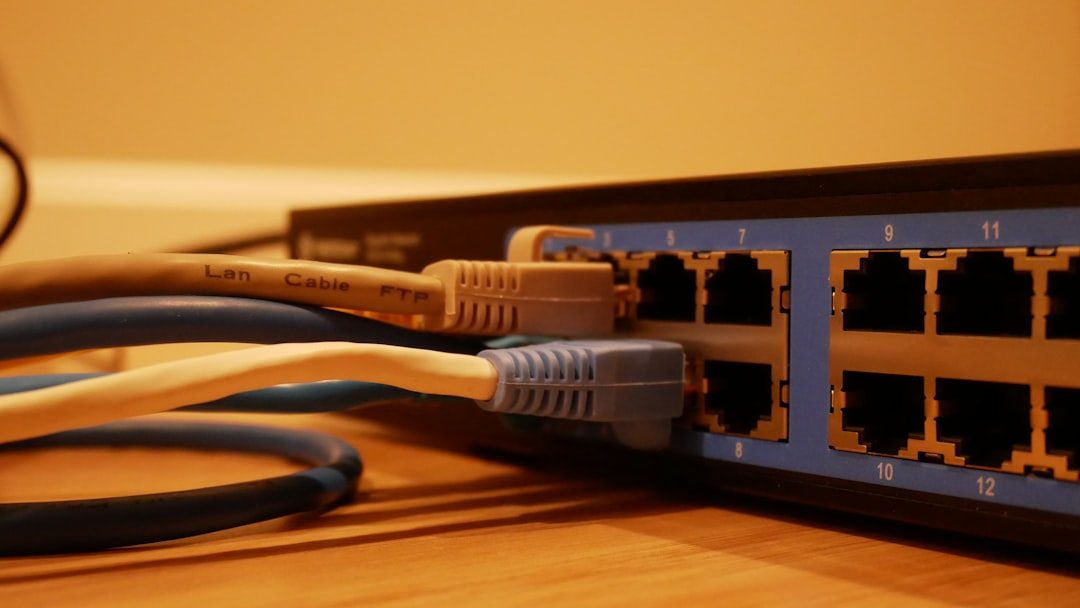
- Ethernet: This is the most common type of wired network connection. It uses Ethernet cables to physically link devices to a router or modem. It’s fast, stable, and secure, making it ideal for gaming, streaming, and large file transfers.
- Coaxial Cable: Often used in broadband internet setups, especially from cable TV providers. It connects modems to external service lines.
Wireless Connections
- Wi-Fi: This is a wireless technology that uses radio waves to provide high-speed Internet and network connectivity without cables.
- Bluetooth: Designed for short-range connections, mostly used for personal devices like smartphones, headphones, and keyboards.
- Cellular (3G/4G/5G): Connects mobile devices to the internet via carrier networks. Useful for users on the go or in areas without traditional internet access.
Key Networking Terms Explained
Network terminology can seem like a foreign language at first. Here are some critical terms that every user should know:
- IP Address: An Internet Protocol address is a unique string of numbers assigned to each device on a network. Think of it as the mailing address that lets devices locate each other.
- MAC Address: A unique hardware identifier for devices on a network, used at a much more localized level than IP addresses.
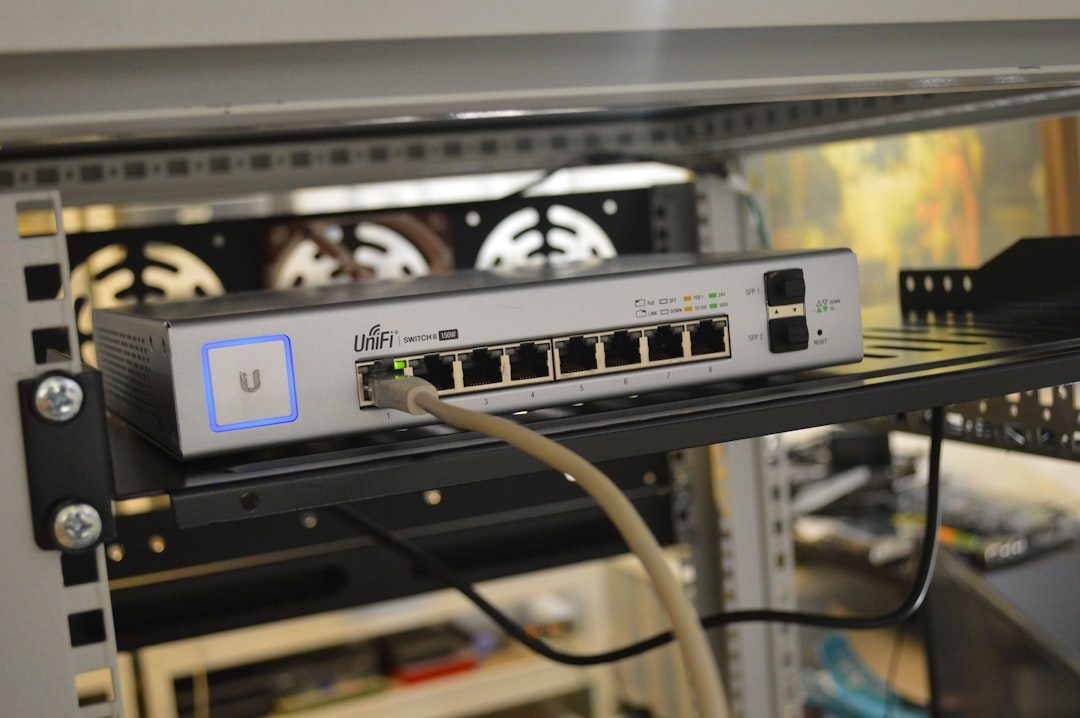
- Router: A device that routes data from your local network to other networks — primarily the internet. It connects to your modem and distributes connections to devices.
- Modem: Connects your home network to the wider internet by transforming digital data into signals that the provider’s lines can carry.
- DNS: The Domain Name System translates human-friendly website addresses (like www.example.com) into IP addresses that computers can understand.
- Bandwidth: Refers to the maximum rate at which data can be transferred over a network connection. Higher bandwidth means faster speeds.
- Latency: The time it takes for data to travel from source to destination. Lower latency means a more responsive connection.
Understanding Home Network Setups
Most home networks are built around a modem and a router. Users receive an internet feed through their modem, which is then connected to a router to create a local network that wirelessly or physically connects devices within the home.
Modern routers often act as both modem and router, especially those provided by ISPs (Internet Service Providers). These “gateway” devices simplify setup but may offer limited customization or advanced features.
Tips for a Stable Home Network
- Place your router in a central location for optimal coverage.
- Avoid physical obstructions like walls and metal objects that weaken Wi-Fi signals.
- Use Ethernet for stationary devices like desktop PCs or smart TVs for more stable connections.
- Update your firmware regularly to benefit from security patches and performance improvements.
Common Network Problems and Troubleshooting
Network issues can range from slow speeds to total disconnection. Basic troubleshooting steps can often resolve them:
- Restart the modem/router: This can reset your connection and resolve many simple issues.
- Check cables: Make sure Ethernet cables and power cords are securely connected.
- Reconnect devices: Disconnect and reconnect devices to the network to re-establish a solid connection.
- Check for interference: Other electronics or networks nearby could be interfering with your Wi-Fi.
- Run a speed test: Tools like Speedtest.net can help determine if you’re getting the speeds you’re paying for.
Security on Network Connections
Keeping your connections secure is essential. Without proper protection, unauthorized users can access sensitive information or slow down your network.
Basic Network Security Tips
- Use strong passwords for your Wi-Fi and router admin interface.
- Enable WPA3 encryption if your router supports it, or at least WPA2.
- Regularly update firmware to patch security vulnerabilities.
- Disable remote management features unless necessary.
- Use a guest network for visitors to separate your primary devices from potentially unsecured ones.
The Evolution of Network Technology
Technology is rapidly evolving. With the growth of the Internet of Things (IoT), 5G networks, and cloud computing, the demand for faster and more secure network connections has never been higher.
In the future, networks will likely become smarter through AI-based management, provide ultra-fast connectivity with Wi-Fi 7, and offer even stronger security measures. Understanding today’s basics will help users adapt to tomorrow’s innovations more easily.
Conclusion
Network connections are the backbone of our digital lives. Whether browsing a website, joining a video call, or watching a movie, you’re relying on a complex yet fascinating system of connections. By understanding just a few of the fundamental principles and components, any user can feel more in control and capable of managing their digital environment confidently.
Frequently Asked Questions (FAQ)
- Q: What is the difference between a modem and a router?
A: A modem connects your home to the Internet via your ISP, while a router distributes that connection to devices within your home network. - Q: What’s the best way to speed up my Wi-Fi?
A: Ensure your router is centrally located, reduce interference from other wireless devices, and use Ethernet for bandwidth-heavy tasks when possible. - Q: Is it safe to share my Wi-Fi password?
A: It’s safest to use a guest network for visitors. If you must share the main password, avoid sharing your admin password and monitor for unknown devices. - Q: How can I tell if someone is using my network without permission?
A: Log in to your router’s admin page and check the list of connected devices. If you see unknown names or MAC addresses, you might have an intruder. - Q: Why does my connection keep dropping?
A: This could be due to signal interference, an outdated router, firmware issues, or problems with your ISP. Try basic troubleshooting steps or contact your provider.