Automatic suggestions are an important part of coding in Visual Studio Code. They help you write code faster by showing hints, variables, methods, and syntax while you type. When this feature stops working, writing even simple code becomes slow and frustrating.
Many users face this issue suddenly. It may start after a VS Code update, after installing a new extension, or when opening a different project. Sometimes suggestions work in one file but not in another. This guide explains what causes the problem and how to fix it step by step.
What Causes the Automatic Suggestions Error in VS Code?
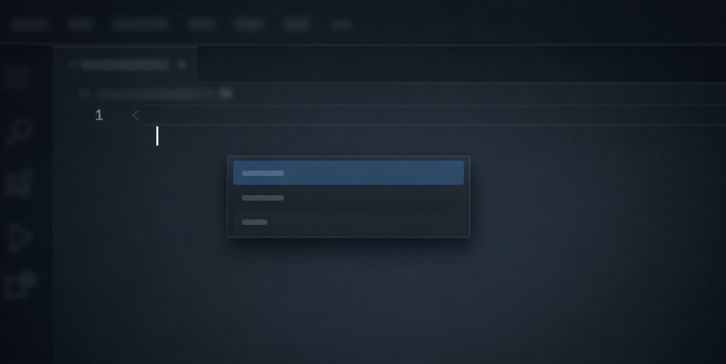
When automatic suggestions stop working, it usually means IntelliSense is not running properly. IntelliSense depends on settings, language detection, and background services called language servers. If any of these fail, suggestions do not appear.
This does not mean VS Code is broken. In most cases, a setting is disabled, an extension is blocking IntelliSense, or the file language is not detected correctly.
Causes of Automatic Suggestions Not Working
Below are the most common reasons this error happens.
- IntelliSense or quick suggestions are turned off in settings
- Ctrl + Space shortcut is overridden or not responding
- The file is using the wrong language mode
- A VS Code extension is causing a conflict
- The language server stopped or crashed
- Workspace settings are corrupted
VS Code relies heavily on language tools. If one part fails, automatic suggestions stop.
How to Fix Automatic Suggestions Not Working in VS Code
If you are facing this issue, follow these fixes one by one. Do not skip steps. Test suggestions after each fix.
Fix 1: Enable IntelliSense and Quick Suggestions
Sometimes suggestions are disabled by mistake.
Steps:
- Open VS Code
- Press Ctrl + , to open Settings
- Search for “quick suggestions”
- Make sure it is enabled
- Search for “suggest on trigger characters”
- Turn it on
This allows VS Code to show suggestions while typing.
Fix 2: Manually Trigger Suggestions Using Keyboard

This helps confirm whether IntelliSense is still working.
- Press Ctrl + Space
- If suggestions appear, auto popup is disabled
- If nothing happens, move to the next fix
Also check that the shortcut is not changed in keyboard settings.
Fix 3: Check and Set the Correct Language Mode
VS Code shows suggestions based on the file language.
- Look at the bottom-right corner of VS Code
- Click the language name
- Select the correct language, such as JavaScript or Python
If the language is wrong, IntelliSense will not load.
Fix 4: Disable Conflicting Extensions
Some extensions block or override IntelliSense.
Common examples include:
- ESLint
- Prettier
- Language formatters
Steps:
- Disable all extensions
- Restart VS Code
- Test suggestions
- Enable extensions one by one
This helps identify the extension causing the problem.
Fix 5: Reload VS Code and Language Server
Sometimes the language server stops silently.
Steps:
- Press Ctrl + Shift + P
- Open Command Palette
- Type Reload Window
- Press Enter
This restarts IntelliSense without reinstalling anything.
Fix 6: Reset VS Code Settings (Last Option)
If nothing works, settings may be corrupted.
You can reset user or workspace settings, but this removes custom changes.
I don’t know about a safe reset method that keeps all preferences without backup, so use this only as a last option.
Conclusion
Automatic suggestions not working in VS Code is usually caused by settings, extensions, or language detection issues. IntelliSense depends on many background tools, and when one fails, suggestions disappear.
Most users fix the issue by enabling quick suggestions, checking language mode, or disabling conflicting extensions. If these steps helped you, share this guide with others. If you found a different fix, leave a comment to help the community.