What Is “ChatGPT Error Creating or Updating Project”?
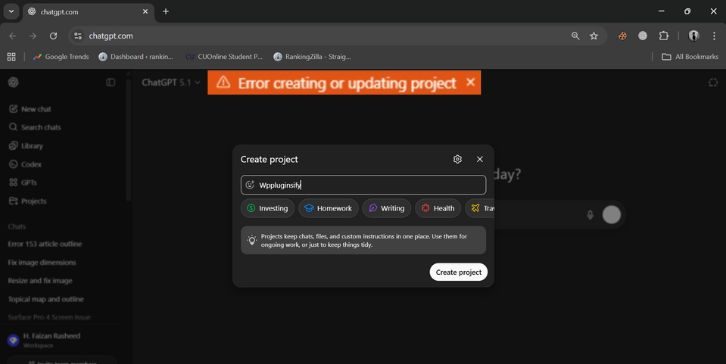
This error appears when ChatGPT cannot complete a new project setup or save changes inside an existing project. The system tries to write data, sync files, update metadata, or refresh the workspace, but the request fails somewhere along the way.
You may see the problem when uploading files, editing content, saving notes, updating a GPT, renaming a project, or switching between project tools. Sometimes the page freezes. Sometimes the save button stops working. Other times you see the error right after pressing save.
Common Causes of the Project Error
This error can happen for different reasons depending on your browser, network, or ChatGPT settings. Below are the most common causes you should know.
- Slow or unstable internet connection
- Corrupted browser cache blocking project requests
- Too many open browser tabs using memory
- VPN or proxy blocking ChatGPT data requests
- File size limit reached inside the project
- Server delay or high ChatGPT traffic
- Logged-out session or expired authentication
How To Fix ChatGPT Error Creating or Updating a Project?
Fixes depend on your browser, your connection, and the type of project you are working on. However, the steps below solve the issue for many users.
Fix #1: Refresh the Page or Tab
This error often appears when the page loads the wrong data. A quick refresh forces ChatGPT to reload the project workspace. Once the page resets, the save request usually works again.
Fix #2: Check Your Internet Connection
A weak or unstable internet connection stops ChatGPT from sending project updates to the server. When the connection drops, the project cannot save. Once your Wi Fi or data is stable, the project updates normally.
Try these simple steps to quickly check your connection:
- Open another website
- Test your Wi Fi on another device
- Restart your router
- Move closer to your router
- Switch to mobile data if needed
- Try saving your project again
Fix #3: Clear Your Browser Cache
Corrupted cache files can block project actions. When the cache is damaged, ChatGPT cannot load or save project data properly. Clearing it removes the broken files. After the cleanup, the workspace loads clean and saves correctly.
Below are the steps that will guide you to clear your cache:
- Open your browser settings
- Tap Privacy or History
- Select Clear browsing data
- Choose Cached images and files
- Clear the data
- Restart your browser
Fix #4: Log Out and Log In Again
This error often appears when your session expires. ChatGPT may show the workspace, but the save action fails because you are no longer fully logged in. When you sign out and back in, your session resets. After that, project updates usually work again.
Fix #5: Disable Extensions Blocking ChatGPT Scripts
Some extensions block scripts or requests that ChatGPT uses for saving data. This can break project creation, uploads, updates, or sync actions. Turning off these tools fixes the block. Once disabled, the project usually saves on the first try.
Follow the steps below to easily disable extensions:
- Open your browser menu
- Go to Extensions
- Turn off ad blockers or script blockers
- Refresh the project page
- Try saving again
Fix #6: Turn Off VPN or Proxy
A VPN or proxy can send your requests through a slow or restricted path. This breaks project updates. When you turn off the VPN, the request travels normally. After that, the project often saves without any issue.
Fix #7: Try a Different Browser
Sometimes the issue comes from the browser itself. When a browser blocks scripts or fails to render the workspace, ChatGPT cannot save your project. Trying a different browser helps you see if the problem is local. If it works somewhere else, you know the original browser caused the issue.
Fix #8: Reduce File Size or Remove Large Files
This error can appear when you upload large files or when the project reaches its data limit. ChatGPT cannot save the update if the file is too big. Removing large files or reducing sizes gives the project enough room to save again.
Here are the following steps which help you reduce file size:
- Check your file sizes
- Compress large files
- Remove unnecessary uploads
- Save the project again
Fix #9: Restart Your Device
Sometimes the browser engine or project environment becomes stuck. Restarting your device clears memory, closes stuck tasks, and refreshes the system. After the restart, ChatGPT often saves the project without any trouble.
Fix #10: Wait for Temporary Server Issues To Clear
ChatGPT may be under heavy load or updating systems. When this happens, save requests fail even if your device works fine. Waiting a few minutes and trying again gives the server time to recover. Once the system stabilizes, your project saves normally.
Prevention Tips To Avoid This Project Error
A few simple habits make ChatGPT Projects smoother and help avoid save errors.
- Keep your browser updated
- Clear cache often
- Avoid very large file uploads
- Use stable Wi Fi
- Keep fewer tabs open
- Avoid unstable VPN connections
- Log back in if ChatGPT feels slow
Conclusion
This error appears when ChatGPT cannot complete a save or update inside the project workspace. It usually happens because of network problems, corrupted cache, browser conflicts, or session issues. These problems sound technical, but most fixes are simple.
Try the steps in this guide and your project should save again without trouble. If the error stays, you may need to check ChatGPT support or wait for system updates.