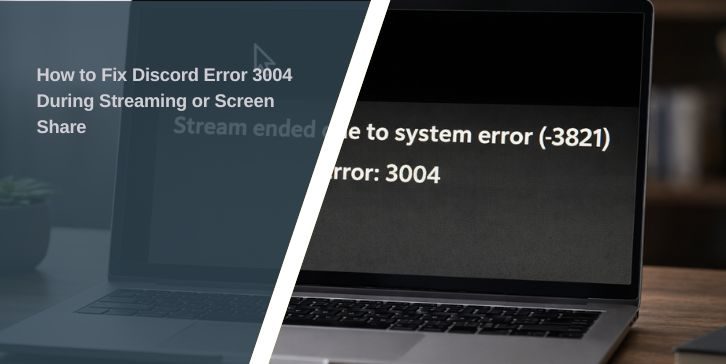
Discord Error 3004 shows up when you try to stream or share your screen and Discord can’t access your video source. It mostly happens during screen sharing or when starting a stream in a voice channel. The error stops video or audio from working properly.
This problem usually comes from issues with screen capture settings, video hardware, or app permissions. Good news: it’s common and easy to fix. Here’s what you need to know and do.
Why Does Discord Show Error 3004?
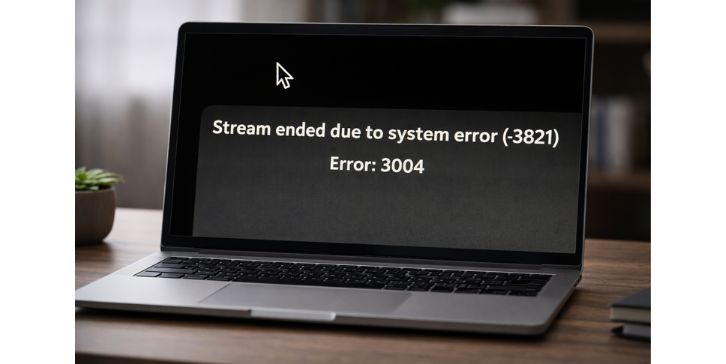
This error is linked to how Discord captures your screen or video. It doesn’t mean your app is broken, but something is blocking screen access.
Some common causes:
- Discord not allowed to use OS screen capture menus
- Hardware acceleration interfering with video capture
- GPU drivers are outdated or broken
- Discord lacks admin rights
- Cache or temp files corrupted
- App not restarted after system changes
Each of these can block the stream from loading or make the video fail when sharing starts.
Fixes for Discord Error 3004
You don’t need to try everything at once. Start with simple fixes. If one doesn’t work, move to the next.
Fix #1 – Enable OS Menu for Screen Capture
This fix helps Discord use your system’s built-in screen selection instead of its default method.
Steps:
- Open Discord
- Go to User Settings > Voice & Video
- Scroll down to Video Settings
- Check the box: “Use operating system menus to select a screen capture source”
- Restart Discord and try again
This method works well for newer GPUs and prevents Discord from misreading screen sources.
Fix #2 – Disable Hardware Acceleration
Hardware acceleration often causes problems during streaming. It may interfere with how Discord captures your screen. Disabling it is quick:
- Go to Voice & Video > Advanced
- Toggle Hardware Acceleration off
- Restart Discord afterward
This forces the app to use standard software rendering for capture.
Fix #3 – Run Discord as Administrator
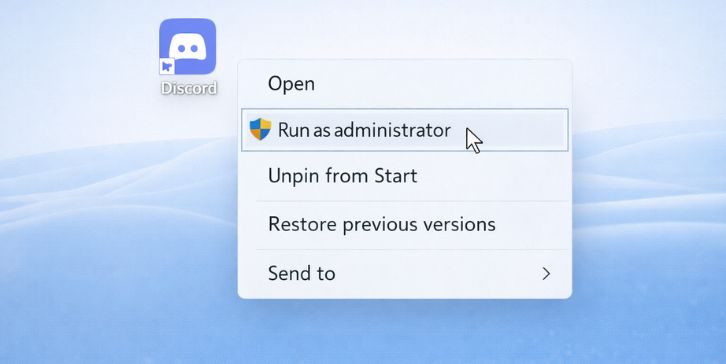
Some systems don’t give Discord full permission to access video layers unless it’s running in admin mode. This can block screen sharing or cause Error 3004.
Just right-click the Discord shortcut and choose Run as Administrator. That’s all. Try screen sharing after this. It helps especially if you’re capturing games, protected apps, or GPU-heavy programs.
Fix #4 – Restart Everything
This is the easiest fix, but it works more than you’d think. Fully close Discord — not just minimize it. Use Task Manager to make sure it’s closed. Then restart your PC. Reopen Discord and check if screen sharing works.
A fresh start clears blocked memory, resets capture permissions, and loads the app clean.
Fix #5 – Update Your Graphics Drivers
Outdated or buggy GPU drivers often cause capture errors. If your screen sharing crashes, stutters, or doesn’t load — this might be it.
- If you use NVIDIA, open GeForce Experience and check for updates
- If you use AMD, open Radeon Software and do the same
- Always restart after driver updates
Keeping drivers up-to-date is key when using video capture apps like Discord, OBS, or Zoom.
Fix #6 – Clear the Cache
Discord stores data in the background. If that data goes bad, your app may start misbehaving, including throwing error 3004.
Here’s how to clean it:
- Press
Win + Rand type%appdata%/discord - Press Enter
- Delete the folders named: Cache, GPUCache, and Code Cache
- Restart Discord
You won’t lose your login or settings. It just clears out junk files.
Fix #7 – Try a Different Window or App
Sometimes the issue isn’t Discord — it’s the program you’re trying to share. Some apps block screen capture. Others use protected overlays that Discord can’t grab.
Try sharing a different app window or just your full screen. If that works, the issue is with that specific app, not Discord.
Fix #8 – Reinstall Discord (Only If Nothing Else Works)
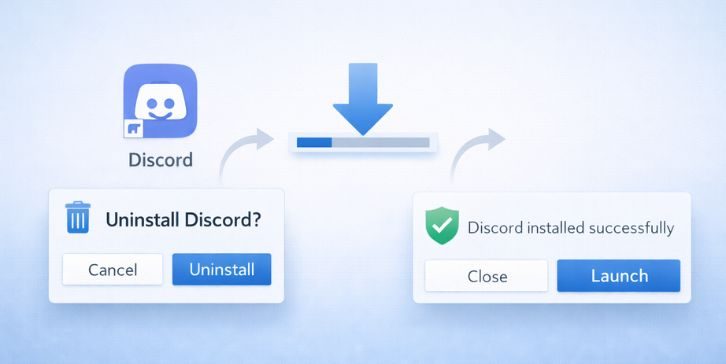
Reinstalling should be the last fix, but it often works if everything else fails.
- Uninstall Discord from your system
- Reboot your PC
- Download the latest version from discord.com
- Reinstall and log back in
A clean install replaces broken files and resets all app settings.
How to Prevent Discord Error 3004 in the Future
Once fixed, keep the error from coming back with a few simple habits:
- Keep Discord updated
- Turn off hardware acceleration unless you need it
- Always run Discord as administrator when streaming
- Clear cache once a month
- Use OS menu screen capture instead of direct capture
- Update your graphics drivers regularly
- Restart your device after driver or system updates
These steps help keep Discord stable during screen sharing or video calls.
Conclusion
Error 3004 in Discord is a screen sharing issue caused by permission problems, outdated drivers, or hardware conflicts. It doesn’t mean your app is broken — it just needs a few settings adjusted.
Most users fix it by enabling OS menus or turning off hardware acceleration. If you’ve tried all the steps and still get the error, reinstalling Discord usually helps.
If this helped, share it with others. Got another working fix? Leave a comment and help more users find a solution that works.