When imports don’t load in Visual Studio Code, it can stop your work right away. You type an import, and VS Code shows red lines or says it cannot find the module.
This issue matters because it breaks autocomplete, error checking, and IntelliSense. Even worse, sometimes the code runs in the terminal but VS Code still shows errors. In this guide, you’ll learn what this import issue means, why it happens, how to fix it step by step, and how to prevent it from happening again.
What Is “Import Is Not Loading” in VS Code?
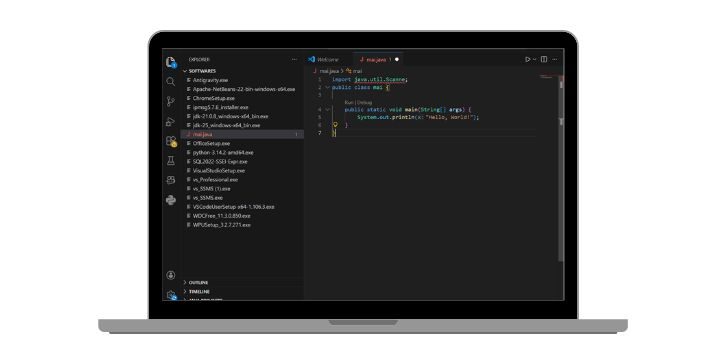
When an import is not loading in VS Code, it means the editor cannot locate the file, module, or package you are trying to use. This is an editor-side problem, not always a runtime error.
You usually see this issue as red underlines, messages like “cannot find module” or “unresolved import,” or missing auto-import suggestions. It can happen in Python, JavaScript, or TypeScript projects, especially when the workspace, interpreter, or dependencies are not set correctly.
Common Causes of Import Not Loading in VS Code
This error can happen for several reasons, depending on your language and setup. Below are the most common causes you should be aware of.
- Wrong project folder opened in VS Code
- Incorrect Python interpreter or virtual environment selected
- Required packages not installed in the active environment
- Missing node_modules folder in JavaScript projects
- No tsconfig.json or jsconfig.json file
- Broken path aliases or relative imports
- Language server or IntelliSense not working properly
How to Fix Import Not Loading in VS Code
In most cases, this issue can be fixed by correcting environment settings or refreshing VS Code’s internal services. Try the fixes below in order and stop when imports start working.
Fix #1: Open the Correct Project Folder
Imports often fail when VS Code opens a subfolder instead of the project root.
Here are the following steps which help you open the correct folder.
- Close VS Code
- Reopen VS Code
- Click Open Folder
- Select the main project directory
- Reload the workspace
This helps VS Code understand the full project structure.
Fix #2: Restart VS Code and the Language Server
Sometimes VS Code services get stuck and stop resolving imports.
Close VS Code fully and reopen it. If that doesn’t help, restart the language server from the Command Palette. This refreshes IntelliSense and clears temporary cache issues.
Fix #3: Select the Correct Python Interpreter (Python Only)
Python imports depend on the active interpreter.
Follow the steps below to easily select the right interpreter.
- Open the Command Palette
- Choose Python: Select Interpreter
- Pick your virtual environment
- Confirm the path matches your project
- Reload the window
Once selected, Python imports usually resolve instantly.
Fix #4: Install Missing Packages or Dependencies
If a package is not installed, VS Code cannot find it.
You can perform the following steps to fix this.
- Open the terminal inside VS Code
- Activate the correct environment
- Install missing packages using pip or npm
- Wait for installation to finish
- Restart VS Code
This ensures dependencies match the editor environment.
Fix #5: Verify node_modules Exists (JavaScript / TypeScript)
JS and TS imports depend on node_modules.
Try these simple steps to verify dependencies.
- Open the project folder
- Check if node_modules exists
- If missing, run npm install
- Wait for completion
- Reload VS Code
This fixes most JS import issues.
Fix #6: Check tsconfig.json or jsconfig.json
VS Code uses config files to resolve paths. If these files are missing or broken, imports fail. Make sure tsconfig.json or jsconfig.json exists in the project root and includes your source folders.
Fix #7: Restart TypeScript Server
The TypeScript server may stop responding.
Here’s how you can restart it quickly.
- Open the Command Palette
- Select TypeScript: Restart TS Server
- Wait for it to reload
- Check import errors again
- Continue coding
This often clears false import errors.
Fix #8: Disable Conflicting Extensions
Some extensions interfere with import resolution.
Disable extra extensions one by one, especially linters or duplicate language tools. Once imports work, re-enable only what you need.
Fix #9: Reload the VS Code Window
Reloading resets internal caches. Use the Reload Window command from the Command Palette. This forces VS Code to re-scan files, configs, and environments.
Prevention Tips to Avoid Import Issues in VS Code
Prevention helps avoid repeated frustration later.
- Always open the correct project root
- Use one interpreter per project
- Install dependencies inside the project
- Keep config files in version control
- Restart VS Code after major changes
- Avoid mixing global and local installs
- Keep VS Code and extensions updated
Conclusion
To summarize, imports not loading in VS Code usually happen because the editor cannot match your project structure with the active environment. It looks serious, but it’s often a setup issue.
Try the fixes one by one and give each step time to work. If the problem continues, check your language server or environment again. If this guide helped you, share it with others and leave a comment describing your language and error so more users can learn from it.