You are using your phone and suddenly a message pops up saying “Samsung account keeps stopping.” You close it, but it comes back again. It interrupts your screen and makes the phone feel unstable.
This error is common on many Samsung devices. It usually happens when the system app that handles your Samsung account crashes in the background.
It does not mean your account is broken. Most of the time, it is just a small issue with app data, system update, or sync process.
The good part is you can fix it easily by following a few steps.
What Does “Samsung Account Keeps Stopping” Mean?
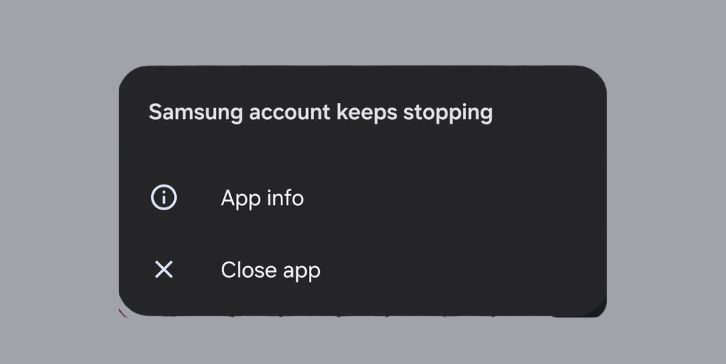
This message appears when the Samsung Account app suddenly stops working. It runs in the background to manage login, cloud sync, and services such as the Galaxy Store or backup.
When the app fails, Android shows this error to let you know something went wrong.
The problem is not always visible. You may not even be using the app directly. But since it runs in the background, any issue inside it can trigger this popup.
Why Samsung Account Keeps Stopping
This error usually comes from a few common reasons. Nothing too complex, but enough to cause repeated crashes.
- App cache becomes corrupted
- Stored data gets outdated or broken
- System software is not updated
- Sync process fails in the background
- Another app conflicts with system services
Sometimes the error starts after an update. Sometimes it appears suddenly without a clear reason.
How to Fix Samsung Account Keeps Stopping Error
If you are facing this issue on your Samsung phone, go step by step. Try one fix and check if the error stops before moving forward.
1. Restart Your Phone
Start with a simple restart. It clears temporary memory and resets background processes.
Sometimes the app crashes because something got stuck in the system. Restarting fixes that quickly.
After restarting, use your phone normally and check if the popup appears again.
2. Clear Samsung Account Cache
Cache stores temporary data to make apps faster. But if it becomes corrupted, it can cause crashes.
Clearing the cache removes that temporary data without affecting your account.
Follow these steps:
- Open Settings
- Go to Apps
- Find Samsung Account
- Tap Storage
- Tap Clear Cache
Now go back and check if the issue is gone.
3. Clear App Data
If clearing cache does not help, clearing full data can fix deeper issues.
This resets the app completely. You may need to log in again after this step.
Steps:
- Open Settings
- Go to Apps
- Select Samsung Account
- Tap Storage
- Tap Clear Data
After that open the app and sign in again.
4. Update Your Phone Software
Outdated system software can cause compatibility problems with system apps.
Check for updates in your phone settings. Install any available updates and restart your device.
New updates often fix bugs related to system apps like Samsung Account.
5. Remove and Add Samsung Account Again
Sometimes the issue is linked to account sync.
Removing your account and adding it again refreshes the connection between your device and Samsung servers.
Go to accounts in settings, remove your Samsung account, then add it again. This helps fix sync errors.
6. Update Google Play Services
Even though this is a Samsung app, it still depends on Android services like Google Play Services.
If those services are outdated, system apps may not work properly.
Go to Play Store and update Google Play Services. Then restart your phone and check again.
7. Check for App Conflicts
Some apps can interfere with system processes. This includes cleaners, boosters, or security apps.
If the problem started after installing a new app, try removing that app and see if the issue stops.
You can also boot your phone in safe mode to test if another app is causing the problem.
Is This Error From System or App
This error can come from both sides.
In many cases, it is caused by app data or sync issues inside the Samsung Account app. But sometimes system updates or conflicts with other apps trigger it.
That is why simple fixes like clearing cache or updating the system often solve it.
How to Prevent Samsung Account Errors
You can reduce the chances of this error by keeping your phone clean and updated.
- Keep your phone software updated
- Avoid installing too many cleaner or booster apps
- Clear the Cache from time to time
- Update apps regularly
- Restart your phone occasionally
These small steps help keep your system stable.
Final Thoughts
The “Samsung account keeps stopping” error looks annoying, but it is usually not serious.
Most of the time it comes from cache or sync issues. Once you clear data or update your system, the problem goes away.
Take it step by step, and you will fix it easily.
If this guide helped you, share it with others. And if you are still stuck, tell me your phone model and Android version. We will figure it out together.