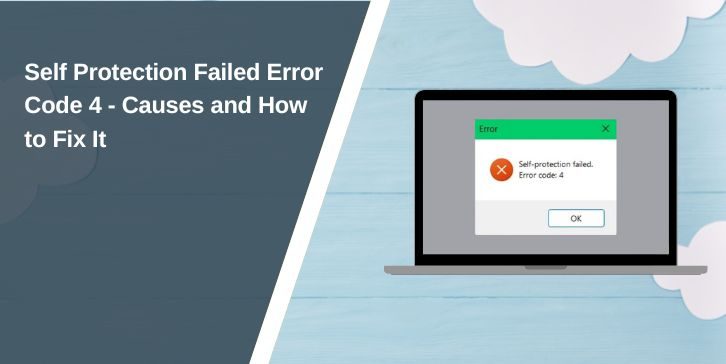
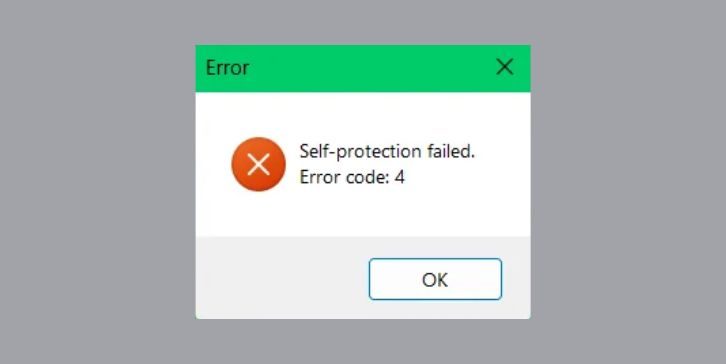
You open a program and suddenly a small window appears. It says Self protection failed with error code 4. After that the software does not start.
This feels confusing because you are not doing anything wrong. Still the program blocks itself. It refuses to run and gives almost no clear explanation.
This error usually comes from a security layer inside the software. Many programs include a self protection system to stop tampering or unsafe changes. When that system detects something unusual, it shuts the program down.
The good part is this issue is fixable in most cases.
What Does Self Protection Failed Error Code 4 Mean?
Self protection is a built-in safety feature. It protects the software from being modified, blocked, or attacked by other programs.
When you launch the app, this protection system checks your environment. It looks at permissions, system files, and other running processes.
If something does not look right, the program stops immediately. That is when you see error code 4.
So the error is not random. It is the software reacting to something it does not trust.
Why do you see Error Code 4?
This error usually comes from a few common causes. Most of them are related to system conflicts or permissions.
- Antivirus or security software blocking the program
- Program not running with proper permissions
- Corrupted or missing files
- Another app interfering in the background
- Outdated system or driver issues
Even a small background process can trigger this error if it conflicts with the program’s security system.
How to Fix Self Protection Failed Error Code 4
If you are facing this issue, follow these steps one by one. Test after each fix so you know what worked.
1. Restart Your System
Start with a simple restart. It clears temporary processes and resets system memory.
Sometimes the issue comes from a stuck process in the background. Restarting removes that and allows the program to run normally.
After restarting, open the program again and check if the error appears.
2. Run the Program as Administrator
Permissions are very important for security-based programs. If the app cannot access required system resources, it may block itself.
Right click on the program and select “Run as administrator.” This gives it full access to what it needs.
Try launching again after this step.
3. Disable Antivirus Temporarily
Antivirus tools can sometimes block programs that modify system behavior. This includes tools with self protection systems.
Disable your antivirus for a short time and run the program again. If it works, the antivirus is likely causing the conflict.
In that case, add the program to the antivirus exception list instead of keeping protection off.
4. Close Conflicting Applications
Some apps running in the background can interfere with protected software. This includes overlays, monitoring tools, or system utilities.
Follow these steps:
- Open Task Manager
- Check running programs
- Close unnecessary apps
- Keep only essential processes
After that, launch your program again.
5. Reinstall the Software
If files are damaged or missing, reinstalling is the best solution.
Uninstall the program first. Then install a fresh version from a trusted source.
Steps:
- Remove the program from system
- Restart your computer
- Install latest version again
This replaces all files and removes hidden issues.
6. Update Windows and Drivers
Outdated system files can cause compatibility problems. Programs may fail if the system environment is not updated.
Check for Windows updates and install them. Also update important drivers if needed.
After updating, restart your system and test again.
7. Check Security Settings
Sometimes system security settings block certain actions. If restrictions are too strict, the program may fail to run.
Check your security settings and make sure the program is allowed to run. You may need to adjust permissions or allow the app manually.
Is This Error From System or Software
This error can come from both sides.
In many cases, it is caused by system conflicts like antivirus or permissions. But sometimes the software itself has broken files or compatibility issues.
That is why trying multiple fixes helps you find the exact cause.
How to Prevent Error Code 4
You can avoid this problem in the future by keeping your system clean and updated.
- Keep your system updated
- Install software from trusted sources
- Avoid running too many background tools
- Allow important programs in antivirus settings
- Restart your system regularly
These steps help keep everything stable.
Final Thoughts
Self protection failed error code 4 may look serious, but it usually comes from simple conflicts.
Fix permissions, check antivirus, and keep your system updated. That is enough in most cases.
If this guide helped you, share it with others. And if you are still stuck, tell me which program shows this error. We will fix it step by step.