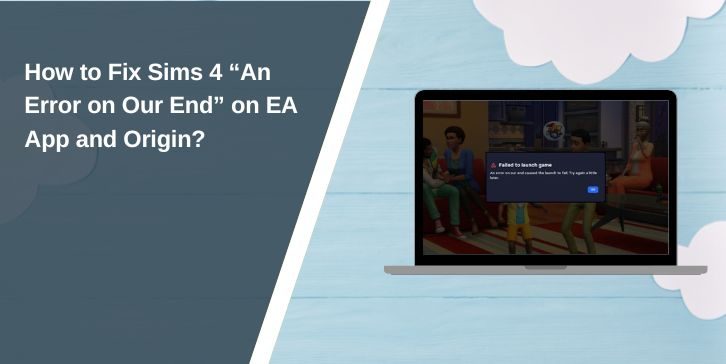
When The Sims 4 refuses to open or your DLC won’t download, and you see the message “An error on our end,” it feels confusing because it sounds like EA messed up but still leaves you stuck. It stops the game from installing, updating, or launching through the EA App, Origin, or Steam. This guide explains what the message means, why it shows up, and how you can fix it quickly so you can get back to your Sims.
What Is Sims 4 “An Error on Our End”?

This message appears when the EA App or Origin cannot complete a request. It might fail to load your game library, verify your EA account, activate a Sims 4 DLC pack, or start the main game. The system tries to connect to EA servers, but something breaks in the process.
Players often see this message on the EA App library page, the Sims 4 launcher screen, the DLC window, the download section, or inside Origin. It shows up on both Windows and macOS devices. It may appear when installing expansions, opening Build Mode content from the gallery, or trying to update the game.
Common Causes of Sims 4 “An Error on Our End”
This error can happen for different reasons depending on your device, the EA App, and your network. These are the most common causes:
- Corrupted EA App or Origin cache
- EA server outage or maintenance
- Bad login token or account sync failure
- Damaged Sims 4 installation or missing files
- VPN or proxy blocking EA servers
- Weak or unstable Wi Fi
- Firewall or antivirus blocking EA App traffic
How to Fix Sims 4 “An Error on Our End”
Try each fix one by one and test Sims 4 after each step. Some fixes need steps, but others only need a small change.
Fix #1: Restart Your Router

A router restart refreshes your internet path and helps the EA App reconnect to EA servers.
Here are the following steps which help you restart your router:
- Turn off the router.
- Unplug it.
- Wait 30 seconds.
- Plug it back in.
- Wait for all lights to load.
- Restart your PC or Mac.
- Try Sims 4 again.
Fix #2: Check EA Server Status

Sometimes EA servers or account services go down. When this happens, you see this message no matter what you do.
Follow the steps below to easily check the server status:
- Open your browser.
- Search EA Server Status.
- Go to the EA Help site.
- Look for Sims 4 or EA App services.
- If servers are down, wait.
- Try Sims 4 again once they return.
Fix #3: Clear EA App or Origin Cache
The EA App and Origin build up cache files. When these files break, the launcher fails to load Sims 4 data.
To fix this, open the EA App, go to Help, choose App Recovery, and click Clear Cache. The EA App will restart.
In Origin, go to Settings and clear the Origin cache.
Fix #4: Repair Sims 4 Game Files
Broken or missing files can block the game from launching. You can perform the following steps to repair your game:
- Open EA App or Origin.
- Go to The Sims 4 page.
- Click Manage or the three dots.
- Choose Repair.
- Wait for the scan.
- Download repaired files.
- Try opening Sims 4.
Fix #5: Sign Out and Sign Back In
A bad EA login token can cause this message because the system fails to verify your Sims 4 ownership.
Sign out of your EA App or Origin account, close the launcher, reopen it, and sign back in.
Fix #6: Disable VPN or Proxy
VPNs and proxies may block EA servers and stop the Sims 4 launcher from opening. Turn off your VPN or proxy service, restart the EA App, and try again.
Fix #7: Update the EA App or Origin
A simple launcher update can fix bugs that cause the error. Just open EA App or Origin, check for updates, install them, and restart the launcher.
Fix #8: Delete Sims 4 LocalCache Files
Old LocalCache files can cause loading trouble or corrupt DLC checks. Here’s how you can clear LocalCache in just a few seconds:
- Open your Documents folder.
- Go to Electronic Arts.
- Open The Sims 4 folder.
- Delete the LocalCache folder.
- Start the game again.
This does not delete your saves.
Fix #9: Reset the Sims 4 Folder (Safe Method)
A soft reset helps when your Sims 4 folder has corrupted data. Perform the following steps carefully to reset it:
- Open Documents.
- Go to Electronic Arts.
- Find The Sims 4 folder.
- Right click and rename it to Sims4Backup.
- Start the game to generate a new clean folder.
- Move your Saves and Tray files back if needed.
Fix #10: Change DNS Settings

Bad DNS settings can block EA servers or Sims 4 downloads. These are the exact steps you need to follow to change DNS:
- Open your network settings.
- Select Manual DNS.
- Enter 8.8.8.8 and 8.8.4.4
- Save.
- Restart your device.
- Try Sims 4 again.
Fix #11: Reinstall the EA App or Origin
If the launcher is too damaged, reinstalling fixes deeper issues. Uninstall EA App or Origin, restart your device, reinstall it, and then try launching Sims 4 again.
Prevention Tips
These simple habits help you avoid future errors:
- Keep the EA App updated
- Restart your router weekly
- Avoid unstable VPNs
- Clear EA App cache sometimes
- Keep enough storage space
- Update Windows or macOS
- Back up Sims 4 saves regularly
Conclusion
In short, the Sims 4 “An error on our end” message appears when the EA App or Origin fails to connect to EA servers or load your game data. The causes range from broken cache files to network problems. Once you know what triggers it, the fixes become quick and easy.
Try the steps in this guide and see which one works best for your setup. If nothing helps, reach out to EA Support or check the EA Answers HQ forums. And if you found a method that solved the issue, feel free to share it so other players can fix their game too.