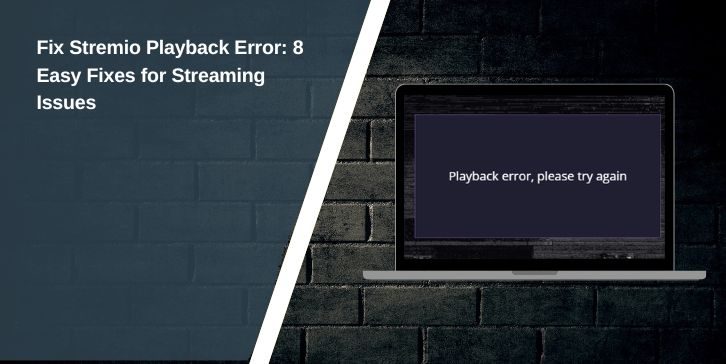
The Stremio playback error stops videos from loading or streaming. It shows up as a message when you try to watch a movie or show. This can happen on any device – PC, Android, or smart TV.
This guide will help you figure out why this error shows up, how to fix it, and how to avoid it next time. Whether you’re using official add-ons or community ones like Torrentio or PirateBay, this guide has you covered.
Why Does the Playback Error Happen in Stremio?
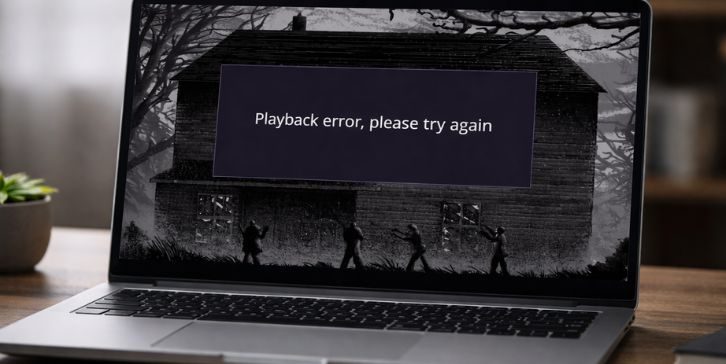
Several things can cause playback issues in Stremio. It’s not always the app’s fault. Sometimes, it’s your internet, device, or add-on.
Here are some common causes:
- Stremio app is out of date
- Slow or unstable internet connection
- VPN or proxy blocking media servers
- Firewall or antivirus stopping Stremio
- Problem with the streaming add-on
- Cache or temp files causing issues
- DNS settings misconfigured
- Port blocking from ISP or router
- Device not supported or media codec missing
Each of these issues can interrupt your stream. Now let’s look at how to fix them.
How to Fix Stremio Playback Error
Fixes depend on what caused the issue. Sometimes it’s the app. Sometimes it’s your network, your system, or the streaming add-on itself.
Fix #1 – Restart the Basics
Try this first before anything else:
- Close the Stremio app completely (don’t just minimize it)
- Restart your device
- Reopen the app and stream again
Temporary glitches or RAM issues often go away with a clean reboot.
Fix #2 – Check Internet Stability
Poor network conditions can cause streaming to block or slow down. You need a stable, low-latency internet connection, especially if using peer-to-peer add-ons.
- Restart your router
- Use wired connection if possible
- Avoid downloading or streaming on other devices during playback
- Use Fast.com or Speedtest.net to check speed (aim for at least 5 Mbps)
If your speed is low or unstable, this could be the main problem.
Fix #3 – Update the Stremio App
Outdated versions may crash or fail to load streams due to broken links or old player modules. Developers often release small patches to fix this. Download the latest version from stremio.com. Install it over your current app. Then reopen Stremio and test your stream again.
Fix #4 – Clear Stremio Cache
Cache data builds up over time. Sometimes it gets corrupted and blocks playback.
To clear cache:
- Open Stremio
- Go to Settings > Advanced > Clear Cache
- Restart the app
This resets stored data and fixes small bugs without deleting your add-ons or account.
Fix #5 – Disable VPN or Proxy
If you’re using a VPN or proxy, try turning it off. Stremio add-ons connect to different servers, some of which are region-sensitive. VPNs often block or reroute this connection, leading to failure.
When VPN is off, try again. If it works, your VPN was causing the playback error. Some VPNs like ExpressVPN or NordVPN are better suited for streaming, but even they can cause issues with certain links or CDNs.
Fix #6 – Try a Different Add-On
The problem might be the add-on, not the app. Torrentio, RARBG, EZTV, Zooqle – all these rely on external sources. If those servers are down or blocked by your ISP, playback will fail.
Switch to a different add-on:
- Go to Add-ons section
- Install another one like PirateBay or Juan Carlos 2
- Search the same title and try streaming again
If the stream works, the issue was with the add-on, not your setup.
Fix #7 – Change DNS Settings
Your DNS controls how your device locates servers across the internet. Some default DNS providers (like your ISP) may block torrent-based or peer-streamed video.
Use Google DNS or Cloudflare:
- Google: 8.8.8.8 and 8.8.4.4
- Cloudflare: 1.1.1.1 and 1.0.0.1
Set these in your router or manually in your device’s network settings. This often improves stream resolution speed and avoids access errors.
Fix #8 – Allow Stremio in Firewall or Antivirus
Security tools like Windows Defender or Bitdefender may block part of the Stremio app — especially its peer-to-peer or CDN connections.
To fix this:
- Go to your firewall or antivirus settings
- Find “Allow an app through firewall”
- Add Stremio (or Stremio.exe) to the allowed list
- Make sure it’s allowed on both Private and Public networks
Restart your system and test playback again.
How to Prevent This Error from Happening Again
To avoid this issue in the future, follow these tips:
- Keep Stremio updated
- Don’t overload it with too many add-ons
- Restart your modem/router once a week
- Avoid shady or broken community add-ons
- Use a fast and stable internet connection
- Clear cache monthly
- Don’t run VPN while streaming
- Allow Stremio in antivirus/firewall settings
- Use add-ons like Real-Debrid for better streaming links
A little cleanup and habit change goes a long way.
Conclusion
The Stremio playback error is common. It often comes from the app, your network, or a blocked add-on. You can fix it by updating, changing DNS, checking add-ons, or switching devices.
Try the fixes above one at a time. If nothing works, visit Stremio’s official support or forums. Most users find that clearing cache, updating the app, or switching add-ons solves the problem.
If this helped, share the post with others. Still stuck? Drop a comment so others can help too.