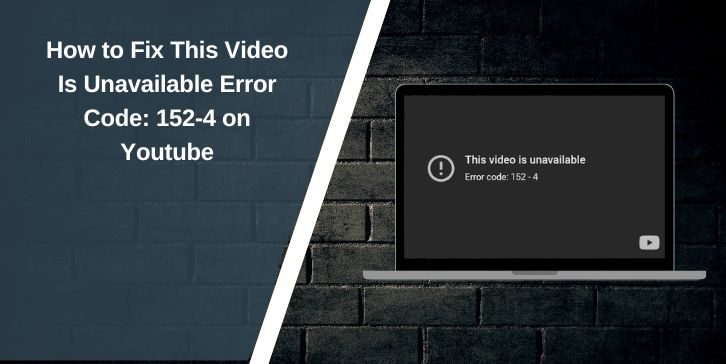
You open a video on YouTube and instead of playing, a message appears. It says this video is unavailable with error code 152-4. You refresh the page, but nothing changes.
This kind of error feels confusing because it does not tell you what exactly went wrong. The video is right there, but it refuses to play.
In most cases, the problem is not serious. It usually comes from connection issues, app data, or video restrictions. Once you understand the reason, fixing it becomes much easier.
What Does Error Code 152-4 Mean on YouTube?
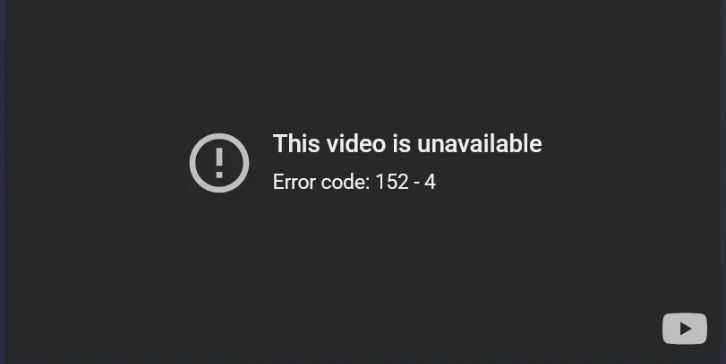
This error means the video cannot be loaded properly. It may be blocked, restricted, or unable to connect through your device.
When you press play, YouTube tries to load the video using your network, app, and account settings. If any part of that process fails, the video stops and shows this message.
So the issue is not always the same. It depends on what is blocking the playback.
Why You See This Video Is Unavailable Error
There are a few common reasons behind error code 152-4. Most of them are simple and easy to fix.
- weak or unstable internet connection
- video removed or restricted by the uploader
- app cache or stored data causing issues
- region or age restrictions
- outdated app or browser
- VPN or network settings blocking access
Sometimes the video itself is not available anymore. In that case, no fix will make it play.
How to Fix Error Code 152-4
If you are facing this issue on YouTube, try these fixes one by one. Check after each step to see if the video works.
1. Check Your Internet Connection
Check your internet connection. A weak or unstable signal can prevent videos from loading. Switch between WiFi and mobile data, and move closer to your router if needed. Then try playing the video again.
2. Refresh or Reload the Video
Sometimes videos don’t load because of a slight delay. Refreshing the page or closing and reopening the app. This sends a new request and often resolves the problem.
3. Clear Cache and App Data
Stored data can become outdated and cause playback problems.
Clearing it gives the app a fresh start.
Follow these steps:
- Open Settings on your device
- Go to Apps
- Select YouTube
- Tap Storage
- Tap Clear Cache
- If needed, tap Clear Data
After that open the app again and test the video.
4. Update YouTube App or Browser
Outdated apps can create compatibility problems, especially with streaming on YouTube, where newer features may not work on older versions.
To fix this, go to the Play Store or App Store and update YouTube to the latest version.
If you are using a browser, make sure it is also updated. Once everything is up to date, try playing the video again and see if the issue is resolved.
5. Try Another Device or Browser
Sometimes the issue is not with the video itself but with the device or browser you are using. Problems like outdated settings, corrupted data, or small glitches can stop playback on one device while everything works fine on another.
To check this, open the same video on a different phone, computer, or browser. If the video plays without any issue, then the problem is with your original device or browser setup. This helps you narrow down the cause and focus on fixing the right place instead of guessing.
6. Check Video Availability
If you are using a VPN while watching videos on YouTube, it can change your virtual location and affect video access. Some videos are limited to certain regions, so when your location appears different, YouTube may block the video and show error code 152-4, even though everything else looks fine.
7. Disable VPN or Check Region Settings
If you are using a VPN while watching videos on YouTube, it can change your virtual location and affect video access. Some videos are limited to certain regions, so when your location appears different, YouTube may block the video and show error code 152-4. It may look like a normal playback issue, but in reality, it is often just a region mismatch.
The easiest fix is to turn off your VPN and try playing the video again. If it works, then the VPN was the cause. You can also try switching to a different server or network. In some cases, changing from WiFi to mobile data helps because the network itself may have restrictions.
Is This Error From YouTube or Your Device
This error can originate from either side. If the video is removed or restricted, the issue is on YouTube’s end. But if other videos work fine, the problem is probably on your device or network. That’s why testing on another device helps you identify the real cause.
How to Prevent Error Code 152-4
You can avoid this error by keeping your app and system in good condition.
- Keep your app or browser updated
- Clear the cache from time to time
- Use a stable internet connection
- Avoid unnecessary VPN use
- Restart your device occasionally
These small steps help keep video playback smooth.
Final Thoughts
Error code 152-4 may look confusing, but it usually comes from simple issues like connection or app data.
Go step by step and check each fix. In most cases, the video will start working again.
If this guide helped you, share it with others. And if you are still stuck, tell me your device and what exactly happens. We will solve it together.