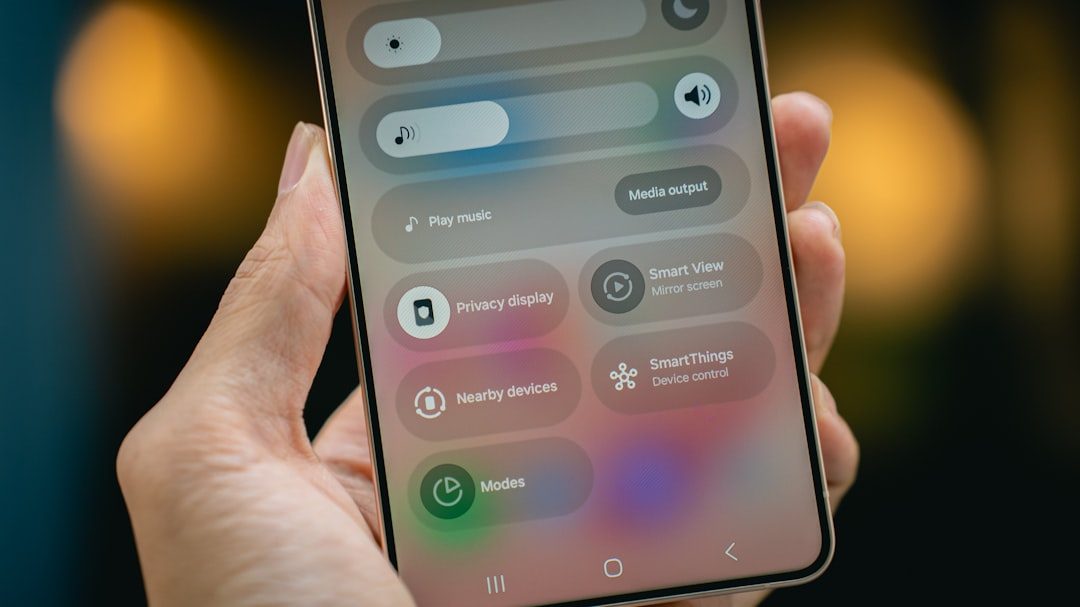
Forgetting a Samsung phone password can feel overwhelming, especially when important photos, messages, and work files are locked behind the screen. Fortunately, Samsung devices offer multiple official and third-party solutions that can help users regain access safely and efficiently. The right method depends on whether features such as remote unlock, backup accounts, or debugging settings were previously enabled.
TLDR: Users who forget their Samsung phone password have several reliable recovery options. They can unlock the device using Samsung’s SmartThings Find, Google’s Find My Device, factory reset recovery mode, Samsung support services, or specialized unlocking software. Each method has different requirements and data implications, so choosing the right one depends on prior setup and backup availability. Preparing in advance can prevent permanent data loss.
1. Unlock Using Samsung SmartThings Find
Samsung provides an official remote unlocking service called SmartThings Find (formerly Find My Mobile). This is often the fastest and safest solution — provided the device is registered to a Samsung account and remote unlocking is enabled.
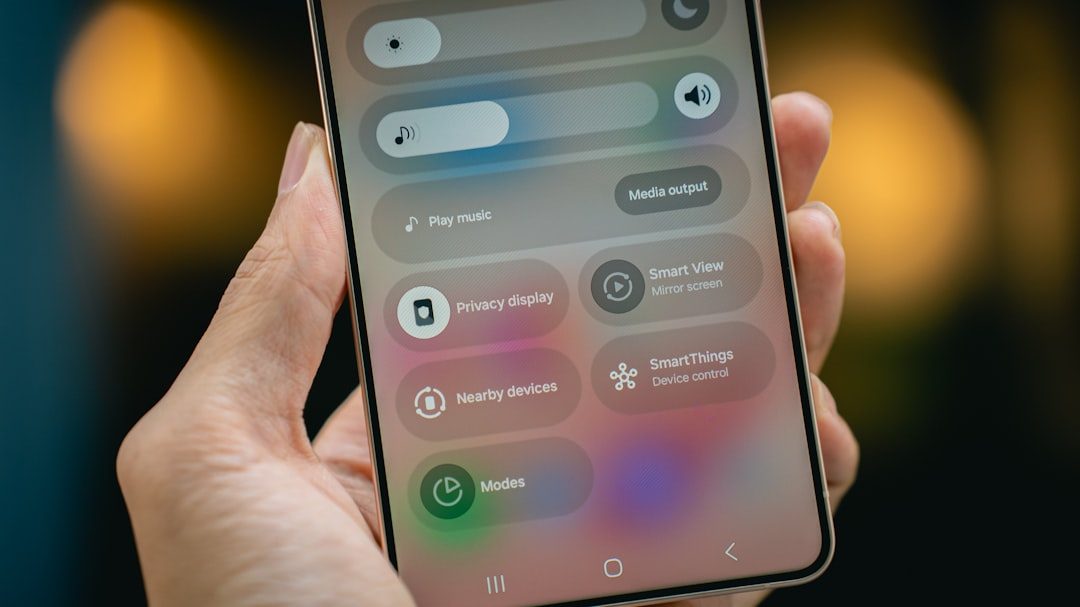
How it works:
- The user logs into the Samsung account associated with the locked phone.
- They select the registered device from the dashboard.
- They choose the Unlock option.
- The phone password, PIN, or pattern is remotely removed.
Requirements:
- The phone must be powered on.
- It must be connected to Wi-Fi or mobile data.
- Remote unlock must have been enabled beforehand.
- A valid Samsung account login is required.
This method does not erase data, making it the most desirable option. However, if the Samsung account was not previously set up, another solution is needed.
2. Use Google’s Find My Device
If SmartThings Find is unavailable, Google’s Find My Device may help. This method works for Android devices linked to a Google account.
Steps involved:
- Visit the Find My Device website.
- Sign in using the Google account connected to the phone.
- Select the device from the list.
- Choose the Erase Device option.
Unlike Samsung’s remote unlock feature, Google’s solution typically requires a factory reset. This means all data on the phone will be erased.
Important considerations:
- The phone must be online.
- The user must know the Google account credentials.
- After reset, the phone may require Google account verification (Factory Reset Protection).
While this method restores access to the phone, it is best used when data has been previously backed up to Google Drive or another cloud service.
3. Perform a Factory Reset via Recovery Mode
Another common method involves manually performing a factory reset through Recovery Mode. This approach does not require remote access but will erase all data on the device.
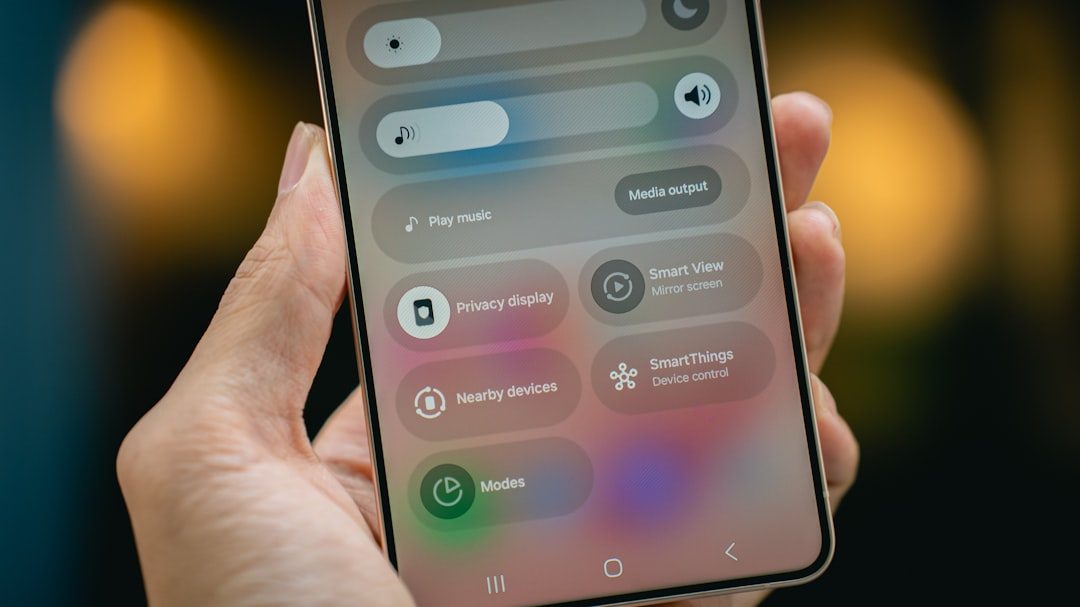
General steps:
- Turn the phone off completely.
- Press and hold the correct button combination (often Power + Volume Up, sometimes with the Bixby button depending on model).
- Release buttons when the Samsung logo appears.
- Select Wipe data/factory reset using volume keys.
- Confirm using the Power button.
Once complete, the device reboots to its original factory settings.
Advantages:
- Works without internet connection.
- No need for Samsung or Google dashboard access.
Disadvantages:
- Permanently deletes data not backed up.
- May trigger Factory Reset Protection requiring Google account login.
This method is often considered a last resort unless the user has recent backups.
4. Visit a Samsung Service Center
When remote tools and factory reset methods are not suitable, seeking help from an official Samsung Service Center is another viable option. Professional technicians can assist in verifying ownership and restoring device access.
What the user should bring:
- Proof of purchase.
- Valid identification.
- Samsung account details (if available).
Technicians may perform a system reset or reinstallation depending on the situation. Policies can vary by region, but official service reduces the risk of device damage or voided warranties.
This approach is particularly useful when:
- The phone is locked due to multiple failed attempts.
- Factory Reset Protection blocks setup.
- The user cannot access linked accounts.
5. Use Professional Unlocking Software
Several reputable software solutions exist that claim to unlock Samsung phones without requiring passwords. These tools are typically installed on a computer and used to connect the locked device via USB.
General process:
- Install unlocking software on a PC or Mac.
- Connect the Samsung phone using a USB cable.
- Put the device into Download Mode or Recovery Mode.
- Follow on-screen instructions for unlocking.
Some tools allow unlocking without data loss on certain Samsung models, particularly older ones. However:
- Compatibility varies by model and Android version.
- There may be fees involved.
- Results are not always guaranteed.
Users should always verify the credibility of such software and understand the risks before proceeding.
Comparison Chart of Unlock Methods
| Method | Data Loss | Internet Required | Account Needed | Best For |
|---|---|---|---|---|
| SmartThings Find | No | Yes | Samsung Account | Users with remote unlock enabled |
| Google Find My Device | Yes | Yes | Google Account | Users with Google backup |
| Recovery Mode Reset | Yes | No | Google Account after reset | No remote access available |
| Samsung Service Center | Possible | No | Proof of ownership | Account access issues |
| Unlocking Software | Varies | Sometimes | Usually no account needed | Specific model compatibility |
Preventing Future Lockouts
While unlocking solutions exist, prevention is always preferable. Users can take proactive steps to reduce the risk of losing access in the future.
- Enable biometric unlock such as fingerprint or facial recognition.
- Activate SmartThings Find remote unlock.
- Keep Samsung and Google account credentials updated.
- Back up data regularly using Samsung Cloud or Google Drive.
- Store passwords securely using a reputable password manager.
Setting up multiple recovery options ensures that even if a password is forgotten, access can be restored quickly without extensive data loss.
Frequently Asked Questions (FAQ)
1. Can a Samsung phone be unlocked without losing data?
Yes, if SmartThings Find remote unlock is enabled, the phone can be unlocked without erasing data. Some third-party tools may also preserve data, depending on model compatibility.
2. What happens if Factory Reset Protection is triggered?
After a factory reset, the device may request the Google account previously linked to the phone. Without those credentials, access may be blocked until account verification is completed.
3. Does a factory reset delete everything permanently?
A factory reset erases apps, settings, and personal files stored locally. However, any data backed up to cloud services can usually be restored during setup.
4. Is it legal to use unlocking software?
Unlocking software is legal when used on a device the user owns. Attempting to unlock a phone without authorization may violate laws and service agreements.
5. How long does the unlocking process take?
Remote unlocking through Samsung or Google typically takes a few minutes. Factory resets may take 5–15 minutes. Service center repairs depend on appointment availability.
6. What is the safest method overall?
The safest method is Samsung SmartThings Find because it does not erase data and uses official authentication. If that option is unavailable, users should ensure backups exist before performing a factory reset.
By understanding these five reliable methods and preparing recovery options in advance, Samsung users can regain access to their devices confidently and prevent unnecessary stress when passwords are forgotten.