The safest setup is to combine three tools: restrict new channel installs, tighten app-level age limits, and reduce data sharing in Roku privacy settings. Roku’s account PIN can limit purchases and adding channels, but it is not a full content filter for every third-party service [source: Roku].
TLDR: Content restrictions decide what a channel or service allows. Privacy settings control data use, ads, and tracking. Parental controls help block children from adding apps, buying content, or watching rated material in supported services. For example, in a home with two adults and one 13-year-old, a PIN plus app-level maturity limits can stop most casual access in about 15 minutes, but each streaming app still needs its own check.

Adult Roku Channels Are Not Controlled by One Switch
Adult Roku channels can include mature films, late-night entertainment, dating content, or subscription services with age-restricted catalogs. Some are obvious. Others are not. That is where people get tripped up.
Content restrictions, privacy settings, and parental controls are separate systems. They overlap a little, but they do different jobs. If you treat them as the same thing, you will leave gaps.
The catch is that Roku gives you useful account controls, but many actual viewing limits sit inside each app. Netflix, Prime Video, Hulu, Max, and smaller services may all use different profile rules. Expect to waste time opening each one and checking its settings manually.
Content Restrictions: What Is Allowed to Appear
Content restrictions are mostly about what a platform, app, or service permits. Roku has rules for apps in its store. Streaming services also have their own content policies, ratings, and account terms.
These restrictions may affect:
- Channel availability in the Roku Channel Store.
- Ratings labels for movies, shows, or live streams.
- Age gates before playback or sign-up.
- Payment access for rentals, subscriptions, or add-ons.
But content restrictions are not the same as protection inside your home. A mature channel may follow Roku rules and still be inappropriate for a child. A movie app may list ratings correctly, yet still show thumbnails, titles, or previews you would rather keep off the main screen.
Privacy Settings: They Do Not Block Adult Content
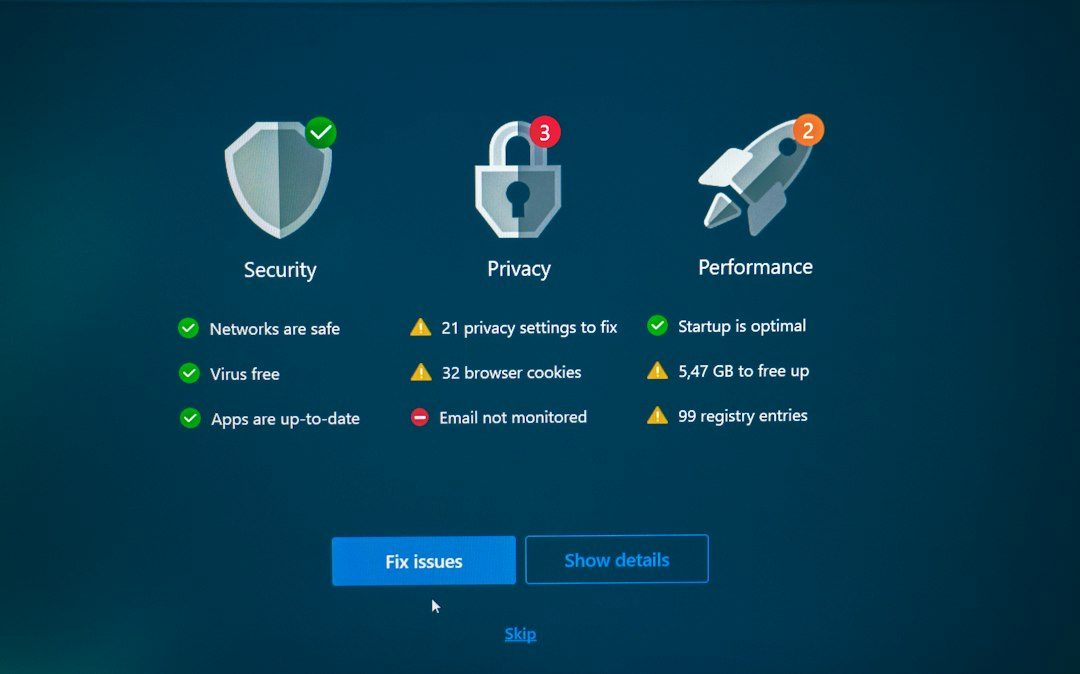
Privacy settings are about data. They control items such as personalized ads, viewing data, voice data, and device-based tracking. These settings matter, especially if several people share one Roku device.
Still, privacy settings will not stop someone from opening an adult-oriented app. They also will not remove mature titles from every search result. Honestly, it feels like this confuses a lot of users because the word “privacy” sounds like it should protect everything. It does not.
Privacy settings may help you:
- Limit ad personalization.
- Reduce some viewing-based recommendations.
- Reset an advertising identifier.
- Control certain smart TV data features.
They are useful for adults who want less tracking. They are also useful in shared homes where one person does not want their viewing habits shaping the whole device. But if your goal is to block mature content, privacy controls are only a side measure.
Parental Controls: The Main Safety Layer
Parental controls are the closest thing Roku has to a household safety tool. The key control is the Roku PIN. Use it to limit purchases and prevent new channels from being added without approval.
This matters because many problems begin with installation. If a child cannot add a new channel, they have fewer ways to reach mature content. That said, a PIN usually does not lock every app already installed. It also does not replace controls inside third-party services.
For a serious setup, use this checklist:
- Set a Roku account PIN for purchases and channel additions.
- Remove channels that are not used or are not suitable for shared screens.
- Set parental controls in The Roku Channel if your household uses it.
- Open each streaming app and set age ratings, kids profiles, or profile locks.
- Disable auto sign-in where possible, especially for paid adult subscriptions.
- Check search and recommendations after changing settings.
Which Setting Should You Use?
Use content restrictions to understand what a service allows. Use privacy settings to reduce tracking and ad profiling. Use parental controls to stop children from adding channels, making purchases, or watching rated material in supported apps.
Here is the simple split:
- Want to stop new adult apps? Use a Roku PIN.
- Want to block mature shows inside an app? Use that app’s profile controls.
- Want fewer targeted ads? Use Roku privacy settings.
- Want a clean family home screen? Remove unsuitable channels and review recommendations.
It drives me crazy that there is no single “adult content off” button across every Roku app. A full review may take 20 to 30 minutes if you have many subscriptions. Still, it is worth doing once, then checking monthly.
Adult Privacy Still Deserves Respect
There is another side to this. Adults in a shared home may have legal, private viewing choices. Parental controls should protect children, not become a tool for spying on partners, roommates, or guests.
A fair household rule is simple: shared devices get shared safety settings. Personal accounts get personal privacy. If mature content is allowed for adults, keep it behind passwords, profile locks, and separate payment methods.
Best practice: lock installs with a Roku PIN, clean up the home screen, set ratings inside every major app, and adjust privacy settings for tracking. No single feature does it all. Used together, they create a safer and more respectful Roku setup.