Dark mode has become more than just a trendy aesthetic—it is a practical feature that reduces eye strain, conserves battery life on OLED screens, and makes nighttime typing significantly more comfortable. While many Android users enable system-wide dark mode, fewer realize they can also automatically enable dark keyboard mode across devices using a few simple methods. Fortunately, whether you use Gboard, Samsung Keyboard, or another popular app, there are reliable ways to ensure your keyboard switches to dark mode without constant manual adjustments.
TLDR: You can automatically enable dark keyboard mode on Android by syncing it with system dark mode, scheduling dark themes, using Gboard settings, using manufacturer-specific options like Samsung’s Night Mode, or installing third-party automation apps. Most Android keyboards support theme syncing, making the process simple and effective. These five easy methods work across a wide range of devices and Android versions. Follow the steps below to find the best option for your phone.
Why Enable Dark Keyboard Mode Automatically?
Before diving into the methods, it helps to understand the benefits. Dark keyboard mode does more than just look sleek:
- Reduced eye strain in low-light environments
- Improved battery efficiency on AMOLED and OLED displays
- Better focus by minimizing screen glare
- Consistent user interface when system dark mode is enabled
Manually switching keyboard themes daily can become tedious. Automating the process ensures seamless transitions between light and dark contexts without repeated adjustments.
Method 1: Sync Keyboard Theme with System Dark Mode
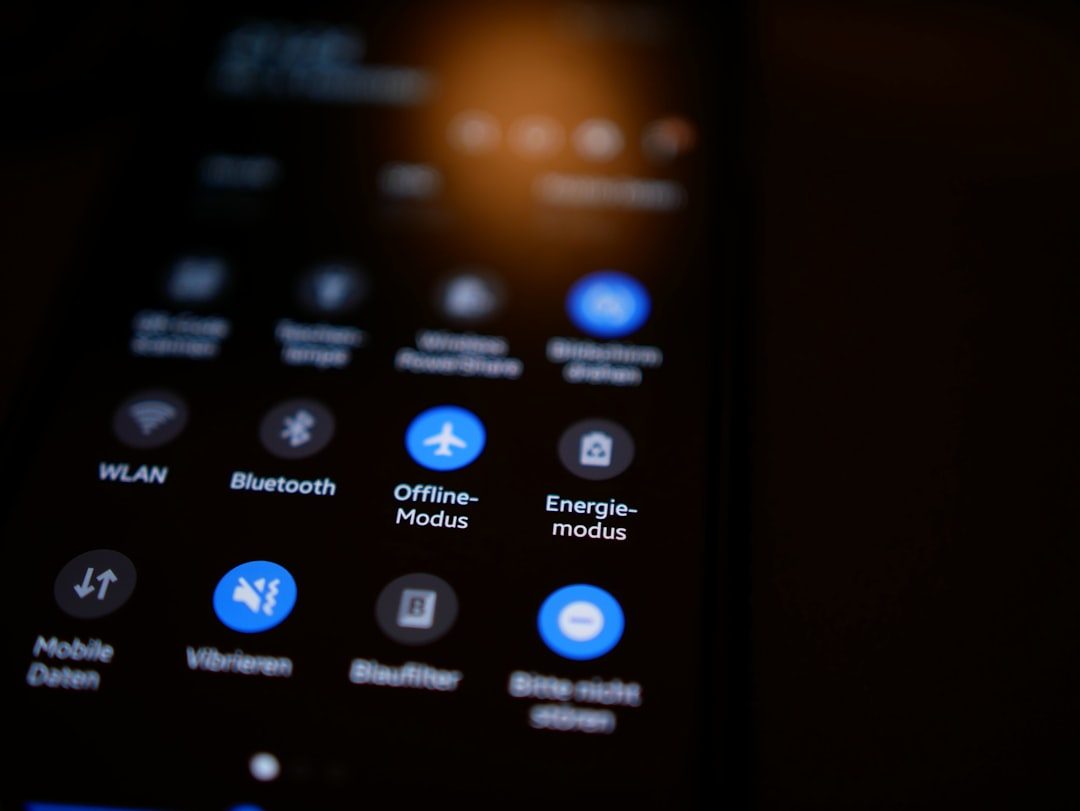
The easiest and most universal method is syncing your keyboard theme with Android’s system-wide dark mode setting.
How It Works
Many keyboards, including Gboard and Samsung Keyboard, automatically follow system theme settings when configured correctly.
Steps:
- Go to Settings on your Android device.
- Select Display.
- Enable Dark Theme (or Night Mode).
- Open your keyboard settings (via Settings > System > Languages & Input > On-screen Keyboard).
- Select your keyboard and choose Theme.
- Choose the option labeled System default or Follow system.
Once activated, your keyboard will automatically switch between light and dark themes according to your device’s display setting.
Best for: Users who already use system-wide dark mode regularly.
Method 2: Schedule System Dark Mode (Sunset to Sunrise)
If you prefer dark mode only in the evenings, scheduling system dark mode is an excellent solution.
Why This Method Works
Since many keyboards follow system settings, scheduling your device’s dark theme automatically changes your keyboard as well.
Steps:
- Go to Settings > Display > Dark Theme.
- Tap on Schedule or Turn on as scheduled.
- Choose either:
- Sunset to sunrise
- Custom schedule
- Ensure your keyboard theme is set to Follow system.
This way, your keyboard transitions automatically at your preferred times without further input.
Best for: Users who want dark keyboard mode only at night.
Method 3: Enable Dark Theme Directly in Gboard
Gboard, Google’s default keyboard on many Android devices, offers a built-in theme scheduling feature (on supported versions).
Image not found in postmetaSteps:
- Open any app that uses the keyboard.
- Tap the gear icon to open Gboard Settings.
- Select Theme.
- Choose a Dark theme.
- Enable Follow system if available.
If “Follow system” is not available, manually selecting a dark theme will keep it consistently dark regardless of system settings.
Extra Tip: Gboard frequently updates features, so ensure your app is updated via the Play Store.
Best for: Pixel users and Android devices using Gboard by default.
Method 4: Use Manufacturer-Specific Night Modes (Samsung, Xiaomi, OnePlus)
Several Android manufacturers include enhanced dark mode controls within their custom skins (One UI, MIUI, OxygenOS).
Samsung Example:
- Go to Settings > Display.
- Tap Dark mode settings.
- Enable scheduling.
- Ensure Samsung Keyboard theme is set to Default (so it follows system mode).
Xiaomi or OnePlus:
- Enable Dark Mode within Display Settings.
- Turn on Adjust wallpaper to dark mode (if available).
- Confirm keyboard theme is not manually overridden.
These manufacturer-level settings tend to override individual app themes, ensuring automatic switching across the interface—including the keyboard.
Best for: Users of Samsung Galaxy, Xiaomi, or OnePlus devices.
Method 5: Use Automation Apps for Advanced Control
If your device lacks built-in scheduling or theme sync, automation apps offer powerful alternatives.
Popular Automation Apps:
- Tasker
- MacroDroid
- IFTTT (limited Android theme control)
Example with MacroDroid:
- Create a new Macro.
- Set trigger: Time of Day (e.g., 9 PM).
- Set action: Enable Dark Mode.
- Create a second macro to disable it in the morning.
Because the keyboard follows system dark mode, this effectively automates keyboard theme switching as well.
Best for: Advanced users who want precise control.
Comparison Chart: Which Method Is Right for You?
| Method | Difficulty | Automation Level | Works Across Devices | Best For |
|---|---|---|---|---|
| Sync with System Dark Mode | Easy | High | Yes | Most Android Users |
| Schedule System Dark Mode | Easy | High | Yes | Nighttime Users |
| Gboard Direct Settings | Very Easy | Medium | Yes (Gboard only) | Pixel and Gboard Users |
| Manufacturer Night Mode | Easy | High | Limited to brand | Samsung, Xiaomi, OnePlus Owners |
| Automation Apps | Moderate | Very High | Yes | Power Users |
Troubleshooting Tips
If your keyboard doesn’t automatically switch themes, consider the following fixes:
- Ensure your keyboard app is updated.
- Clear cache of the keyboard app (Settings > Apps > Keyboard > Storage).
- Re-select the theme and set it to Follow system.
- Restart your device.
Sometimes third-party themes or downloaded keyboard skins can override system behavior. Switching back to the default theme often resolves the issue.
Final Thoughts
Automatically enabling dark keyboard mode on Android is easier than many people realize. Whether you depend on built-in system settings, keyboard-specific options, manufacturer features, or advanced automation apps, there is a method that works for nearly every device.
The most straightforward solution is syncing your keyboard with system dark mode—especially when combined with scheduled activation. For users who want deeper control, automation tools offer impressive flexibility.
With just a few quick adjustments, you can enjoy a smoother, eye-friendly typing experience that adapts automatically to your day. Once configured properly, your dark keyboard quietly works in the background—no extra effort required.