
PowerPoint remains one of the most widely used tools for business presentations, academic projects, training materials, sales decks, and strategic communication. Downloading PowerPoint correctly and activating Microsoft 365 with a legitimate product key are essential steps for maintaining security, reliability, and full access to productivity features across your devices.
TLDR: The safest way to download PowerPoint is through Microsoft 365, the official Microsoft Store, or an authorized retailer. A Microsoft 365 product key should only be purchased from trusted sources and redeemed through your Microsoft account. Avoid “free” or suspiciously cheap keys because they may be counterfeit, already used, or unsafe. For maximum productivity, install Microsoft 365 properly, enable cloud storage, and keep your apps updated.
Understanding PowerPoint and Microsoft 365
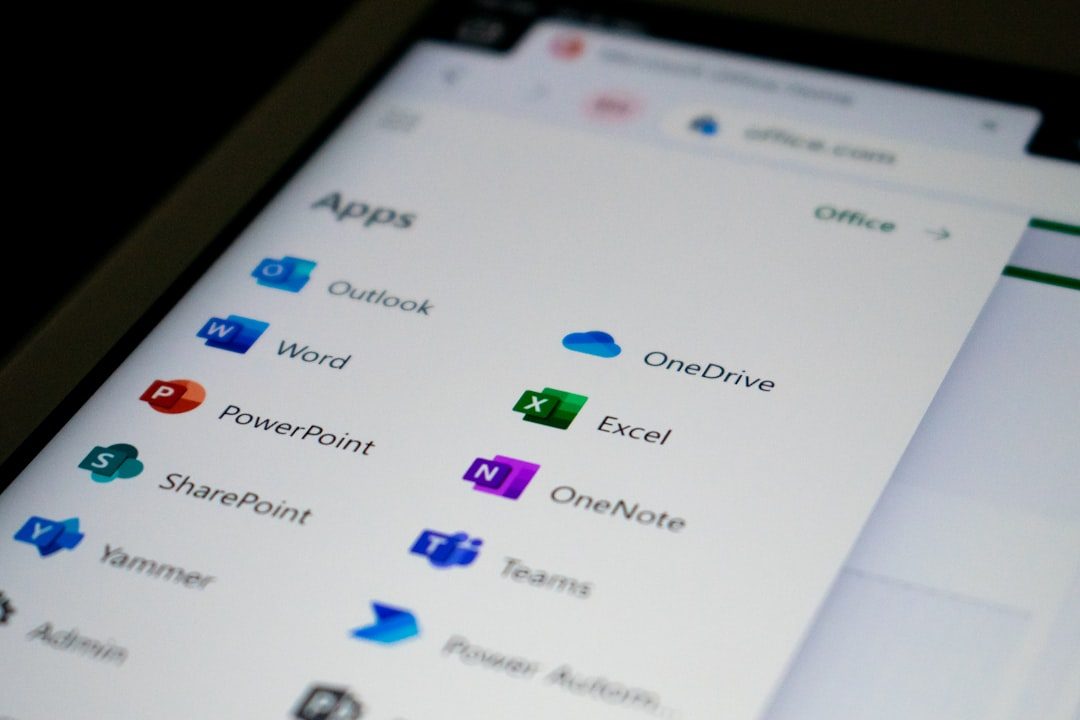
Microsoft PowerPoint is no longer just a basic slide-making program. It is now part of a connected productivity ecosystem that includes Word, Excel, Outlook, OneDrive, Teams, and other Microsoft 365 services. When you download PowerPoint through Microsoft 365, you gain access not only to presentation software, but also to ongoing updates, cloud collaboration, templates, premium design tools, and cross-device synchronization.
There are several ways to access PowerPoint. You can use the full desktop version through a Microsoft 365 subscription, purchase a one-time Office license, use PowerPoint for the web, or install the mobile app on a phone or tablet. Each option serves a different purpose, but users who need professional features and dependable performance usually benefit most from Microsoft 365.

Why Downloading PowerPoint from the Right Source Matters
Downloading PowerPoint from an unofficial website can expose your computer to malware, spyware, corrupted installers, or unauthorized software. Serious users should always treat productivity software as part of their digital security environment. A presentation tool may contain sensitive customer data, internal strategy documents, financial charts, or confidential academic research. Using an unverified installation file puts that information at risk.
The safest sources for downloading PowerPoint include:
- Microsoft 365 official account portal, where licensed users can install Office apps directly.
- Microsoft Store, especially for Windows users who prefer app-based installation.
- Authorized retailers, including reputable electronics stores, business software vendors, and recognized online marketplaces.
- Employer or school portals, if your organization provides Microsoft 365 access.
Before downloading, confirm that you are signed in with the correct Microsoft account. This is especially important if you use separate accounts for work, school, and personal subscriptions. Installing under the wrong account may cause activation issues or limit access to files stored in OneDrive.
Choosing the Right Microsoft 365 Plan
Microsoft 365 is available in several editions, and choosing the right one can improve both cost efficiency and productivity. Personal users may only need Microsoft 365 Personal, while families can benefit from Microsoft 365 Family, which allows multiple users. Businesses may require Microsoft 365 Business Basic, Business Standard, Business Premium, or enterprise plans depending on their security and collaboration requirements.
When comparing plans, consider these factors:
- Number of users: A single-user plan may be enough for individuals, but teams need business or family options.
- Desktop apps: Some plans include only web and mobile apps, while others include full desktop versions of PowerPoint.
- Cloud storage: OneDrive storage is valuable for backups, sharing, and remote work.
- Email and collaboration: Business plans may include Outlook, Teams, Exchange, and SharePoint.
- Security features: Companies should look closely at device management, threat protection, and compliance tools.
If your primary goal is professional presentation creation, make sure the plan includes the full desktop version of PowerPoint. The web version is practical for quick edits and collaboration, but the desktop app provides the strongest feature set.
What Is a Microsoft 365 Product Key?
A Microsoft 365 product key is a unique code used to redeem or activate a legitimate Microsoft subscription or Office license. It is typically found on a physical card, inside retail packaging, in a confirmation email, or in your online retailer account. The product key links your purchase to a Microsoft account, which then manages your subscription, renewals, installations, and device access.
It is important to understand that a product key is not a shortcut or workaround. It is proof of purchase. Once redeemed, the license is usually tied to your Microsoft account rather than repeatedly entered on every device. This makes account security extremely important.
Never share your product key publicly or send it to unverified support contacts. Treat it like a financial credential. If someone else redeems it before you do, you may lose access and need to contact the seller or Microsoft support.
How to Redeem a Microsoft 365 Product Key
The exact process may vary slightly depending on your region and product type, but the general steps are straightforward:
- Go to the official Microsoft redemption page or sign in through your Microsoft account dashboard.
- Sign in with the account you want to use permanently for Microsoft 365 access.
- Enter the product key carefully, checking for similar characters such as O and 0 or B and 8.
- Confirm the product displayed on the screen before completing redemption.
- Install Office apps, including PowerPoint, from your account page.
- Open PowerPoint and sign in to activate the software automatically.
If activation fails, do not repeatedly enter the key on random websites. Instead, confirm that the key has not already been redeemed, check that you are using the correct Microsoft account, and verify that your internet connection is stable. If the issue continues, contact Microsoft support or the retailer from which you purchased the license.
Warning Signs of Counterfeit or Unsafe Product Keys
Cheap Microsoft 365 keys can be tempting, especially when they claim “lifetime access” at a fraction of the normal price. However, many low-cost keys are unauthorized, region-restricted, stolen, previously used, or generated through illegitimate channels. These keys may work temporarily and then stop without warning.
Be cautious if you see any of the following warning signs:
- Prices that are unrealistically low compared with official retail pricing.
- Promises of lifetime Microsoft 365 access for a one-time payment when the product is normally subscription-based.
- Sellers with no clear business identity, refund policy, or support channel.
- Instructions to activate by phone using unusual steps or to avoid signing in normally.
- Keys delivered through informal messages instead of a proper invoice or receipt.
Using a questionable key can lead to lost access, wasted money, data exposure, or compliance problems for businesses. For organizations, improper licensing can create legal and operational risks. The safest approach is to buy directly from Microsoft or from a trusted authorized reseller.
Installing PowerPoint for Best Performance
Once your Microsoft 365 license is active, installation is usually simple. From your Microsoft account, select the option to install apps, download the installer, and follow the prompts. After installation, restart your computer if requested. Then open PowerPoint, sign in, and allow the app to verify your license.
For best performance, keep your operating system updated and confirm that your device meets Microsoft 365 system requirements. PowerPoint can run on many modern computers, but large presentations with videos, animations, high-resolution images, and embedded charts require more memory and processing power.
You should also configure automatic updates. Microsoft regularly improves security, compatibility, accessibility tools, design features, and collaboration functions. Turning off updates may leave you with bugs or missing features that affect your workflow.
Using PowerPoint with OneDrive and Microsoft Teams
PowerPoint becomes significantly more powerful when used with OneDrive and Teams. Saving presentations to OneDrive allows you to access them from multiple devices, recover previous versions, and share files without sending large email attachments. Teams integration allows colleagues to present, review, comment, and collaborate during meetings.
For professional workflows, consider these habits:
- Save files to OneDrive by default to reduce the risk of losing work.
- Use version history when multiple people edit the same presentation.
- Share links instead of attachments to maintain one current version.
- Set appropriate permissions, such as view-only or edit access.
- Use comments and mentions to organize feedback clearly.

Productivity Features Worth Using
Many users only use basic slide layouts, but PowerPoint includes several tools that can save time and improve presentation quality. Designer can suggest professional layouts. Presenter Coach can help improve pacing and clarity. Templates reduce formatting time. Slide Master allows consistent branding across an entire deck. Recording tools make it possible to create training videos, webinars, and narrated lessons.
Excel integration is also valuable. Instead of manually recreating charts, users can insert linked data visualizations that remain connected to spreadsheets. This is especially useful for financial reporting, sales analysis, project updates, and executive dashboards.
Accessibility should not be overlooked. PowerPoint includes an accessibility checker that identifies issues such as missing alt text, poor color contrast, and unclear reading order. Serious presentations should be readable and usable for all audiences, including people who rely on assistive technologies.
Managing Licenses and Devices
Microsoft 365 subscriptions often allow installation on multiple devices, depending on the plan. However, this does not mean licenses can be shared without limits. Personal, family, business, and enterprise plans each have specific rules. Review your subscription terms and manage devices from your Microsoft account dashboard.
If you replace a computer, sell a device, or leave an organization, sign out and deactivate Office where appropriate. This protects your account and prevents unauthorized access to files. Businesses should use administrative tools to assign and remove licenses when employees join or leave the company.
Security Tips for Microsoft 365 Accounts
Your Microsoft account controls access to PowerPoint, OneDrive files, email, and other services, so protecting it is essential. Use a strong, unique password and enable multi-factor authentication whenever possible. Avoid signing in on public computers unless absolutely necessary, and always sign out afterward.
Be alert for phishing emails claiming that your Microsoft 365 subscription has expired or that your product key must be verified. Microsoft will not ask you to enter your key on suspicious third-party pages. When in doubt, go directly to your Microsoft account rather than clicking email links.
Final Thoughts
A proper PowerPoint download and a legitimate Microsoft 365 product key provide more than software access. They create a secure, reliable foundation for professional productivity. By using official download sources, redeeming keys through your Microsoft account, avoiding counterfeit offers, and making full use of OneDrive, Teams, templates, and collaboration tools, you can get the best value from Microsoft 365.
For individuals, this means smoother presentations and safer files. For businesses, it means better compliance, stronger collaboration, and fewer technical interruptions. The most productive approach is also the most responsible one: use genuine software, manage your account carefully, and keep your tools updated.