Pick Overleaf for teams, TeXstudio for solo offline work, and VS Code if you already live in code. LaTeX is still a favorite for academic papers, theses, equations, and technical manuals because it keeps big documents neat and consistent. Overleaf says it has more than 16 million users worldwide, which explains why your co author probably already has an account [source: Overleaf].
TLDR: If you write with other people, use Overleaf. If you want a free desktop editor with lots of buttons, use TeXstudio. For example, a 3 person research team can edit one paper at the same time in Overleaf instead of sending 17 files called final final v9.tex. If you write alone and need speed, a local editor can save minutes each day.
1. TeXstudio: the friendly desktop workhorse
Best for: students, thesis writers, and anyone who wants a simple local setup.
TeXstudio feels like a proper LaTeX cockpit. You get syntax colors, auto completion, a built in PDF viewer, and helpful error messages. It is not flashy. That is fine. It does the job.
The best part is the side by side view. You write on one side. You see the PDF on the other. Click the PDF, and it jumps to the matching code. That feels like magic when your paper is 80 pages long.
Small annoyance: setup can bite you. You need a TeX system like TeX Live or MiKTeX installed first. Miss that step, and nothing compiles. Honestly, that first error screen can feel rude.
- Pros: free, stable, great PDF preview
- Cons: needs local setup, old school look
- Use it for: theses, lab reports, journal drafts
2. Overleaf: the easy choice for group writing
Best for: co authors, supervisors, research groups, and class projects.
Overleaf runs in your browser. No install. No package drama. No “it works on my laptop” argument. You share a link, and people can write together in real time.
This is why Overleaf is so popular in universities. Your supervisor can comment on a section. Your lab partner can fix a table. You can accept the pain of reviewer comments together.
The free plan is enough for many small projects. Larger teams may need paid features like longer history or better collaboration controls. The catch is internet access. If your Wi Fi dies, your writing mood may die with it.
- Pros: no install, real time editing, simple sharing
- Cons: needs internet, some team tools cost money
- Use it for: joint papers, grant drafts, conference submissions
3. TeXmaker: simple, clean, and less noisy
Best for: beginners who want fewer distractions.
TeXmaker is like TeXstudio’s calmer cousin. It has many of the same core tools. You get syntax highlighting, spell check, PDF preview, and quick compile buttons.
It is also cross platform. That means Windows, macOS, and Linux users can all use it. Nice and boring. In software, boring can be good.
TeXmaker does not feel as feature packed as TeXstudio. That can be a win. New users are less likely to click 40 buttons and wonder what they broke.
- Pros: clean interface, easy to learn, free
- Cons: fewer advanced tools than TeXstudio
- Use it for: first LaTeX papers, course work, short reports
4. VS Code with LaTeX Workshop: for code people
Best for: programmers, engineers, and technical writers.
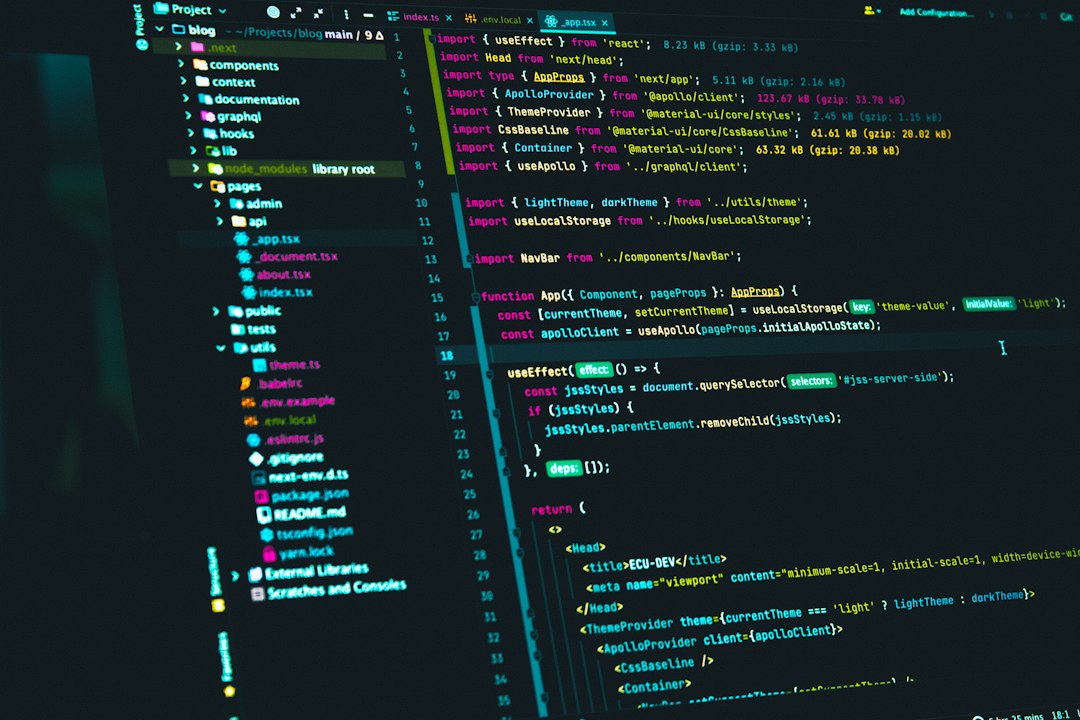
If you already use Visual Studio Code, adding LaTeX support makes sense. The popular LaTeX Workshop extension adds build tools, preview, snippets, and PDF sync. It is widely used in the VS Code Marketplace [source: Microsoft Marketplace].
This setup feels powerful. You can use Git, split panels, themes, and extensions. It is great for technical documents with code blocks, data files, and version control.
It drives me crazy that simple things can take longer at first. You may spend 20 minutes fixing settings before writing one useful sentence. After setup, though, it can be very fast.
- Pros: great for Git, code, and custom workflows
- Cons: setup takes patience
- Use it for: software docs, engineering papers, reproducible reports
5. LyX: LaTeX without staring at LaTeX
Best for: writers who want LaTeX output but a word processor feel.
LyX is different. You do not write raw LaTeX all day. You write in a visual editor. LyX handles much of the LaTeX structure behind the scenes.
This is great if LaTeX syntax makes your brain squeak. You can focus on headings, text, equations, and citations. It still exports polished documents.
But there is a trade off. When you need custom formatting, you may fight the tool. You know the result you want. LyX may smile politely and do something else.
- Pros: easier for non coders, clean writing flow
- Cons: less direct control
- Use it for: books, essays, lecture notes, early drafts
6. Kile: a strong pick for Linux fans
Best for: Linux users who want a full LaTeX editor.
Kile is built for KDE, but it can work on other systems too. It offers project management, auto completion, templates, and a useful build system.
If you use Linux every day, Kile feels at home. It is quick. It is practical. It does not try to be cute.
Mac and Windows users may prefer the other tools on this list. Kile shines brightest on Linux desktops.
- Pros: strong Linux support, good project tools
- Cons: less appealing outside Linux
- Use it for: long papers, books, technical manuals
Quick picks
- Best overall for teams: Overleaf
- Best free desktop editor: TeXstudio
- Best for beginners: TeXmaker
- Best for developers: VS Code with LaTeX Workshop
- Best for non coders: LyX
- Best for Linux users: Kile
If you are unsure, start with Overleaf. It removes setup pain. If your paper grows serious, try TeXstudio or VS Code next. The “best” editor is the one that helps you finish the paper without yelling at your screen too often.