Sometimes your TV just needs a fresh start. Maybe it’s acting slow. Maybe apps keep crashing. Or maybe you’re selling it and want to wipe everything clean. Whatever the reason, learning how to factory reset a Vizio TV is simple. You don’t need to be a tech expert. You just need a few minutes and your remote.
TLDR: A factory reset erases all your settings and returns your Vizio TV to its original state. You can reset it through the TV menu or by using buttons on the TV if you don’t have a remote. It fixes most software problems like freezing, lagging, or app errors. Just remember that all your accounts and settings will be deleted.
What Does a Factory Reset Actually Do?
A factory reset wipes your TV clean. It restores everything to how it was when you first took it out of the box.
That means:
- Your WiFi network is removed.
- Your streaming app logins are deleted.
- Your picture and sound settings go back to default.
- Any custom settings disappear.
Think of it like pressing a giant restart button for your TV’s brain.
If your Vizio TV is:
- Freezing often
- Running very slow
- Not opening apps
- Having sound or picture glitches
- Being sold or given away
Then a factory reset may solve the problem.
Before You Reset: A Quick Checklist
Wait a second before jumping in.
Ask yourself:
- Do I remember my WiFi password?
- Do I know my streaming account logins?
- Have I tried simply restarting the TV first?
Sometimes a simple restart fixes small issues.
To restart:
- Turn off the TV.
- Unplug it from the wall.
- Wait 60 seconds.
- Plug it back in.
If the problem continues, it’s time for the full reset.
How to Factory Reset a Vizio TV Using the Remote
This is the easiest method. Most people should use this option.
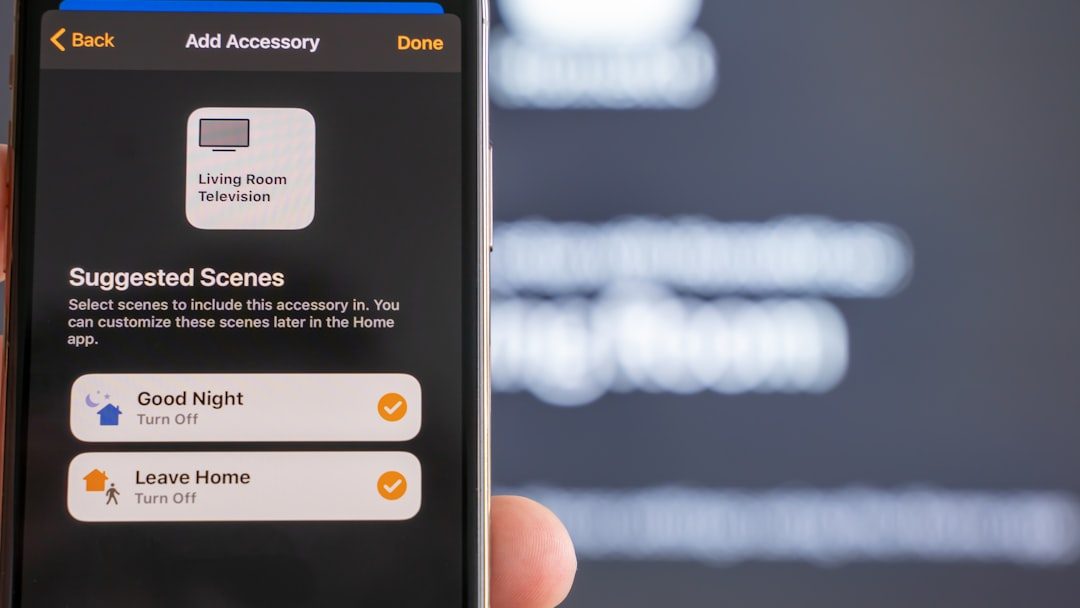
- Turn on your Vizio TV.
- Press the Menu button on your remote.
- Go to System.
- Select Reset & Admin.
- Choose Reset TV to Factory Settings.
- Enter your parental control PIN if asked. (Default is usually 0000.)
- Confirm that you want to reset.
That’s it.
Your TV will turn off. Then it will restart. The setup screen will appear, just like when it was new.
No “Reset” Option in the Menu?
Some older Vizio models may show slightly different menu names.
Look for words like:
- Reset
- Admin
- System Settings
- Restore
The wording changes slightly between models, but the process is almost the same.
How to Factory Reset Without a Remote
Lost your remote? Don’t worry.
You can still reset your Vizio TV using the physical buttons on the TV itself.
Image not found in postmetaHere’s how:
- Make sure the TV is powered on.
- Locate the Volume Down and Input buttons on the back or side of the TV.
- Press and hold both buttons at the same time.
- Keep holding for about 10–15 seconds.
- A message should appear on the screen.
- Press the Input button to confirm the reset.
The TV will now begin the factory reset process.
Tip: Button placement varies by model. Check the side, back left, or back right of the TV.
How Long Does a Factory Reset Take?
Not long at all.
Most resets take:
- 1–3 minutes to complete
- Another 5–10 minutes to set everything up again
You’ll need to:
- Select your language
- Connect to WiFi
- Sign into streaming services
- Adjust picture settings if needed
It’s quick. Just keep your passwords ready.
Common Problems After a Reset (And Easy Fixes)
Sometimes people get nervous after resetting. Let’s clear up common worries.
The TV Won’t Connect to WiFi
- Double-check your WiFi password.
- Restart your router.
- Move the router closer if signal is weak.
The Screen Looks Different
This is normal.
Your picture mode returned to default. Go to:
- Menu → Picture
Choose your preferred mode like Calibrated or Vivid.
Apps Are Missing
Smart Vizio TVs use the SmartCast platform.
Some apps load only after:
- Connecting to WiFi
- Performing system updates
Give it a few minutes.
What If the Reset Doesn’t Fix the Problem?
If your Vizio TV still has problems after a factory reset, the issue might be hardware-related.
Possible causes:
- Internal board failure
- Backlight problems
- HDMI port damage
- Power supply issues
In that case:
- Try a different HDMI cable.
- Plug into a different outlet.
- Check for firmware updates.
- Contact Vizio support.
A factory reset fixes software issues. It cannot fix broken hardware.
Factory Reset vs Soft Reset: What’s the Difference?
This confuses many people.
Soft Reset:
- Simply restarts the TV.
- Does not delete settings.
- Good for small glitches.
Factory Reset:
- Erases everything.
- Restores original settings.
- Best for major issues.
Always try a soft reset first. If that fails, go factory.
Resetting for Selling or Giving Away
Planning to sell your TV?
A factory reset is very important.
Why?
- Removes your Netflix, Hulu, and other accounts.
- Deletes WiFi passwords.
- Protects your personal information.
After the reset, you’ll see the welcome setup screen. That means it’s ready for the new owner.
Pro Tips to Keep Your Vizio TV Running Smoothly
Want to avoid future resets?
Follow these simple habits:
- Restart the TV once every few weeks.
- Keep software updated.
- Avoid unplugging during updates.
- Use a surge protector.
- Don’t overload HDMI ports with loose cables.
Small care goes a long way.
Frequently Asked Questions
Will a factory reset remove firmware updates?
No. Your TV keeps the latest installed firmware. It only resets personal settings.
Do I need internet to reset my TV?
No. You only need internet for setup after the reset.
What is the default parental PIN?
Usually 0000. If that doesn’t work, you may need to contact Vizio support.
Can I cancel a factory reset once it starts?
No. Once confirmed, the process must finish.
Final Thoughts
A factory reset sounds dramatic. But it’s actually simple.
It’s one of the fastest ways to solve annoying TV problems. Slow apps. Frozen screens. Glitches. Gone.
Just remember:
- Backup your login information.
- Try a soft reset first.
- Follow the steps carefully.
In just a few minutes, your Vizio TV can feel brand new again.
Technology doesn’t have to be scary. Sometimes, it just needs a fresh start.