Using images and audio in ChatGPT WhatsApp chats can make conversations more practical, faster, and easier to understand. Instead of typing a long description, you can share a photo, screenshot, document image, or voice message and ask ChatGPT to help interpret, summarize, explain, or draft a response. However, because WhatsApp features and ChatGPT integrations may vary by region, account status, and current service availability, it is important to use these tools carefully and verify sensitive information before acting on it.
TLDR: You can use images and audio in ChatGPT WhatsApp chats by sending photos, screenshots, or voice messages directly in the conversation, then asking clear questions about them. Images are useful for visual explanations, troubleshooting, translating text, or summarizing screenshots, while audio is helpful when you want to speak naturally instead of typing. For best results, send clear files, provide context, and avoid sharing private or highly sensitive information unless you fully understand how the service handles your data.
Understanding ChatGPT in WhatsApp
ChatGPT in WhatsApp allows users to interact with an AI assistant through a familiar messaging interface. This is useful because WhatsApp is already part of many people’s daily communication habits. Instead of opening a separate app or website, you can ask questions, request summaries, get writing help, or analyze information directly within a chat.
When image and audio support is available in your ChatGPT WhatsApp chat, the experience becomes more flexible. You are no longer limited to typed messages. You can show ChatGPT what you are looking at or explain something by speaking naturally. This is especially valuable when the topic is visual, complex, urgent, or inconvenient to type.
Before relying on the feature, confirm that you are using the official ChatGPT WhatsApp contact or an authorized integration. Be cautious with unofficial bots, unknown numbers, or services that claim to be ChatGPT but request unusual permissions, payment details, verification codes, or personal identification documents.
How to Send Images to ChatGPT on WhatsApp
Sending an image to ChatGPT in WhatsApp usually works the same way as sending an image to any other contact. Open the chat, tap the attachment or camera icon, choose a photo from your gallery or take a new one, and send it. After that, include a message explaining what you want ChatGPT to do with the image.

For example, you might send a screenshot and write: “Summarize this message and suggest a professional reply.” Or you might send a picture of a product label and ask: “What does this label mean, and are there any important warnings?” The more specific your request is, the better the answer is likely to be.
Good image use cases include:
- Reading screenshots: Ask ChatGPT to summarize a long conversation, explain an error message, or identify key points from a page.
- Understanding documents: Share a photo of a form, letter, receipt, or notice and ask for a plain-language explanation.
- Translating visible text: Send an image containing text in another language and ask for a translation or summary.
- Troubleshooting: Send a photo of a device, setup, cable connection, or error screen and ask for possible causes.
- Learning and study: Share a diagram, chart, handwritten note, or textbook page and request an explanation.
For best results, make sure the image is clear, well-lit, and not overly cropped. If the image contains text, ensure that the text is readable. If there are multiple items in the image, describe which part ChatGPT should focus on. A simple instruction such as “Please focus on the warning text in the top right corner” can significantly improve the response.
How to Use Audio or Voice Messages
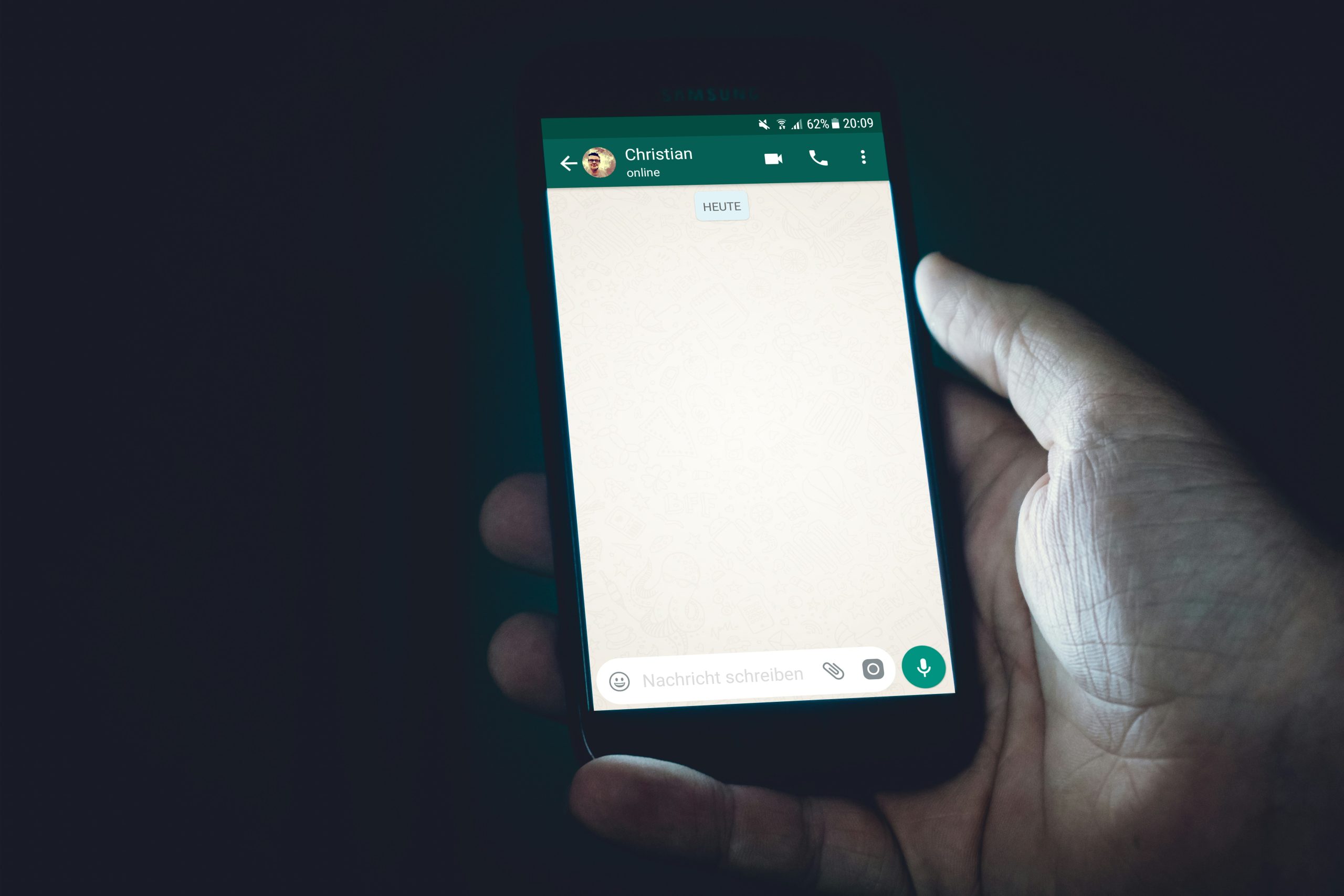
Audio is particularly useful when you want to communicate quickly or explain something in a natural way. In WhatsApp, you can usually send a voice message by holding the microphone icon or using the voice recording feature. Once the message is sent, ChatGPT may be able to process the audio and respond in text, depending on the capabilities available in your chat.
Voice messages can save time when your question is long. Instead of typing several paragraphs, you can speak your thoughts, describe a situation, or dictate a rough draft. ChatGPT can then help organize the information, summarize it, convert it into a professional message, or answer your question.
Useful audio requests include:
- Dictating a message: Say what you want to communicate, then ask ChatGPT to rewrite it clearly and professionally.
- Summarizing spoken notes: Record your thoughts after a meeting, lecture, or call and ask for a structured summary.
- Brainstorming: Speak freely about an idea, then ask ChatGPT to organize it into a plan, outline, or checklist.
- Language support: Record a phrase or question and ask for help improving clarity, tone, or grammar.
- Hands-free convenience: Use audio when typing is difficult, such as while walking or when handling multiple tasks.
When sending audio, speak clearly and reduce background noise when possible. Shorter voice messages are usually easier to process accurately than very long recordings. If your message includes names, numbers, addresses, or technical terms, consider typing those details separately to avoid mistakes.
Combining Images, Audio, and Text
The most effective ChatGPT WhatsApp conversations often combine different types of input. For example, you can send a screenshot of an error message, then record a short voice note explaining what happened before the error appeared. You can also send a photo of a document and type a specific instruction, such as “Explain this section only” or “Tell me what action I need to take next.”
This combination helps ChatGPT understand both the content and the context. Images show the visual evidence, audio provides a natural explanation, and text gives precise instructions. Used together, they can reduce misunderstandings and produce more useful responses.
For serious or professional tasks, it is wise to structure your message clearly. You might use a format like this:
- Send the image or audio file.
- Describe the situation briefly.
- Ask one clear question.
- Request the format you want: summary, bullet points, reply draft, checklist, translation, or explanation.
For example: “I’m sending a screenshot of a customer complaint. Please summarize the issue, identify the customer’s main concern, and draft a polite response in a professional tone.”
Practical Examples
Example 1: Understanding a bill or receipt. You can send a photo of a bill and ask ChatGPT to explain the charges. This may help you identify line items, taxes, fees, or unusual amounts. However, you should still confirm financial details directly with the company or institution that issued the bill.
Example 2: Explaining a technical problem. If your computer, router, appliance, or app shows an error message, send a clear screenshot or photo. Ask ChatGPT what the message means and what safe troubleshooting steps you can try first. Avoid following instructions that involve opening electrical devices, bypassing safety systems, or making irreversible changes unless you are qualified.
Example 3: Preparing a business reply. Send a screenshot of a client message and ask ChatGPT to draft a respectful response. You can specify the tone: formal, brief, apologetic, firm, friendly, or diplomatic. Always review the final message before sending it, especially if it involves legal, financial, medical, or employment matters.
Example 4: Studying from notes. Share an image of handwritten notes or a textbook diagram and ask for an explanation. You can also send a voice note saying which part is confusing. ChatGPT can help turn messy notes into a clean outline or quiz questions for review.
Privacy and Security Considerations
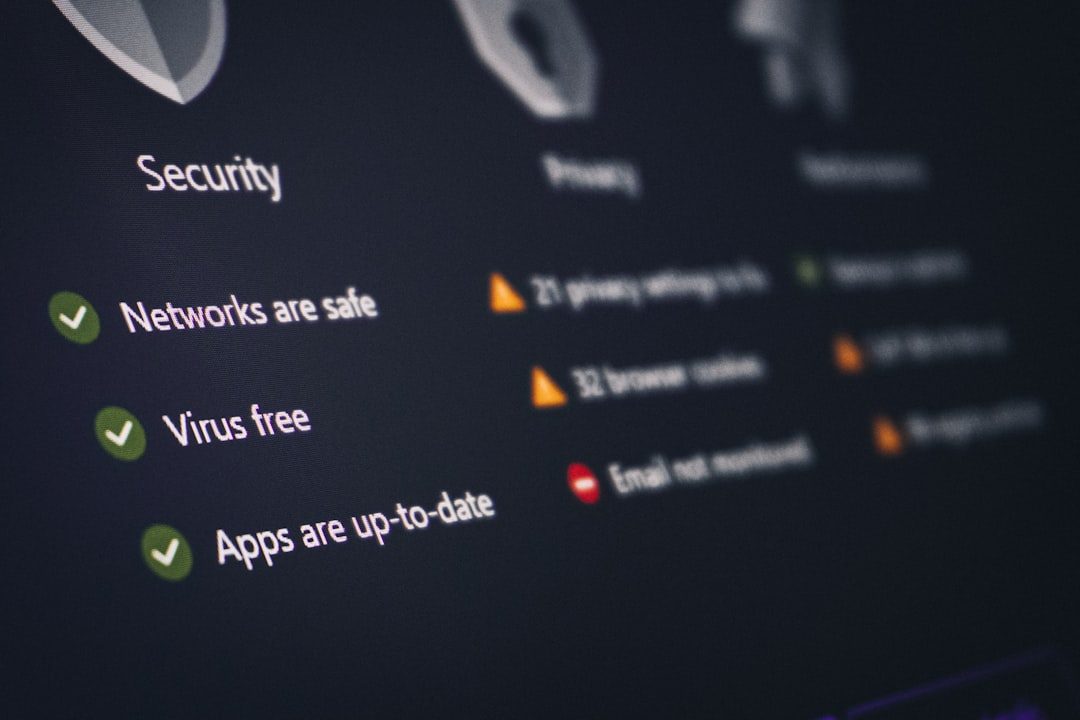
Because images and audio may contain sensitive information, privacy should be taken seriously. Photos can include names, addresses, account numbers, faces, locations, medical details, or confidential business data. Audio can reveal personal conversations, voices, background information, or private circumstances.
Before sending anything, ask yourself whether the content includes information you would not want shared outside the conversation. If possible, crop images, blur sensitive sections, or remove unnecessary details. For example, if you need help understanding a bank notice, you may be able to hide account numbers while leaving the relevant text visible.
Be especially careful with:
- Government identification documents
- Bank statements and payment cards
- Medical records or prescriptions
- Private workplace documents
- Children’s photos or school information
- Legal notices, contracts, or court documents
- Passwords, login codes, and security questions
Never share WhatsApp verification codes, one-time passwords, or account recovery information with any chatbot or contact. A legitimate assistant should not need these details to answer ordinary questions.
Accuracy and Limitations
ChatGPT can be very helpful, but it is not perfect. It may misread unclear images, misunderstand audio, overlook context, or provide an answer that sounds confident but is incomplete. This is why important information should always be verified, especially when decisions involve health, finances, law, safety, travel, or business obligations.
Image analysis can be affected by poor lighting, blurry text, reflections, handwriting, unusual layouts, or low resolution. Audio analysis can be affected by background noise, accents, overlapping speakers, or unclear pronunciation. If the answer seems wrong, try sending a clearer file, explaining the context, or asking ChatGPT to state its assumptions.
A useful follow-up prompt is: “What information are you uncertain about, and what should I verify manually?” This encourages a more careful response and helps you identify where human judgment is still required.
Tips for Better Results
- Ask specific questions. Instead of “What is this?”, ask “What does this warning mean, and what should I do next?”
- Provide context. Explain where the image or audio came from and why you are asking about it.
- Use clear files. Send sharp images and record audio in a quiet place.
- Break large tasks into steps. Ask for a summary first, then request a draft, checklist, or explanation.
- Review before using. Treat ChatGPT’s output as assistance, not final authority.
- Protect private data. Remove or hide sensitive information whenever possible.
Troubleshooting Common Problems
If ChatGPT does not respond to an image or audio message, the feature may not be available in your region, app version, or specific WhatsApp integration. Try updating WhatsApp, checking the official service information, or sending a text message asking whether image or audio input is supported.
If the response is vague, send a clearer instruction. For example, instead of asking “Can you help?”, write “Please summarize the document in five bullet points and tell me whether it asks me to take any action.” If ChatGPT misinterprets something in the image, correct it and ask again.
If an audio message is misunderstood, try recording a shorter version or type key details such as names, dates, numbers, and locations. Audio is convenient, but typed details are often more reliable for exact information.
Final Thoughts
Images and audio can make ChatGPT WhatsApp chats more useful, especially when typing is slow or when visual context matters. You can use photos, screenshots, voice notes, and short explanations to get summaries, translations, troubleshooting help, writing support, and study assistance. The key is to provide clear input, ask precise questions, and understand the limits of AI-generated responses.
Used responsibly, this feature can save time and improve communication. Still, serious matters require careful review, trusted sources, and professional advice where appropriate. Treat ChatGPT as a capable assistant within WhatsApp, but keep control over what you share, what you verify, and what actions you decide to take.