Nucleus Co-op has become a favorite solution for PC gamers who want to enjoy local splitscreen gameplay in titles that were never designed for couch co-op. However, getting it to work smoothly can sometimes feel more complicated than launching the game itself. From controller detection issues to server connection failures, users often run into frustrating roadblocks that prevent them from enjoying their multiplayer session.
TL;DR: Nucleus Co-op not connecting is usually caused by firewall restrictions, incorrect game versions, outdated handlers, controller misconfiguration, or network settings. Updating drivers, verifying files, running the app as administrator, and ensuring proper firewall permissions resolve most issues. Server-related errors often stem from NAT settings or improper port forwarding. Following the fixes below typically restores splitscreen functionality quickly.
Why Nucleus Co-op Fails to Connect
Nucleus Co-op works by launching multiple instances of a game and modifying how input devices and windows behave. Because of this complex setup, even small software or network mismatches can cause connection problems. The most common symptoms include:
- Game instances fail to launch
- Controllers not being recognized
- Players unable to join LAN sessions
- Server connection timeouts
- “Game already running” errors
Fortunately, most of these issues have straightforward solutions.
1. Run Nucleus Co-op as Administrator
Many games require elevated permissions to run multiple instances properly. Without administrator access, Nucleus Co-op may fail to inject handlers or create additional windows.
How to Fix:
- Right-click the NucleusCoop.exe file.
- Select Run as administrator.
- Set permanent admin permissions under Properties > Compatibility.
Why it works: Administrative privileges allow the program to manage system-level processes and properly launch multiple game instances.
2. Disable Firewall and Antivirus Blocking
One of the most common reasons Nucleus Co-op is not connecting to a LAN server is firewall interference. Security software may block multiple game instances or network communication between them.
Steps to Check:
- Open Windows Defender Firewall.
- Choose Allow an app through firewall.
- Ensure both Nucleus Co-op and the game executable are allowed on Private networks.
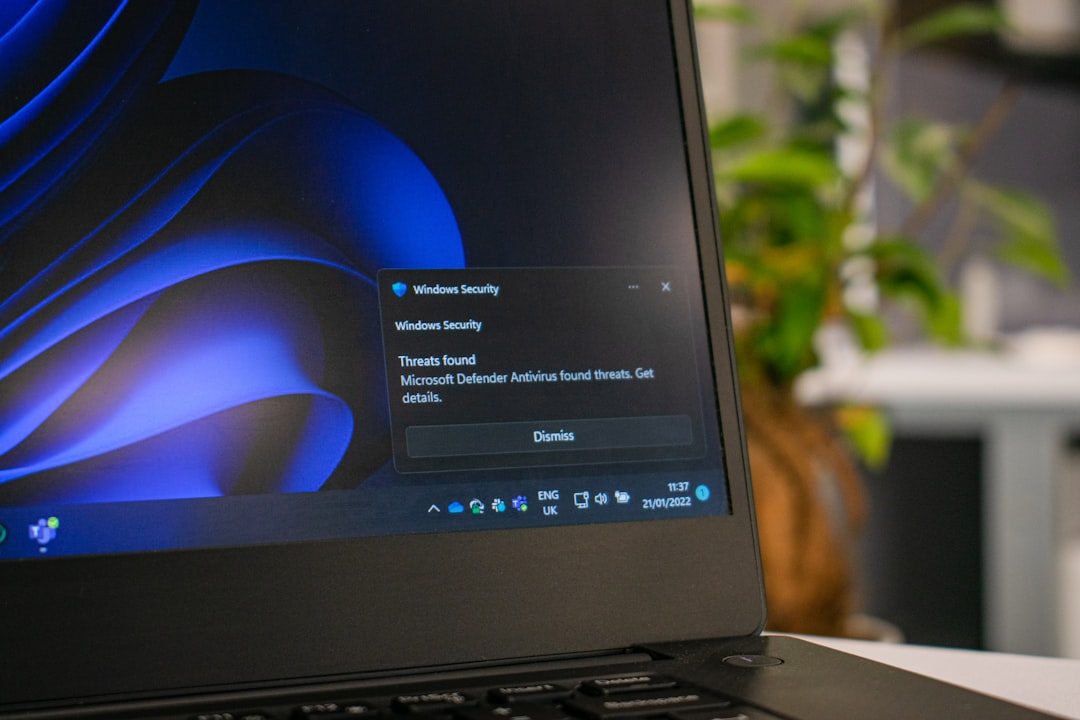
Some antivirus programs quarantine handler files because they inject scripts. Add an exception for the Nucleus Co-op folder to avoid this problem.
Tip: If the issue disappears when the firewall is temporarily disabled, you have identified the source.
3. Verify You Are Using the Correct Game Version
Nucleus Co-op relies on specific handler scripts tailored to particular game versions. If the installed game version differs from the handler requirements, splitscreen may fail entirely.
What to Do:
- Check the handler notes within Nucleus Co-op.
- Confirm your game is fully updated (or downgraded if required).
- Avoid beta branches unless specified as compatible.
Why this matters: Even minor version differences can alter memory locations, making handler injection impossible.
4. Update or Reinstall the Handler
Handlers act as configuration scripts that allow Nucleus Co-op to run specific games in splitscreen mode. An outdated handler is a major cause of crashes and connection errors.
Fix Process:
- Open Nucleus Co-op.
- Delete the current handler for the problematic game.
- Download the latest handler version.
- Restart the application.
If problems persist, reinstall Nucleus Co-op completely and extract it to a simple directory like C:\NucleusCoop to avoid permission issues.
5. Configure Network Settings and NAT Type
When using LAN server functionality, improper network configuration often prevents instances from connecting.
Common Network Fixes:
- Set your network to Private in Windows.
- Enable network discovery.
- Forward required ports on your router (if hosting online).
- Ensure all instances use the same IP subnet.
Checking your NAT type can also help. Strict NAT often prevents local server discovery. Switching to Moderate or Open NAT improves connectivity in many games.
Advanced Tip: Disable VPNs while using Nucleus Co-op. Virtual network adapters sometimes block LAN detection.
6. Fix Controller Recognition Problems
Controller configuration issues are one of the most frustrating elements of splitscreen gaming. If Nucleus Co-op launches games but players cannot join, input mapping may be the issue.
Solutions:
- Connect all controllers before launching Nucleus Co-op.
- Use Xbox controllers or XInput-compatible devices when possible.
- Disable Steam Input temporarily if conflicts arise.
- Check Windows Game Controller settings.
Some games only recognize the first controller. Nucleus Co-op remaps inputs, but conflicts occur if drivers are outdated.
Pro Tip: Install or update Xbox controller drivers via Windows Update.
7. Close Background Applications and Remove Conflicts
Overlay software and background utilities sometimes interfere with multi-instance launches.
Common Conflicts:
- Discord Overlay
- GeForce Experience Overlay
- MSI Afterburner
- RivaTuner Statistics Server
- Game recording software
Disable overlays and restart your PC before launching Nucleus Co-op again.
Additionally, ensure that:
- No duplicate game processes are running in Task Manager
- The game directory is not inside system-protected folders
- You are using a stable graphics driver version
Additional Troubleshooting Steps
If none of the above fixes resolve the issue, consider these extra steps:
- Reinstall Microsoft Visual C++ redistributables
- Install the latest .NET Framework version
- Verify game files via Steam or another launcher
- Test the game in normal single-player mode first
Testing outside of Nucleus Co-op helps determine whether the issue lies with the base game or the splitscreen configuration.
Best Practices for Stable Splitscreen Sessions
After resolving connection issues, users should aim to maintain long-term stability by following these best practices:
- Keep Nucleus Co-op updated
- Avoid unnecessary Windows updates before gaming sessions
- Use wired controller connections when possible
- Restart the PC before launching a splitscreen session
- Monitor system performance to prevent RAM shortages
Because Nucleus Co-op runs multiple instances simultaneously, systems with less than 16GB RAM may struggle with modern games. Ensuring sufficient memory dramatically improves reliability.
Conclusion
Nucleus Co-op not connecting can feel overwhelming at first, especially for users unfamiliar with multi-instance configurations and network settings. However, most problems stem from simple causes such as firewall blocks, outdated handlers, incorrect game versions, or controller conflicts. By systematically applying the seven fixes outlined above, players can usually restore splitscreen functionality and enjoy seamless local multiplayer sessions.
With the right permissions, network configuration, and updated files, Nucleus Co-op becomes a powerful tool that transforms single-player PC titles into engaging couch co-op experiences.
Frequently Asked Questions (FAQ)
1. Why does Nucleus Co-op say the game is already running?
This usually happens when a previous instance did not close properly. Open Task Manager, end all related processes, and relaunch Nucleus Co-op as administrator.
2. Why can’t my second player join the LAN server?
The issue is often firewall-related or caused by strict NAT type. Ensure network discovery is enabled and firewall exceptions are added for both the game and Nucleus Co-op.
3. Do all games work with Nucleus Co-op?
No. Only games with compatible handlers are supported. Compatibility depends on community-developed scripts tailored to each title.
4. Can I use wireless controllers?
Yes, but wired controllers provide more stable detection. Some wireless adapters may create input conflicts when multiple controllers are connected.
5. Does Nucleus Co-op work online?
It primarily supports local LAN-based splitscreen. Some games allow online functionality, but success depends on network configuration and handler support.
6. Why does my antivirus flag Nucleus Co-op?
Handler injection methods resemble certain script behaviors antivirus tools monitor. Adding the software to the exception list usually resolves the issue.
7. How much RAM is recommended for stable splitscreen gaming?
At least 16GB of RAM is recommended for modern games running multiple instances. Older or lightweight games may function with less.
With proper setup and troubleshooting, Nucleus Co-op can reliably deliver one of the best local multiplayer experiences available on PC.