VLC Media Player has built a reputation as one of the most reliable and versatile media players available. While its performance and codec support are widely praised, its default interface often feels outdated and overly bright—especially during extended viewing sessions. Fortunately, VLC offers several ways to enable dark mode and customize its interface for a more modern and comfortable user experience.
TLDR: VLC Media Player includes multiple ways to activate and enhance dark mode, ranging from built-in dark interfaces on certain operating systems to fully customized skins. You can switch to system dark mode, install third-party themes, edit advanced interface settings, or design your own skin. Each method varies in complexity and level of customization. Choosing the right approach depends on your operating system, technical comfort level, and desired visual control.
In this article, we will examine four reliable methods to enable or improve dark mode in VLC, along with practical steps to ensure a smoother and more visually appealing interface experience.
Why Dark Mode Matters in Media Applications
Before exploring customization methods, it is important to understand why dark mode has become a standard interface preference:
- Reduced eye strain during extended viewing sessions
- Improved focus on video content
- Better usability in low-light environments
- Modern aesthetic appeal
- Energy efficiency on OLED and AMOLED displays
Although VLC does not always enable dark mode by default on Windows, it provides several adaptable solutions that allow users to significantly improve their UI experience.
Method 1: Enable System-Wide Dark Mode (Windows & macOS)
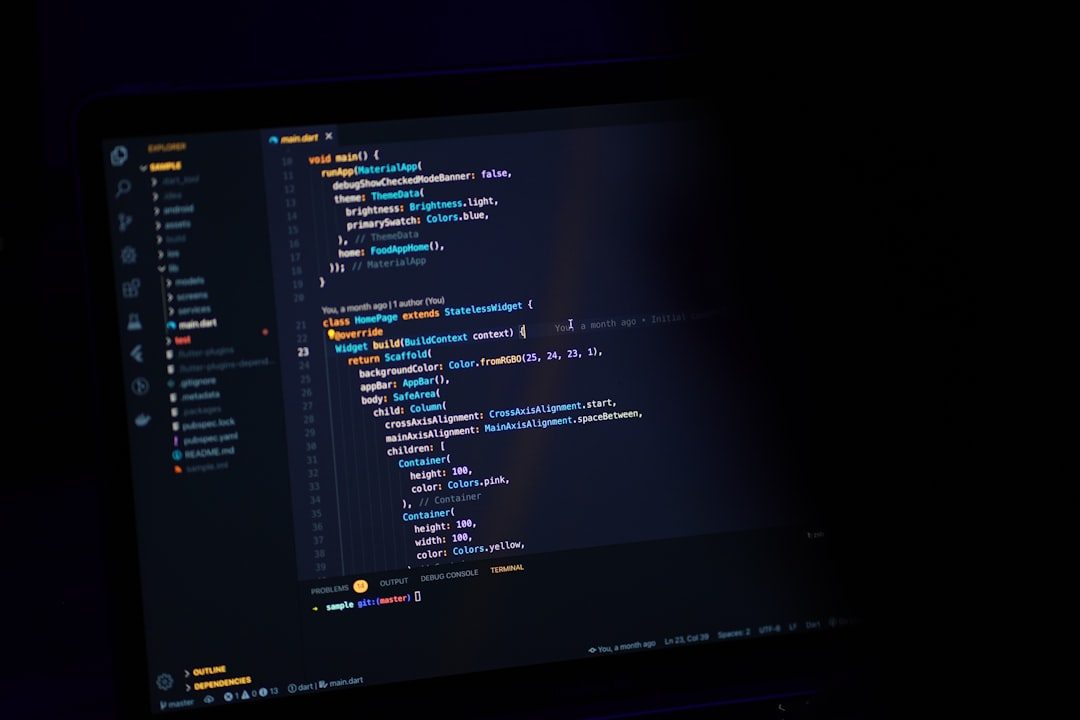
The simplest way to apply dark styling to VLC is to align it with your operating system’s dark theme settings.
For Windows 10 and 11
- Open Settings
- Navigate to Personalization → Colors
- Under “Choose your mode,” select Dark
Recent versions of VLC partially adapt to system themes, darkening interface elements like menus and dialog boxes.
For macOS
- Open System Settings
- Select Appearance
- Choose Dark
On macOS, VLC integrates more seamlessly with the system, offering a more cohesive dark appearance.
Advantages
- Quick and easy setup
- No additional downloads required
- Maintains overall OS consistency
Limitations
- Does not fully darken every VLC interface element
- Limited customization flexibility
This option is ideal for users seeking a minimal-effort solution without modifying VLC’s internal structure.
Method 2: Install VLC Skins (Complete Visual Overhaul)
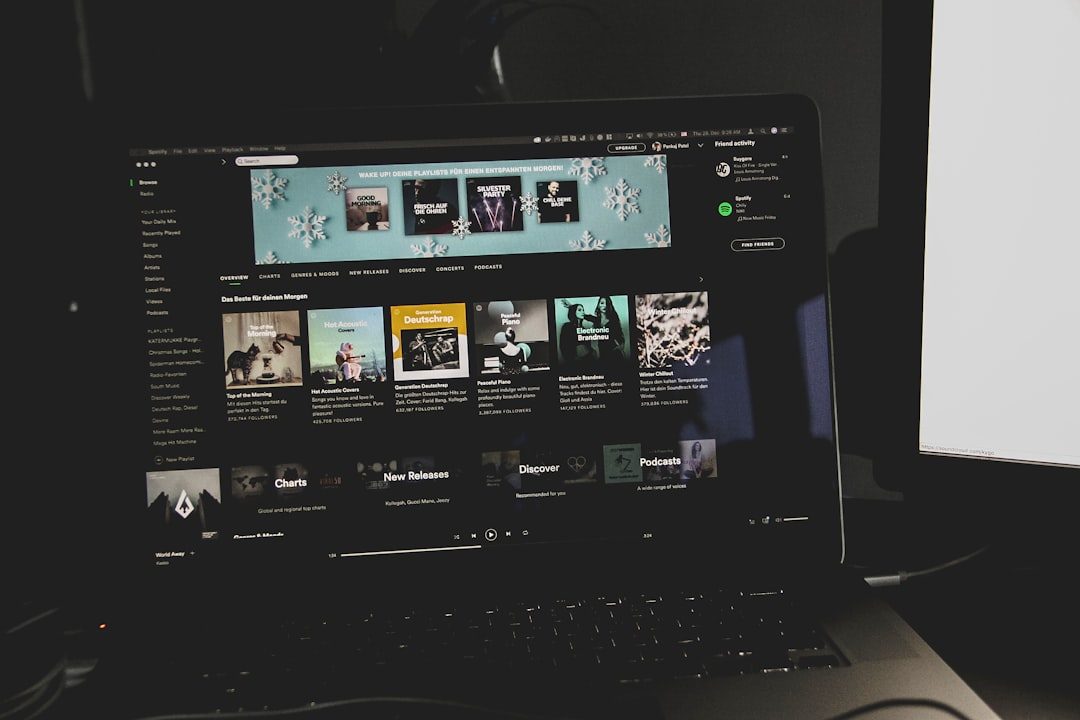
For users wanting a truly dark or modernized interface, installing custom skins is the most powerful approach.
VLC supports a separate “skins” mode that replaces the default interface entirely. These skins can provide sleek, dark appearances far beyond the standard theme.
How to Install a VLC Skin (Windows)
- Download a VLC-compatible skin (.vlt file)
- Open VLC
- Go to Tools → Preferences
- Select Use custom skin
- Choose the downloaded skin file
- Restart VLC
Advantages
- Full dark mode experience
- Modernized design options
- High visual customization
Limitations
- Skins are primarily supported on Windows
- Certain skins may lack updates
- User interface layout may differ significantly
This approach is best for users who prioritize visual aesthetics and themed consistency.
Method 3: Adjust Advanced Interface Preferences
VLC includes built-in advanced controls that allow users to refine how the interface behaves. While not a direct “dark mode” toggle, these adjustments can reduce brightness and visual clutter.
Steps to Access Advanced Settings
- Open Tools → Preferences
- Click All (bottom left corner) to show advanced settings
- Navigate through Interface and Main Interfaces
Recommended Adjustments
- Disable embedded video in interface for a cleaner viewing surface
- Adjust playlist appearance
- Customize toolbar layout
- Modify hotkeys for streamlined navigation
By minimizing unnecessary bright interface elements and windows, the overall experience becomes less visually intrusive.
Advantages
- No third-party tools required
- Improves functional UI efficiency
- Maintains stability
Limitations
- Does not produce a fully dark visual theme
- Advanced settings may confuse inexperienced users
This method improves usability and interface ergonomics without drastically altering VLC’s appearance.
Method 4: Create Your Own VLC Skin
For advanced users or organizations with branding requirements, VLC offers a skin editor tool that allows complete visual customization.
This method involves designing interface components manually, defining layout structures, button placement, backgrounds, and color schemes.
Image not found in postmetaWhat You Can Customize
- Background colors and gradients
- Button icons and hover effects
- Seek bar appearance
- Volume slider design
- Window dimensions and layout
Advantages
- Complete creative control
- Ideal for consistent dark branding
- Professional-level customization
Limitations
- Steeper learning curve
- Requires technical familiarity
- Time-intensive process
This solution is most appropriate for developers, designers, and advanced users.
Comparison Chart: VLC Dark Mode Customization Methods
| Method | Difficulty Level | Customization Depth | Best For | Platform Support |
|---|---|---|---|---|
| System Dark Mode | Very Easy | Low | Casual users | Windows, macOS, Linux |
| Custom Skins | Moderate | High | Visual-focused users | Primarily Windows |
| Advanced Settings | Moderate | Medium | Efficiency-focused users | All platforms |
| Create Your Own Skin | Advanced | Very High | Designers, developers | Mainly Windows |
Additional Tips to Improve VLC UI Experience
Dark mode is only one part of a better visual experience. Consider combining it with the following improvements:
- Enable minimal view to eliminate menu clutter
- Adjust subtitle color for better contrast
- Customize hotkeys for fluid navigation
- Use high-quality scaling settings for sharper visuals
- Keep VLC updated to access UI improvements and patches
Small changes accumulate into a significantly more professional and comfortable playback environment.
Choosing the Right Approach
The best dark mode strategy depends on your priorities:
- If you want fast and simple, enable system dark mode.
- If you want aesthetic transformation, install a custom skin.
- If you want functional refinement, explore advanced settings.
- If you want complete visual control, build your own skin.
Each method offers legitimate benefits, and in some cases, combining two approaches produces the best results.
Final Thoughts
VLC Media Player remains one of the most powerful and dependable media tools available. However, its default interface may not meet modern UI expectations—particularly for users who prefer darker, cleaner designs.
Fortunately, VLC’s flexibility allows users to significantly enhance their experience. Whether through quick system adjustments or complete theme redesigns, you have the tools necessary to modernize the interface and reduce visual fatigue.
By implementing one or more of these four methods, you can transform VLC from a basic playback tool into a visually optimized, professional-grade media environment tailored to your comfort and workflow.