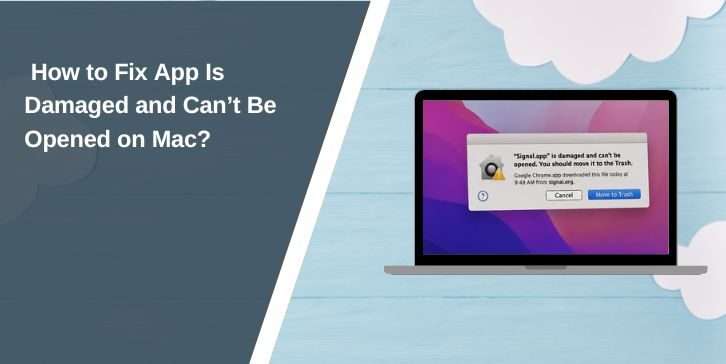
Mac is a device where you can install apps for work, study, editing, designing, printing, gaming, coding, or any personal use. But sometimes when you try to open an app, macOS shows an error like “App is damaged and can’t be opened” or “You should move it to the Trash”.
This error is confusing because the app may look normal in Finder but still your Mac does not allow it to open. This can happen with downloaded apps, third-party apps, apps from DMG files, ZIP files, or apps copied from another Mac.
This easy guide will help you to fix app is damaged and can’t be opened error by providing simple steps. It will also tell you what happened when this error appears, why macOS shows it, and how you can avoid this problem in future.
What Does App Is Damaged and Can’t Be Opened Mean on Mac?
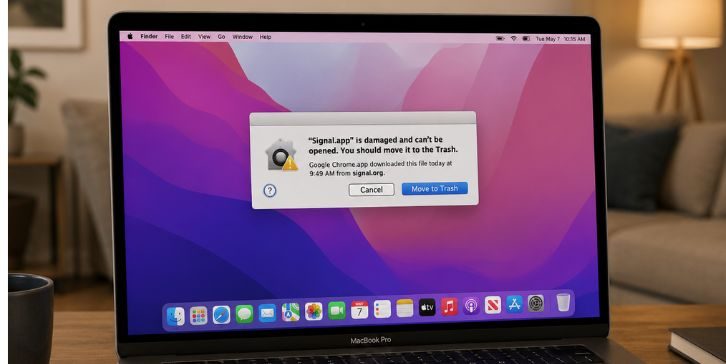
App is damaged and can’t be opened is a macOS error which appears when your Mac is unable to open an application safely. In simple words, your Mac tries to launch the app but macOS stops it before it opens. This can be related to Finder, Gatekeeper, app bundle, quarantine attribute, or macOS security settings.
You can see this error when you open an app from Applications folder, Downloads folder, DMG file, ZIP file, or external drive. It can also appear after macOS update, after downloading app from outside Mac App Store, or after copying an app from another Mac.
Common Causes of App Is Damaged and Can’t Be Opened Happen
App is damaged and can’t be opened can happen for many reasons. Here are some common and possible reasons behind this error.
- Corrupted download: The app file may be incomplete because the DMG file, ZIP file, or installer was not downloaded properly.
- Damaged app bundle: The.app package may have missing files inside it and due to this macOS cannot launch it.
- Gatekeeper issue: macOS Gatekeeper may block the app because the developer, app signature, or notarization is not verified.
- Quarantine attribute: The downloaded app may still have com.apple.quarantine attribute attached with it.
- Old app version: The app may not support your current macOS version or Apple Silicon Mac.
- Wrong app source: Apps from unsafe websites, cracked app pages, or modified installers can trigger the damaged app warning.
- Copied app problem: If the app was copied from another Mac, USB, backup, or external drive then its permissions or extended attributes may be changed.
How to Fix App Is Damaged and Can’t Be Opened?
Fixing app is damaged and can’t be opened is not very difficult but it can be confusing for beginners or those users who do not know macOS security settings very well.
If you follow my given fixes then you can easily check the problem and solve it. Here are the fixes you need to perform for fixing app is damaged and can’t be opened on Mac.
Fix #1: Restart Your Mac
Restarting your Mac is the first and simple method. Sometimes Finder or macOS launch service does not respond properly and because of this the app does not open.
Here are the steps you need to perform:
- Click on the Apple menu from the top-left corner.
- Click on Restart.
- Wait until your Mac turns off and starts again.
- Login to your Mac account.
- Open the app again from Applications folder.
If the app opens after restart then the issue was temporary. You do not need to perform other fixes.
Fix #2: Move the App to Applications Folder
Sometimes users open the app directly from Downloads, DMG file, ZIP folder, or external drive. This is not always good because macOS handles apps better when they are inside Applications folder.
Follow these steps:
- Open Finder on your Mac.
- Go to Downloads or where the app is saved.
- Find the app which is showing damaged error.
- Drag the app into Applications folder.
- Wait until copying is complete.
- Open the app from Applications folder.
If the app came inside a DMG file then do not open it directly from the DMG window. First move it to Applications folder and then eject the DMG file.
Fix #3: Delete and Download the App Again
Sometimes the app is really damaged because the download was not complete. The installer may be broken or the ZIP file may not extract properly. In this case downloading the app again can fix the problem.
Here are the steps to download it again:
- Open Finder.
- Go to Applications folder.
- Move the damaged app to Trash.
- Open the official website of the app or Mac App Store.
- Download the latest version of the app.
- Install it again on your Mac.
- Open the app from Applications folder.
Do not download apps from random websites. These websites may provide modified or unsafe app files and macOS can block them again.
Fix #4: Open the App with Control-Click
Sometimes macOS blocks the app because of Gatekeeper security. In this condition normal double-click does not work, but Control-click may show another option to open a trusted app.
Here are the steps:
- Open Finder.
- Go to Applications folder.
- Find the app which is showing the error.
- Press and hold Control key.
- Click on the app.
- Choose Open.
- Confirm the message if macOS asks.
Use this method only if you trust the app. If the app came from an unknown website then do not force open it.
Fix #5: Check Privacy & Security Settings
macOS may block the app and show approval option inside Privacy & Security settings. This mostly happens with third-party apps or apps downloaded outside the Mac App Store.
Follow these steps:
- Click on Apple menu.
- Open System Settings.
- Click on Privacy & Security.
- Scroll down to Security section.
- Check if macOS shows a message about the blocked app.
- Click Open Anyway or Allow if this option appears.
- Try to open the app again.
If you do not see Open Anyway option then it means macOS is not giving manual approval there. Move to the next fix.
Fix #6: Remove Quarantine Attribute with Terminal
macOS adds quarantine attribute to many apps which are downloaded from internet. Sometimes this attribute remains attached with the app and due to this macOS shows app is damaged and can’t be opened error.
Before using this method, make sure that the app is safe and downloaded from the official source. Do not use this command on cracked apps, unknown apps, or suspicious files.
Follow these steps:
- Move the app to Applications folder.
- Open Terminal from Applications > Utilities.
- Type the command given below.
- Replace AppName.app with the real name of your app.
- Press Return.
- Try to open the app again.
xattr -cr /Applications/AppName.app
This command removes extended attributes from the app bundle. It can also remove com.apple.quarantine flag which macOS adds to downloaded apps.
Fix #7: Update macOS and the App
Sometimes an old app does not work with your current macOS version. This can happen after a macOS update or when the app does not support Apple Silicon Mac properly.
Follow these steps:
- Click on Apple menu.
- Open System Settings.
- Click on General.
- Click on Software Update.
- Install any available macOS update.
- Download the latest app version from official website or Mac App Store.
- Restart your Mac and open the app again.
If you are using Apple Silicon Mac like M1, M2, M3, or newer model then check the app website. Some apps have separate version for Apple Silicon and some old Intel apps may need Rosetta 2.
Fix #8: Contact the App Developer
If the app still shows damaged error after downloading it again and updating macOS, then the problem may be from the app developer side. The app may need a new signed version, notarized build, or macOS compatible update.
You can contact the official developer support and tell them your macOS version, Mac model, app version, and exact error message. This information can help them to understand your issue quickly.
How to Avoid App Is Damaged and Can’t Be Opened in Future?
You cannot stop every Mac app error but you can reduce this issue by following some simple tips.
- Download apps only from Mac App Store or official developer websites.
- Avoid cracked, modified, or unknown app installers.
- Do not open apps directly from DMG file.
- Move apps into Applications folder before opening them.
- Keep macOS updated.
- Keep third-party apps updated.
- Do not change files inside app bundle unless developer tells you.
- Keep backup before installing major macOS updates.
Conclusion
App is damaged and can’t be opened means macOS is unable to open the app safely. This error can happen because of corrupted download, damaged app bundle, Gatekeeper issue, quarantine attribute, old app version, unsafe app source, or copied app problem.
Start with simple methods first. Restart your Mac, move the app to Applications folder, delete and download the app again, and check Privacy & Security settings. If these methods do not work then use Terminal method only for trusted apps.
If the app still does not open then contact the official app developer or support team. Also, if this guide helped you then share it with others and comment your app name and macOS version. This can help other Mac users who are facing the same damaged app error.