You open Paramount Plus, pick a show, and then Error Code 131 appears. Maybe the video does not start. Maybe it loads for a second and then stops. It is one of those streaming errors that does not explain much.
This can happen on a smart TV, Roku, Fire TV, Apple TV, phone, tablet, game console, or browser. The cause is not always the same. Sometimes the app is stuck. Sometimes the browser has bad cookies. Sometimes VPN, DNS, or a network filter gets in the way.
If you are seeing Paramount Plus Error Code 131, this guide will help you check the simple things first. We’ll go through app fixes, browser fixes, internet checks, VPN settings, device updates, and account session problems.
What Does Paramount Plus Error Code 131 Mean?
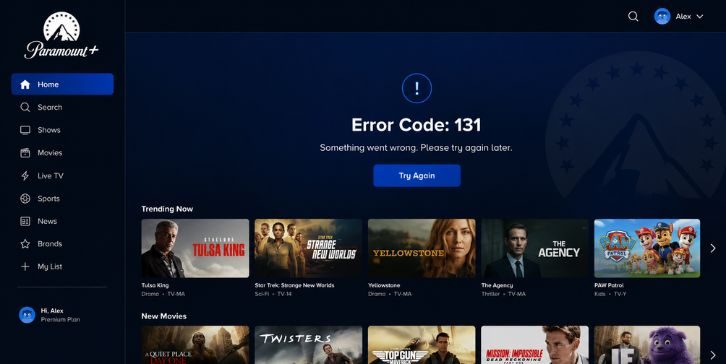
Paramount Plus Error Code 131 usually means the app or browser failed while trying to play the video. It may happen during stream loading, playback, or the protected content check. Paramount+ support gives general streaming error fixes like restarting the device, force closing the app, checking the app version, and trying the stream again.
So the error does not point to one single cause. It can be a playback issue, a bad app session, a network problem, a browser setting, or something linked to the device. It may also happen when Paramount+ cannot load the video license or content properly.
That sounds a bit technical, but the fix is usually not too hard. You just need to test where the break is happening.
Why Does Paramount Plus Show Error Code 131?
Paramount Plus can show Error Code 131 when something interrupts the streaming path. That path includes your app, device, browser, internet connection, account session, and Paramount+ playback servers. If one part fails, the video may stop before it starts.
Common reasons include:
- The Paramount+ app is stuck or has a bad session.
- Your account session needs a fresh sign-in.
- The app cache or browser cache has broken playback data.
- Your Paramount+ app is outdated.
- Your browser is old or blocking protected playback.
- A VPN or proxy is changing your location or IP.
- A DNS filter or router setting blocks streaming domains.
- An ad blocker or privacy extension blocks playback scripts.
- Your device firmware is outdated.
- The show or movie has a temporary playback issue.
- Paramount+ may be having a service-side problem.
A small note here. If Paramount+ works on one device but not another, the issue is probably local to that device or app. If it fails everywhere, then look more at account, network, or service issues.
How to Fix Paramount Plus Error Code 131?
Start with simple fixes. Don’t delete the app right away. Don’t reset the whole TV unless nothing else works.
Try one fix and then play the same title again. If that title still fails, try another show too. This helps you know if only one video is broken or the whole app is having trouble.
1. Restart the Paramount+ App
Close the Paramount+ app fully and open it again. Don’t just press the home button and come back. On many devices, that only hides the app in the background.
A stuck app session can cause Error Code 131. The app may hold an old playback request, bad loading state, or broken video session. Restarting the app gives it a fresh start.
After reopening it, play the same show again. If it still fails, try another title for a quick test. If other titles work, the problem may be with that one show or movie.
2. Sign Out and Sign Back In
Your Paramount+ account session can also get stuck. This may happen even when your subscription is active. The app may fail while checking your access to the video.
Sign out of Paramount+. Close the app. Open it again and sign back in.
Use these simple steps:
- Open Paramount+ settings.
- Choose sign out or log out.
- Close the app fully.
- Open Paramount+ again.
- Sign in with the correct account.
- Try the same video again.
This fix is useful when the app opens fine, but videos fail when you press play.
3. Restart Your Streaming Device
If the app restart did not work, restart the device itself. Streaming devices can keep old app processes running in the background. A full restart clears more than closing the app.
On a smart TV, use the restart option if it has one. If not, unplug the TV for a short time, then plug it back in. For Roku, Fire TV, Apple TV, Android TV, or game console, use the restart option from settings if available.
Paramount+ support also suggests restarting the device or computer when streaming errors appear. It is basic, yes, but it often fixes playback errors because it clears stuck memory and app processes.
4. Power Cycle Your Modem and Router
Sometimes the app is fine, but the streaming connection is not. Your router may have a bad session, DNS issue, or weak connection path to Paramount+. A quick power cycle can refresh that.
Do it like this:
- Turn off your TV or streaming device.
- Unplug your modem and router.
- Wait around 10 to 30 seconds.
- Plug the modem back in first.
- Plug the router back in after the modem starts.
- Connect your device again.
- Open Paramount+ and test the video.
Paramount+ support also recommends rebooting the router when users have streaming video issues. This helps more when other apps feel slow too, or when Paramount+ keeps buffering before the error appears.
5. Update the Paramount+ App
An old Paramount+ app can cause playback problems. Streaming apps change often because they need to support new devices, video formats, ads, subtitles, and protected content checks.
Open your device’s app store and check for a Paramount+ update. On smart TVs and streaming sticks, this may be inside the app settings or device settings. On phones, use the App Store or Google Play.
After updating, restart the app before testing again. If your device has automatic updates turned off, this may be the reason the app keeps showing errors.
6. Update Your Browser or Try Incognito Mode
If you watch Paramount+ in a browser, the problem may be browser related. Streaming needs cookies, scripts, video playback support, and protected content support. If any of these are blocked, Error Code 131 can appear.
Update your browser first. Then try the video in a private or incognito window. This gives Paramount+ a cleaner session without many old cookies or extensions.
Check these browser things:
- Use a supported browser like Chrome, Edge, Firefox, or Safari.
- Allow cookies for Paramount+.
- Turn off strict tracking protection for a quick test.
- Try incognito or private mode.
- Disable extensions that block scripts or ads.
A user report from a forum also mentioned Paramount+ support suggesting browser update, private window, and turning off protection tools while testing Error 131. It is not official proof for every case, but the steps match common streaming fixes.
7. Clear App Cache or Browser Cache
Cache can be useful, but it can also store broken data. If Paramount+ saved a bad playback session, old cookies, or damaged app data, the same error may keep coming back.
On Android, Fire TV, and some smart TVs, you may see an option to clear app cache. Use that option if available. On iPhone or Apple TV, you may need to reinstall the app because cache controls are more limited.
If you use a browser, clear cache and cookies for Paramount+. You do not need to delete your full browser history if your browser lets you clear only site data. After clearing it, sign in again and test the same video.
This fix is very useful when Paramount+ works in incognito mode but not in your normal browser.
8. Turn Off VPN, Proxy, or DNS Filtering
VPNs and proxies can trigger streaming errors because they change your location or route your traffic through another server. Paramount+ may fail to verify your region, account access, or playback request.
Turn off your VPN for one test. Also turn off proxy settings if you use them. Then restart the app or browser and play the video again.
DNS filtering can also cause strange streaming issues. Tools like custom DNS, router-level filters, privacy DNS, or ad-blocking DNS may block some streaming domains. One user report linked Paramount Error 131 to NextDNS on their router, and the issue stopped after changing that setup.
This does not mean every DNS tool causes Error 131. But if you recently changed router DNS, ad-block DNS, or privacy filters, test with default DNS once.
9. Disable Ad Blockers, Privacy Extensions, or Firewall Filters
Streaming sites need scripts and playback checks to load the video. If an ad blocker, privacy extension, firewall, antivirus web shield, or browser protection blocks those requests, Paramount+ may fail.
This is common on browsers, but it can also happen through router filters or security apps. You don’t need to turn off protection forever. Just pause it for Paramount+ or test in a clean browser session.
Check these one by one:
- Ad blocker
- Privacy extension
- Script blocker
- Antivirus web shield
- Firewall filter
- Router-level ad blocking
- Browser tracking protection
If Paramount+ works after turning one off, you found the cause. Then you can allow Paramount+ in that tool instead of removing the tool fully.
10. Check Device Firmware and Protected Content Support
Some streaming errors come from old device software. Smart TVs, streaming sticks, and consoles need updated firmware to play protected video correctly. If the firmware is old, the Paramount+ app may open but fail when the video starts.
Go to your device settings and check for system updates. This matters more on older smart TVs, Fire TV devices, Roku, Apple TV, Android TV boxes, PlayStation, and Xbox.
If you use a streaming stick through HDMI, also check the HDMI cable and port. Some protected content issues can happen when the device and TV do not complete the video protection check properly. Try another HDMI port if you are using an external streaming device.
Keep this fix simple. Update the device, restart it, and test again.
11. Test Another Show or Another Device
This step helps you stop guessing. Try one different show or movie on Paramount+. Then try the same account on another device if you can.
| What Happens | What It Means |
|---|---|
| One title fails only | That title may have a temporary playback issue |
| All titles fail on one device | App, cache, firmware, or device issue |
| All titles fail on every device | Account, network, VPN, DNS, or service issue |
| Browser works but TV fails | TV app or firmware issue |
| Mobile data works but Wi-Fi fails | Router, DNS, or Wi-Fi issue |
This test is simple but helpful. If Paramount+ works on your phone but not your TV, don’t waste time changing your account. Focus on the TV app, cache, updates, or device restart.
12. Reinstall the Paramount+ App
Reinstall the app only after the basic fixes. It can help if the app data is damaged or if the app update did not apply properly.
Delete the Paramount+ app from your device. Restart the device. Then install Paramount+ again from the official app store and sign in.
This can fix broken local files, bad cache, and app settings that do not clear with a normal restart. It is more work than clearing cache, but on some devices it is the only clean reset option.
13. Check If Paramount+ Is Down or the Title Is Unavailable
If Paramount+ fails on every device and every network, the problem may not be on your side. The service may be having a temporary playback issue. Or one title may be unavailable for a short time.
Signs it may be a Paramount+ side issue:
- Many titles fail at the same time.
- The same account fails on every device.
- Other streaming apps work fine.
- Paramount+ loads but videos do not play.
- The error started suddenly without any setting change.
- Other users are reporting streaming problems too.
Do not assume it is an outage right away. But if you already tested app, browser, network, VPN, and another device, waiting a little can be reasonable.
14. Contact Paramount+ Support
If Error Code 131 still appears after all these checks, contact Paramount+ support. At that point, you need account or device-specific help.
Before contacting them, collect the useful details:
- Error Code 131
- Device model
- App version
- Browser name if using web
- Name of the show or movie
- Whether other titles work
- Whether VPN or proxy is on
- Your internet type
- What fixes you already tried
This makes the support message much clearer. Saying “Paramount+ is not working” is too broad. Saying “Error Code 131 appears on Roku when playing one title, but mobile works” gives them something useful.
How to Prevent Paramount Plus Error Code 131 Next Time?
You can’t prevent every streaming error, but you can lower the chance. Keep the Paramount+ app updated, keep your device updated, and avoid network tools that break streaming playback.
A few simple habits help:
- Update the Paramount+ app when updates are available.
- Restart your streaming device if playback feels stuck.
- Avoid VPN if Paramount+ keeps failing with it.
- Use normal DNS if custom DNS causes issues.
- Clear browser data if web playback starts acting strange.
- Keep smart TV or streaming stick firmware updated.
- Don’t ignore repeated Wi-Fi drops or router problems.
- Test another title before changing too many settings.
This keeps the setup cleaner. And a clean setup means fewer random playback errors.
Final Thoughts
Paramount Plus Error Code 131 usually means the video failed during playback or stream loading. The cause can be the app, browser, cache, device firmware, internet, VPN, DNS filter, account session, or Paramount+ service.
Start with the easy fixes. Restart the app, sign out and sign back in, restart your device, and reboot your router. Then check app updates, browser settings, cache, VPN, DNS, and extensions.
What device showed Error Code 131 for you: Roku, Fire TV, smart TV, phone, browser, or something else? Share that in the comments because the right fix often depends on the device.