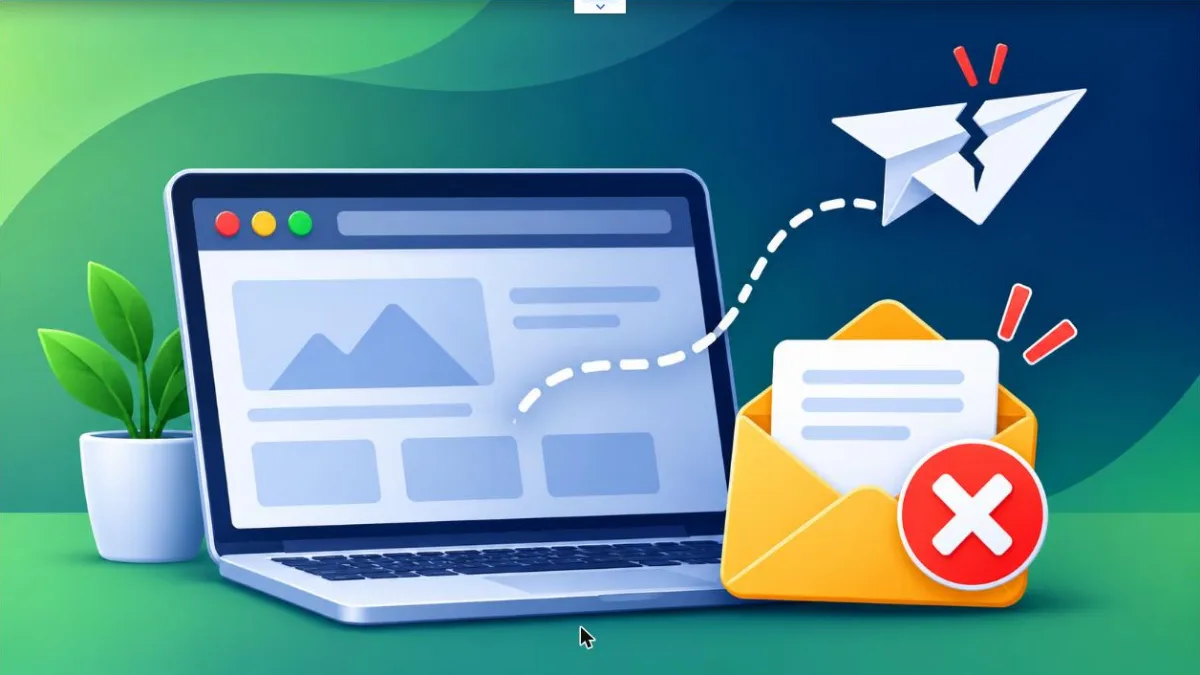
Someone fills out your contact form, a customer places an order, or you click “Lost your password,” and the email never arrives. You check your inbox, then your spam folder, and still nothing. When WordPress is not sending emails, the cause is usually your hosting server, not WordPress itself, and the fix is often an SMTP setup that takes a few minutes.
The fixes below start with the quick checks and move toward the bigger steps. Some apply to all WordPress emails, and some only to contact forms, so I’ve pointed that out where it matters. You don’t need to be a developer, just access to your dashboard.
Why Is WordPress Not Sending Emails?
WordPress sends email using a PHP function called wp_mail, which relies on your web host’s mail server. Many hosts block or limit this to stop spam, and many email providers treat these messages as suspicious. That’s why messages can fail to send, or land in spam, even though your site looks fine.
Most of the time it’s one of these:
- Your host blocks or limits the PHP mail function
- The email lands in spam because it isn’t authenticated
- A wrong “from” or admin email address in your settings
- A plugin or form that is set up incorrectly
- A conflict with another plugin
- SPF, DKIM, or DMARC records missing from your domain
Quick Things to Check First
Before going through every fix, check your spam or junk folder, and make sure the admin email under Settings > General is spelled correctly and is a real, working address. Then send yourself a test email, such as a password reset. A lot of people find the message in spam right there and never need the rest of this guide.
Still nothing? Fair enough. Here’s the full list.
How to Fix WordPress Not Sending Emails
1. Check Your Email Settings
Go to Settings > General and look at the Administration Email Address. If it’s wrong or old, notification emails go nowhere. For a contact form, open the form’s settings and check the “To” address, the “From” address, and the subject. Use a “From” email that belongs to your own domain, such as hello@yoursite.com, because many providers reject mail that claims to come from somewhere else.
2. Look in Spam and Promotions
Check the spam, junk, and promotions tabs in the inbox that should receive the message. If it’s there, mark it as “not spam” and add the sender to your contacts. This tells you WordPress is sending the email, and the problem is how mail providers judge it. The next fixes will help with that.
3. Install an SMTP Plugin
This is the most reliable fix. SMTP sends your email through a real mail service, instead of your web server, so it’s much more likely to be delivered.
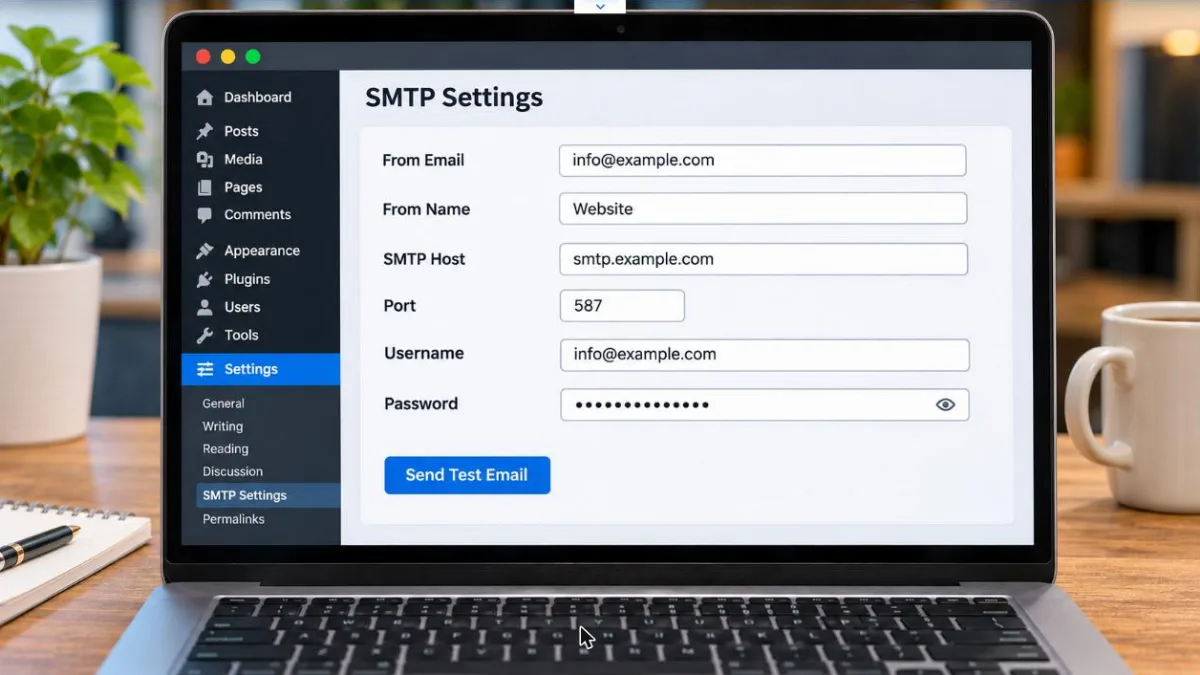
- Go to Plugins > Add New and install an SMTP plugin.
- Activate it and open its settings page.
- Enter the email address you want to send from, and your name.
- Choose a mailer, such as your email provider’s SMTP, and add the host, port, username, and password they give you.
- Save and send a test email from the plugin.
4. Use a Transactional Email Service
For a store or a busy site, a service that is built for sending email works best. These services give you a key that you add to your SMTP plugin, and they handle delivery for you. Most have a free plan for small sites, which is often enough to send a few hundred emails per month.
5. Add SPF and DKIM Records
These records prove that your emails really come from your domain. Without them, Gmail and others may send your mail to spam or reject it. Log in to your domain’s DNS settings and add the SPF and DKIM records that your email service gives you. They can take up to a day to take effect. You can check them with a free email tester tool.
6. Check Your Contact Form Plugin
If only your contact form emails are missing, the problem may be in the form’s settings. Open the form and check the mail tab for the “To” and “From” fields. Look for a notice about a mail error. Make sure the “From” address uses your own domain, and send a test submission after you save.
7. Test for a Plugin Conflict
Another plugin may be blocking or changing your email. Deactivate your other plugins, except the SMTP and form plugins, and send a test email. If it works, turn the other plugins on one at a time until the problem returns. Security and anti-spam plugins are common causes.
8. Ask Your Host About Email Limits
Some hosts turn off the mail function or limit how many emails you can send per hour. Contact your host’s support and ask whether outgoing mail is blocked, and whether they require SMTP. They can also tell you if your server’s IP address is on a block list.
9. Check the Email Log
An email log shows you whether WordPress tried to send the message and what error came back. Many SMTP plugins have this option, and you can turn it on in the plugin settings. If the log says “sent,” the problem is on the receiving side. If it shows an error, search for that exact message, because it usually names the cause.
What If WordPress Still Isn’t Sending Emails?
If you’ve tried everything and emails still don’t arrive, send a test to a different email address, such as a free webmail account, to see if the problem is only with one provider. Then contact your host or your email service with the error from your log. If you moved your site recently, double-check your DNS records, because a small mistake there can stop all delivery.
How to Keep WordPress Emails Working
A few habits keep your emails flowing:
- Use SMTP instead of the default mail function.
- Send from an address on your own domain.
- Keep your SPF and DKIM records up to date.
- Test your forms every few months.
- Keep an email log turned on for important sites.
Final Thoughts
WordPress usually stops sending emails because your host blocks the default mail function or mail providers don’t trust the messages. Start with the simple checks, like your admin email and spam folder, then set up SMTP and your domain records. Test after every change so you know what fixed it.
Which fix got your WordPress emails working again? Tell us in the comments.