Choosing the right Mac screenshot tool is no longer just a matter of pressing a keyboard shortcut. For many professionals, screenshots are part of daily communication: reporting bugs, preparing training material, documenting workflows, creating product guides, and sharing visual feedback. A reliable screenshot app should capture quickly, edit cleanly, protect sensitive information, and export in formats that fit your workflow.
TLDR: The best Mac screenshot tool for most users is still the built-in macOS Screenshot utility if you only need simple captures and basic screen recording. For more polished editing, annotations, scrolling screenshots, and professional sharing, CleanShot X, Snagit, and Shottr stand out. If you work in support, product, design, or documentation, choosing a dedicated screenshot app can save time and make your communication much clearer.
What Makes a Good Mac Screenshot Tool?
A good screenshot tool should be fast, dependable, and easy to use without interrupting your work. On a Mac, performance matters because many users switch rapidly between apps, desktops, and external displays. A strong screenshot utility should feel almost invisible until you need it.
The most important features to look for include:
- Flexible capture options: full screen, selected area, specific window, menu capture, timed capture, and scrolling capture.
- Useful editing tools: arrows, text, shapes, highlights, blur, crop, resize, and numbering.
- Privacy controls: blur or redact sensitive information before sharing.
- Export and sharing: save locally, copy to clipboard, upload to cloud, or share by link.
- Screen recording: video recording with microphone, system audio, webcam, or cursor effects.
- Reliability: stable performance across macOS updates and multiple displays.
Different users need different levels of power. A casual user may only need the default macOS tool. A technical writer, customer support specialist, developer, or product manager may benefit from more advanced tools with annotation and sharing features.
1. macOS Screenshot Tool: Best Built-In Option
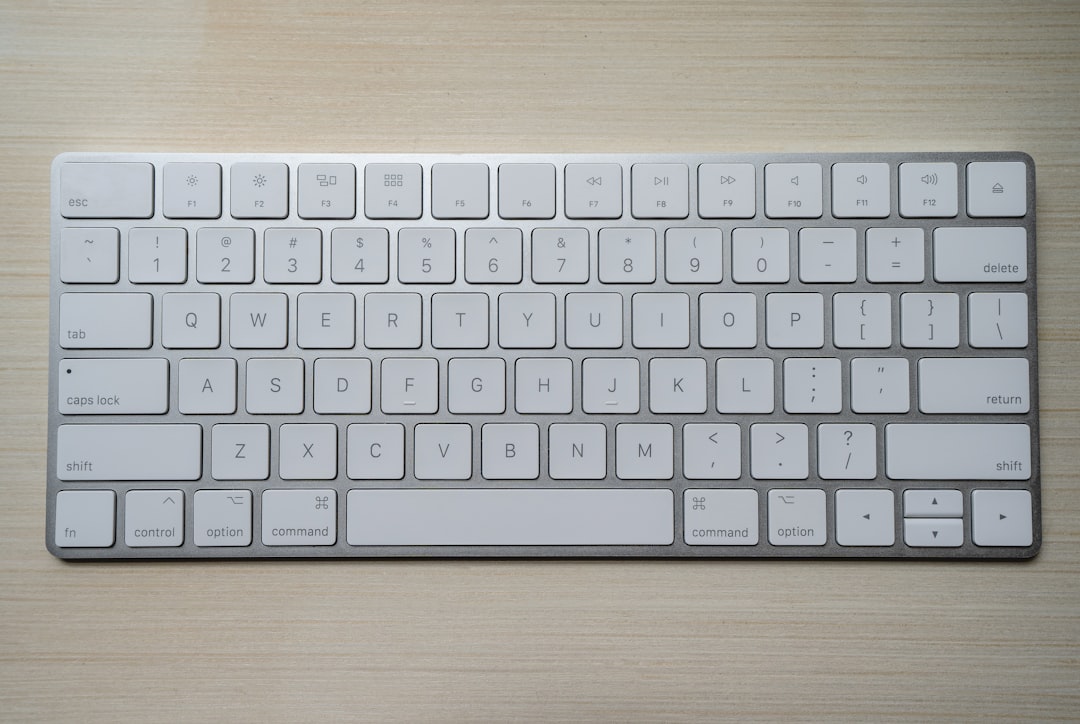
The built-in macOS Screenshot tool is the best place to start because it is free, integrated, and surprisingly capable. You can access it with Command + Shift + 5, which opens a compact control bar for capturing the entire screen, a selected window, or a custom region. You can also record the full screen or a selected portion of the screen.
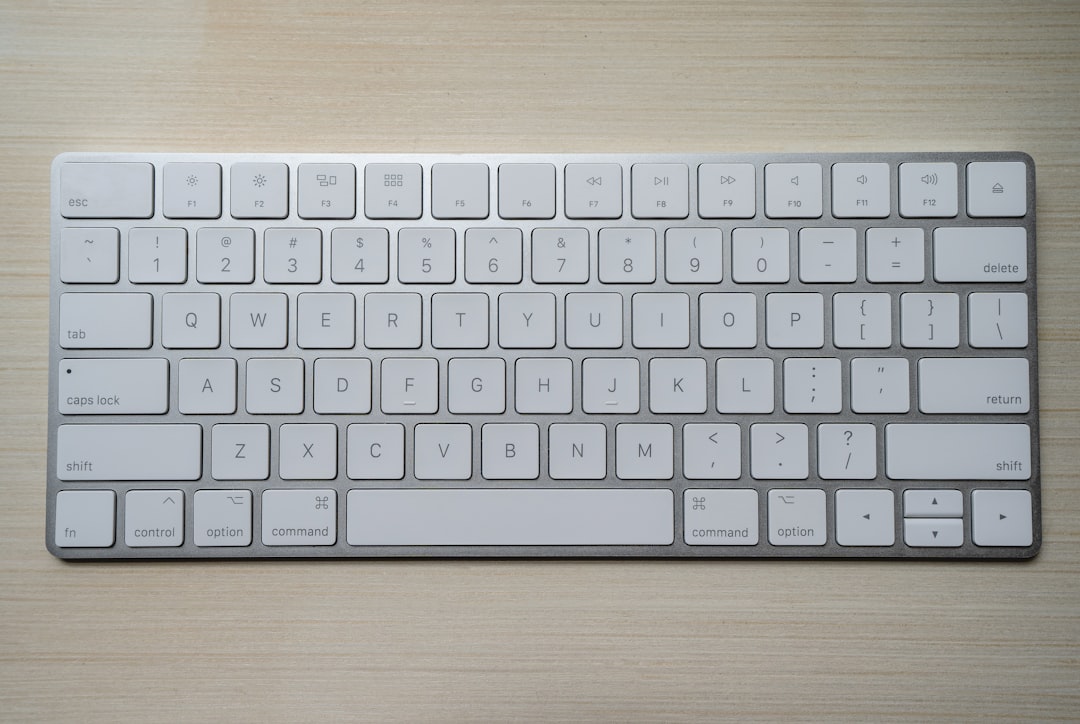
For quick captures, macOS also supports traditional shortcuts: Command + Shift + 3 for the full screen and Command + Shift + 4 for a selected area. After taking a screenshot, macOS shows a thumbnail in the corner, allowing basic markup before saving.
Best for: everyday users, students, and anyone who needs simple screenshots without installing additional software.
Strengths:
- Free and already included with macOS
- Fast keyboard shortcuts
- Basic markup and cropping
- Screen recording support
- No extra account or subscription required
Limitations: The built-in tool does not offer advanced annotation, scrolling capture, branded presets, cloud sharing, or robust editing. It is excellent for simple tasks but less suitable for professional documentation.
2. CleanShot X: Best Overall Mac Screenshot Tool
CleanShot X is one of the strongest screenshot apps made specifically for macOS. It is polished, fast, and designed for users who take screenshots frequently. The app supports area capture, window capture, full-screen capture, scrolling capture, screen recording, and even text extraction from images through OCR.
Its editing interface is clean and practical. You can add arrows, shapes, text, highlights, counters, and blur effects. One of its most useful features is the ability to hide desktop icons temporarily, producing cleaner screenshots without manual cleanup.
CleanShot X also includes a floating thumbnail system that lets you decide what to do after capturing: save, copy, annotate, pin to screen, or upload. The optional cloud sharing feature is useful for teams that need quick links instead of sending large files.
Best for: professionals, content creators, designers, developers, product teams, and remote workers.
Strengths:
- Excellent macOS-native design
- Scrolling screenshots
- Powerful annotation tools
- Screen recording with useful controls
- Desktop icon hiding and background customization
- Quick cloud sharing options
Limitations: It is a paid tool, and users who take only occasional screenshots may not need its full feature set. However, for frequent users, it is one of the most efficient choices available.
3. Snagit: Best for Documentation and Training
Snagit is a long-established screenshot and screen recording tool widely used in business, education, and technical documentation. It is especially strong for users who create manuals, tutorials, help articles, and step-by-step guides.
Snagit offers robust capture options, including scrolling capture, panoramic capture, window capture, and video recording. Its editor is more extensive than many lightweight screenshot apps. You can add callouts, arrows, stamps, step numbers, magnification effects, and simplified UI illustrations. These tools are particularly useful when explaining software processes.
Another advantage is Snagit’s asset-based workflow. You can keep recent captures, reuse elements, and organize screenshots for larger projects. This makes it more than a quick capture tool; it functions as a visual documentation environment.
Best for: technical writers, trainers, educators, support teams, and enterprise users.
Strengths:
- Professional documentation features
- Strong annotation and callout tools
- Scrolling and panoramic capture
- Video capture for tutorials
- Good asset management for repeated work
Limitations: Snagit can feel heavier than simpler Mac screenshot apps. It is also more expensive than lightweight alternatives. If you only need fast annotations, it may be more than necessary; if you create serious documentation, it is a dependable choice.
4. Shottr: Best Lightweight Tool for Power Users
Shottr has become popular among Mac users because it is fast, lightweight, and surprisingly capable. It is particularly useful for developers, designers, and anyone who needs precise screenshot control without a bulky application.
Shottr includes scrolling screenshots, OCR, pixel measurement, annotation tools, blur, crop, and color picking. The pixel measurement feature is especially valuable for interface designers and front-end developers who need to inspect spacing and layout details.
The app feels quick and direct. It does not try to be a complete documentation platform, but it handles most screenshot tasks efficiently. Its simplicity is one of its strongest qualities.
Best for: developers, UI designers, testers, and users who want a fast utility with advanced details.
Strengths:
- Very fast and lightweight
- Scrolling screenshot support
- OCR text recognition
- Pixel measurement tools
- Good annotation features
Limitations: Shottr may not offer the same level of polished sharing workflow as CleanShot X or the same documentation depth as Snagit. Still, it is an excellent choice for users who value speed and precision.
5. Monosnap: Best for Quick Sharing and Team Feedback
Monosnap is a practical screenshot and screen recording tool with a focus on sharing. It supports area capture, full-screen capture, screen recording, annotations, and cloud upload. Teams that need to exchange visual feedback quickly may find it convenient.
The editor includes common tools such as text, arrows, shapes, blur, and crop. After editing, you can upload the image and share a link. This makes Monosnap helpful for bug reports, support conversations, and design comments.
Best for: small teams, support agents, QA testers, and users who share screenshots frequently.
Strengths:
- Simple capture and annotation workflow
- Cloud sharing by link
- Screen recording support
- Useful for collaborative feedback
Limitations: Some advanced features depend on account options, and the interface may not feel as refined as the best Mac-native tools. Nevertheless, it remains a solid option for quick sharing.
6. Xnapper: Best for Clean, Presentation-Ready Screenshots
Xnapper is designed for people who want screenshots to look polished with minimal effort. It can automatically place screenshots on attractive backgrounds, adjust padding, round corners, and create a cleaner visual presentation. This is useful for marketing, social media, product updates, and professional presentations.
It also includes practical privacy tools, such as automatic redaction of sensitive information. For users who share screenshots publicly, this can reduce the risk of exposing email addresses, names, tokens, or private details.
Best for: marketers, founders, creators, and professionals who publish screenshots externally.
Strengths:
- Attractive screenshot styling
- Automatic background and layout features
- Privacy-focused redaction
- Good for public-facing visuals
Limitations: Xnapper is not primarily a deep technical documentation tool. Its strength is presentation quality rather than advanced multi-step editing.
7. Skitch: Best Simple Annotation Tool
Skitch, from Evernote, is a simple and familiar tool for annotating screenshots. It offers arrows, shapes, text, highlights, and basic markup. While it is not as advanced as newer screenshot apps, it remains useful for quick visual notes.
Skitch works best when your needs are modest: capture something, point to an area, add a short note, and share it. It is easy to understand and does not require much setup.
Best for: users who want quick, basic annotations without many advanced settings.
Strengths:
- Easy to learn
- Simple annotation tools
- Good for quick visual communication
Limitations: Skitch has not evolved as aggressively as some modern competitors. Users who need scrolling capture, advanced screen recording, or polished export controls should consider other tools.
How to Choose the Right Screenshot Tool
The best Mac screenshot app depends on how often you capture screens and what you do after capture. If you only need to save occasional images, the built-in macOS tool is usually enough. It is fast, free, and reliable.
If you need polished annotations, scrolling screenshots, and efficient sharing, CleanShot X is one of the best all-around choices. If your work involves formal training material or detailed documentation, Snagit is hard to beat. If speed, OCR, and pixel-level inspection matter, Shottr is an excellent lightweight alternative.
For team communication, Monosnap offers a practical sharing workflow. For presentation-ready screenshots, Xnapper is a strong choice. For basic markup, Skitch remains simple and accessible.
Security and Privacy Considerations
Screenshots often contain more sensitive information than users realize. Browser tabs, email addresses, customer names, internal dashboards, file paths, and notification previews can all appear in a capture. Before sharing any screenshot, inspect it carefully.
Choose tools that provide reliable blur, redaction, or cropping. For confidential business information, redaction is safer than a light blur because some blur effects can potentially be reversed or interpreted. When sharing through cloud links, check whether the links are public, private, password-protected, or time-limited.
Final Recommendation
For most Mac users, start with the built-in screenshot tool and upgrade only when you feel its limits. If screenshots are part of your daily work, a dedicated tool is worth the investment because it reduces repetitive editing and improves communication quality.
CleanShot X is the best overall recommendation for a modern Mac screenshot workflow. Snagit is best for serious documentation and training. Shottr is ideal for lightweight power use, while Xnapper is excellent for beautiful public-facing screenshots. The right choice is the one that helps you capture, edit, protect, and share information with the least friction.