If Yahoo Search keeps taking over Chrome, fix Chrome settings first, then scan for malware if it comes back. Chrome lets you pick a default search engine in Settings [source: Google]. So start there. It is faster, safer, and less annoying than downloading random “cleaner” apps from the internet.
TLDR: Go to Chrome settings and change your search engine back to Google, Bing, DuckDuckGo, or whatever you want. Then remove weird extensions and check your startup pages. If Yahoo returns after a restart, treat it like a browser hijacker and use a trusted malware removal tool. Example: if this takes you 5 minutes in settings but Yahoo comes back 2 times in one day, stop poking buttons and run a scan.
Why Is Yahoo Search in Chrome?
Yahoo Search is not evil by itself. It is a real search engine. The problem is when it shows up without asking. That is when it feels like your browser has grabbed the wheel and driven into a hedge.
This usually happens for one of four reasons:
- Your default search engine changed. Maybe by accident.
- An extension changed it. Toolbars love doing this.
- Your startup page changed. Chrome opens Yahoo every time.
- Adware or a browser hijacker is active. This is the rude one.
Honestly, it feels like the browser version of finding glitter in your carpet. You clean one spot. Then it appears somewhere else.

First Fix: Use Chrome Browser Settings
Start with the simple stuff. No drama. No tool downloads. Just Chrome.
- Open Chrome.
- Click the three dots in the top right.
- Click Settings.
- Choose Search engine.
- Find Search engine used in the address bar.
- Pick the search engine you want.
Now test it. Open a new tab. Search for something like best pizza near me. If Yahoo is gone, great. You win this round.
But do not stop yet. Sneaky changes often hide in more than one place.
Check Startup Pages
Chrome may still open Yahoo when you launch it. That is a startup setting.
- Go back to Settings.
- Click On startup.
- Look for Yahoo or strange web addresses.
- Remove them.
- Choose Open the New Tab page if you want a clean start.
This is a common trick. Your search engine may be fixed, but the first page still screams “Yahoo!” every morning. Very charming. Not.
Remove Weird Extensions
Extensions are tiny browser apps. Some are useful. Some act like raccoons in a kitchen.
To check them:
- Click the three dots.
- Go to Extensions.
- Click Manage Extensions.
- Remove anything you do not know or use.
Look for names like “Search Manager,” “Coupon Finder,” “Safe Search,” “PDF Helper,” or anything that sounds oddly helpful. If you did not install it, delete it.
After that, close Chrome. Open it again. Search again. If Yahoo stays gone, you are done.

When Browser Settings Are Enough
Use Chrome settings when the problem is light.
- Yahoo appeared once.
- You recently installed an extension.
- The fix works after restarting Chrome.
- No pop ups appear.
- Your computer is not acting strange.
This path is quick. Expect about 3 to 10 minutes. Most of that time is spent staring at extension names and thinking, “What even is this?”
When You Need Malware Removal Tools
Use a malware removal tool when Yahoo keeps coming back. That is the big sign.
You should scan your computer if:
- Yahoo returns after you change settings.
- Chrome says a setting is “managed.”
- Strange extensions reinstall themselves.
- You see pop ups outside Chrome.
- Your homepage changes again and again.
- Your computer feels slower than usual.
That last one is fun, right? You click Chrome and wait 12 extra seconds while your laptop wheezes like it ran up stairs. Not normal.
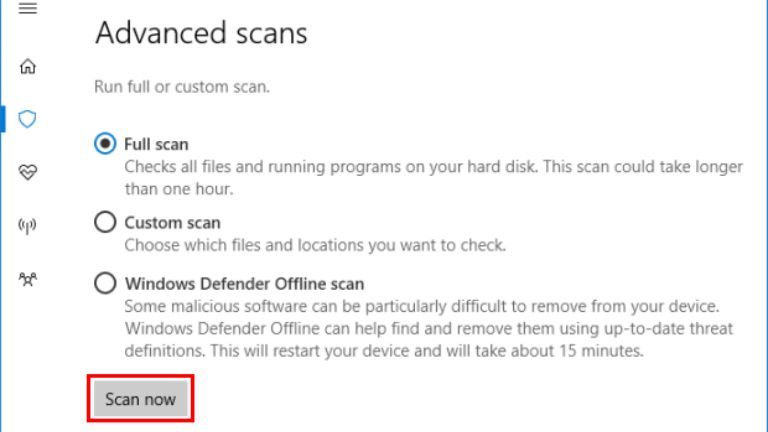
For Windows, you can use Microsoft Defender. It is built in. You can also use well-known tools like Malwarebytes or Bitdefender. On Mac, use a trusted Mac security scanner. Do not grab the first shiny “Yahoo remover” ad you see. Some of those are the same mess wearing a fake mustache.
Browser Settings vs Malware Tools
Here is the simple split.
- Browser settings fix Chrome itself.
- Malware removal tools fix the thing changing Chrome.
Think of Chrome settings like locking your front door. Think of malware removal tools like finding the person hiding in the shed with a spare key.
If Yahoo changed because of a setting, Chrome settings work. If Yahoo changed because of adware, settings alone may fail.
Try a Chrome Reset If Needed
If you are stuck, reset Chrome. This does not delete bookmarks or saved passwords. It does turn off extensions and clears temporary site data. Google has a reset option for Chrome settings [source: Google].
- Open Settings.
- Click Reset settings.
- Choose Restore settings to their original defaults.
- Confirm.
After the reset, turn extensions back on one by one. If Yahoo returns after enabling one extension, you found the gremlin.
Final Game Plan
Do this in order:
- Change the default search engine.
- Remove Yahoo from startup pages.
- Delete strange extensions.
- Reset Chrome if needed.
- Run a malware scan if Yahoo returns.
Best rule: if the change happens once, use Chrome settings. If it keeps coming back, use malware removal tools. Simple. Clean. No browser wrestling required.