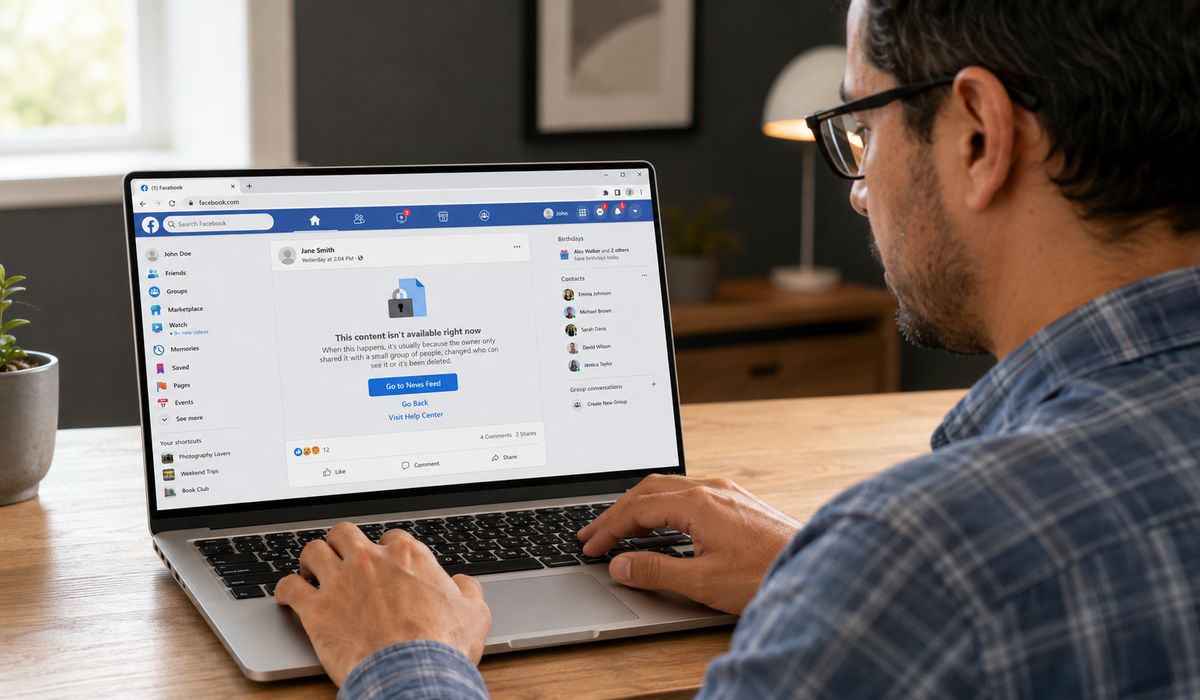
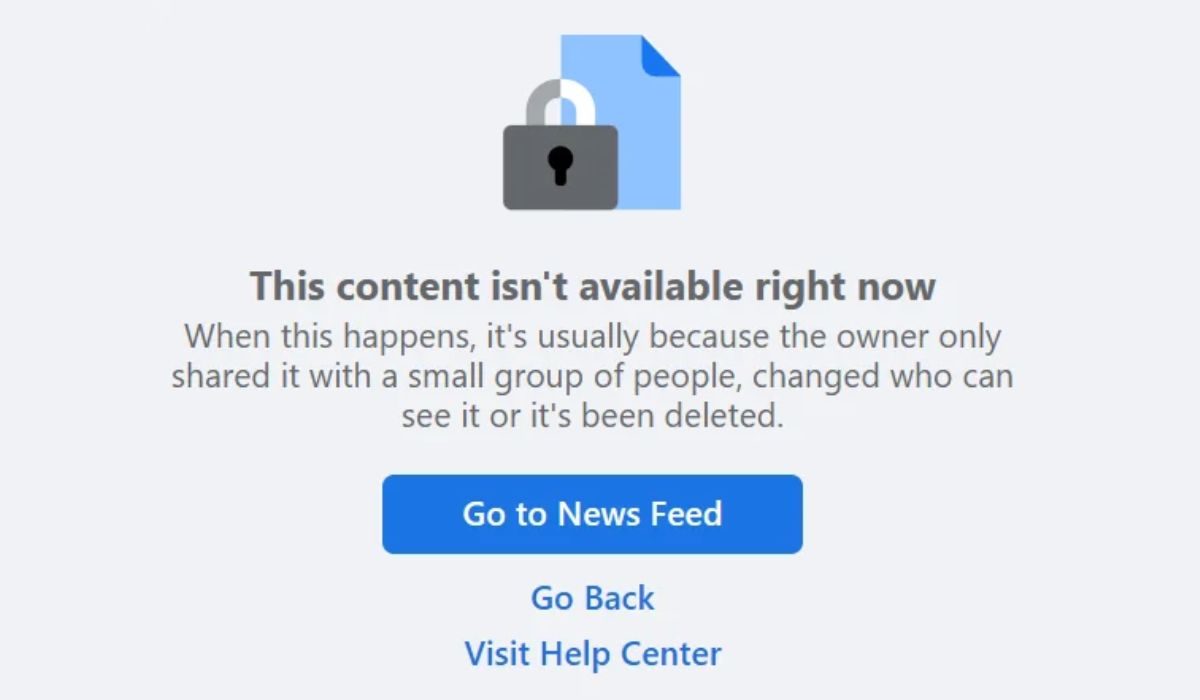
You open a Facebook link expecting to see a photo, video, or status update. Instead, Facebook says, “This content isn’t available right now.” It may also explain that the owner shared it with a small group, changed who can see it, or deleted it. This often happens with links sent through Messenger, group posts, and older posts saved in a browser.
A Facebook post unavailable message usually means your account doesn’t have access to the original post. The post may have been deleted, its audience may have changed, or it may belong to a private group. Sometimes the Facebook app simply fails to load it. This guide will help both viewers and post owners find the cause and try the right fix.
Why Is the Facebook Post Unavailable?
Facebook checks the original post before showing it to you. It checks whether the post still exists and whether your current account is allowed to see it. Sharing a link doesn’t change those rules. So, even if a friend sends the link directly, it may remain unavailable to you.
Common causes include:
- The owner deleted the original post.
- The owner changed its audience after sharing the link.
- The post is limited to Friends, Specific friends, or another small group.
- Your account was excluded through the Friends except setting.
- The post came from a private Facebook group.
- You left the group or an admin removed you.
- One of the two accounts blocked the other.
- A group admin removed the post.
- Facebook removed or limited the content.
- The Page, profile, or account is no longer active.
- You opened the link using the wrong Facebook account.
- An app, browser, or connection problem stopped the page from loading.
The wording looks like an error, but it isn’t always a technical problem. In many cases, Facebook is applying the privacy choice made by the owner.
Can Every Unavailable Facebook Post Be Viewed Again?
No, some unavailable Facebook posts cannot be restored or opened. It depends on why the content disappeared and who controls it.
| Situation | Can You Fix It? | What Needs to Happen |
|---|---|---|
| You’re using the wrong account | Usually | Sign in with the account allowed to view the post |
| The audience doesn’t include you | Not as a viewer | The owner must change the audience |
| The post is in a private group | Sometimes | Join or regain access to the group |
| One account blocked the other | Not through a technical fix | The block must be handled by the people involved |
| The post is in Trash | Owner only | The owner may be able to restore it |
| The post was permanently deleted | No | The original content is gone |
| An admin or Facebook removed it | Usually not as a viewer | The owner may need to check the removal notice |
| The app isn’t loading the post | Usually | Refresh, update, or repair the app |
There’s no safe trick for bypassing a private audience, group restriction, or block. If you aren’t included in the allowed audience, the post owner needs to share the content another way.
How to Fix Facebook Post Unavailable
If you’re facing the Facebook post unavailable problem, follow these fixes one by one. Check account access and post privacy first, then move to app or browser troubleshooting.
1. Make Sure You’re Using the Right Facebook Account
A Facebook link can open under a different account from the one you normally use. For example, Messenger may use your main account while a browser is signed into an older account. The second account may not be friends with the post owner, so Facebook hides the content.
Check the name and profile picture shown in the Facebook menu. If you use additional Facebook profiles, make sure the correct profile is active as well. Switch accounts if needed, then open the original link again.
2. Open the Original Post Instead of the Shared Preview
Sometimes a shared preview remains visible even though its link is old, incomplete, or connected to content that has changed. Ask the sender to open the post on Facebook and copy its current link again. This can help when the problem comes from a broken or outdated URL.
Keep in mind that a fresh link won’t change the post’s privacy. A person may share a private group post in Messenger, but the recipient still needs access to that group. The preview and original content don’t always have the same level of visibility.
3. Ask the Owner to Check the Post Audience
If the post still opens for its owner, the audience setting is one of the first things to inspect. Only the owner can change who may see a personal Facebook post.
Here’s how the owner can check it:
- Open the original post from the profile or Activity Log.
- Find the audience label near the owner’s name or posting date.
- Tap or click that label to review the current audience.
- Check whether it says Public, Friends, Friends except, Specific friends, or Only Me.
- Select a suitable audience if the current setting was chosen by mistake.
- Ask the viewer to reload the original link.
The owner shouldn’t make a personal post Public just to help one person open it. They can select a smaller suitable audience or send the photo or information privately instead.
4. Check Whether the Post Belongs to a Private Group
A post from a private Facebook group is normally limited to people who can access that group. The link may stop working if you left the group, changed profiles, or were removed by an administrator.
If you’re trying to view the post:
- Open the group page and look for the Public or Private label.
- Confirm that your current account is still a member.
- Check whether your membership request is waiting for approval.
- Rejoin the group if membership is open and you’re allowed to return.
- Wait for admin approval before testing the post again.
If you created the post, open the group and see whether it still appears there. It may be waiting for approval or may have been removed for breaking a group rule. Contact a group admin politely if Facebook doesn’t show a clear reason.
Don’t copy private group content to another place without permission. A private post may contain personal details that weren’t meant for people outside the group.
5. Check for a Block Between the Two Accounts
Blocking can prevent one profile from seeing another profile’s posts. If the unavailable link comes from a person you know, an accidental block is worth checking. You can review blocked profiles under Facebook’s Audience and visibility settings.
Still, the unavailable message by itself doesn’t prove that someone blocked you. A deleted post or limited audience produces a similar result. Don’t create or use another account to get around a block, especially when it may have been set for privacy or safety.
6. Find Out Whether the Post Was Deleted or Removed
Before changing your phone settings, ask the owner whether they can still open the original post. If it has disappeared for them too, clearing your cache won’t bring it back.
A few simple questions can narrow this down:
- Can the owner find the post on their profile, Page, or group?
- Did they recently delete, hide, or archive it?
- Did a group administrator remove it?
- Is there a notice from Facebook about the content?
- Can the owner see it in Activity Log?
If the owner permanently deleted the post, viewers can’t recover it through the original link. The same is usually true when a group administrator removes a post. The owner should check any notice shown by Facebook before deciding what to do next.
7. Check Facebook Activity Log, Archive, and Trash
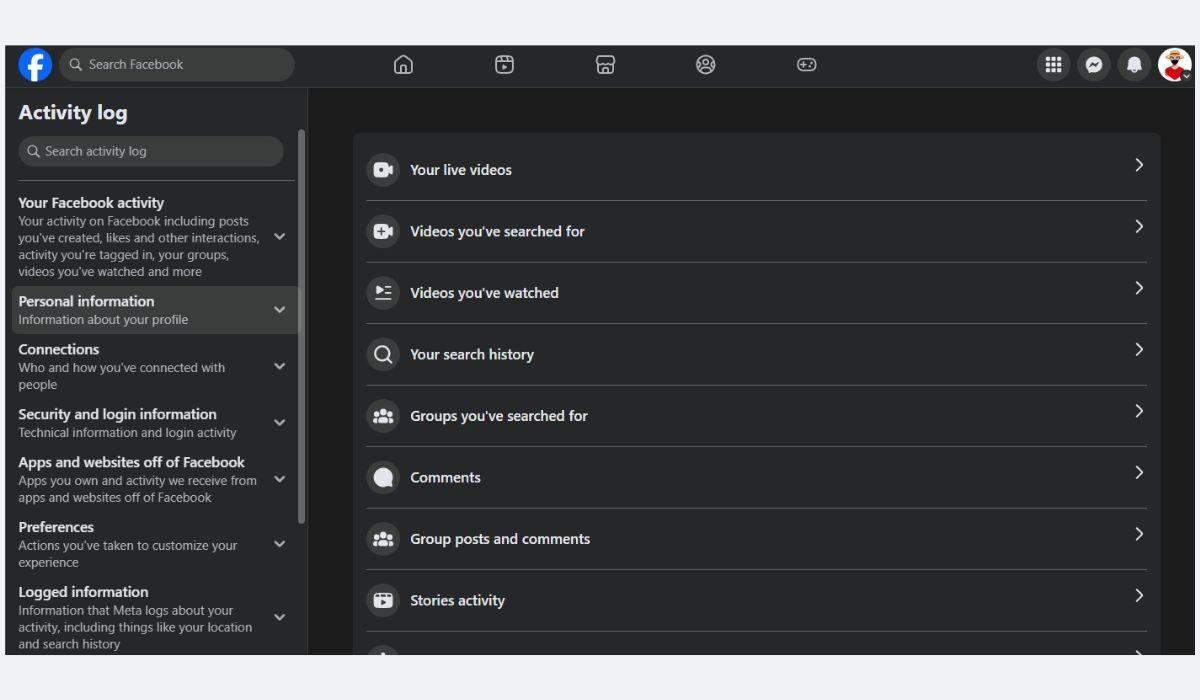
Post owners sometimes think a post was deleted when it was hidden, archived, or moved to Trash. Activity Log brings these areas together and makes older posts easier to find.
To check the missing post:
- Open Facebook and select your profile picture.
- Go to Settings & privacy.
- Open Activity Log.
- Choose the section for your Facebook activity and posts.
- Use the date and activity filters to find the missing content.
- Check posts hidden from your profile, Archive, and Trash.
- Restore the post if Facebook still shows that option.
Content in Archive is visible only to the owner until it is restored. Items moved to Trash may remain recoverable for a limited time before Facebook deletes them. Not every type of content supports these controls, so the available options can vary.
Also, hiding a post from your profile isn’t always the same as deleting it. The post may still appear elsewhere for its selected audience, such as in Feed or search.
8. Check Group, Page, or Account Moderation
The person who created a post isn’t always the only person who can remove it. Group admins, Page managers, and Facebook may take action depending on where it was published.
| Post Location | What the Owner Should Check | Who May Control It |
|---|---|---|
| Facebook group | Pending posts, admin feedback, and group rules | Group administrators |
| Facebook Page | Page status, publishing access, and post notices | Page administrators |
| Personal profile | Account notices and content status | Profile owner or Facebook |
| Marketplace | Listing status and feature-specific messages | Listing owner or Facebook |
If the content was removed through moderation, reinstalling Facebook won’t restore it. The owner should read the notice connected to the post or account. If Facebook provides a review option, follow the instructions shown there.
9. Check Page and Profile Visibility Restrictions
Try opening the Page or profile that published the unavailable post. If the source opens normally but one post doesn’t, the problem probably belongs to that individual post. It may have been deleted, restricted, or removed.
If neither the post nor its source opens, the Page or profile may no longer be active. A Page could also have visibility settings related to location or age. An account may have been deactivated, deleted, or limited. These are only possible causes, so don’t assume the owner lost their account without asking them.
Avoid changing your profile details or using a VPN to get around a Page restriction. If the restriction is intentional, it should be respected.
10. Test the Post in the App and a Web Browser
Testing the same link in another place helps show whether you have an access problem or a loading problem. Use the same authorized Facebook account during each test.
| Test Result | Most Likely Direction |
|---|---|
| The post fails in the app and browser | Privacy or content-status problem |
| It opens in a browser but not the app | Facebook app problem |
| It works on Wi-Fi but not mobile data | Network or data-setting problem |
| Another permitted account can open it | Account-specific audience issue |
| Many Facebook pages fail at once | Connection or wider Facebook problem |
You can also switch between Wi-Fi and mobile data, then reload the link. If many unrelated Facebook pages fail at the same time, wait a little and test again before changing your settings.
11. Refresh the Facebook App or Browser
Try these technical fixes only after confirming that the post still exists and your account should be able to see it. They can repair a bad login session or loading problem, but they can’t override privacy settings.
On Android
- Close Facebook completely and open it again.
- Check the Google Play Store for a Facebook update.
- Open the phone’s Settings and go to Apps.
- Select Facebook, then open Storage.
- Choose Clear cache, not Clear data, if both options appear.
- Restart the phone and test the original link.
Clearing cache removes temporary files. It normally keeps your account information, though menu names can differ between Android phones.
On iPhone or iPad
Start by closing Facebook and reopening it. Install any available update from the App Store, then restart the device. If the issue continues only in the app, reinstalling Facebook may help, but make sure you know your login details first.
iOS doesn’t offer the same app-cache button found on many Android phones. Reinstalling should be a late step, not the first thing you try.
In a Web Browser
Reload the page and confirm that the correct account is signed in. Next, try opening the link in a private browsing window. If it works there, stored site data or a browser extension may be interfering with Facebook.
Disable suspicious extensions one at a time or clear Facebook’s site data. Be aware that clearing site data will probably sign you out. Don’t remove all browser information when testing Facebook alone is enough.
12. Report the Problem to Facebook
Report the issue when the owner confirms that the post exists, your account is included in its audience, and it still fails in both the app and browser. Open Facebook’s menu, choose Help & support, then select Report a problem.
Include useful details with the report:
- A screenshot of the unavailable-content message
- The original post link
- The phone, tablet, or computer you used
- Whether it fails in both the app and browser
- When the problem started
- Any steps you already tried
Never include your password, recovery code, or two-factor authentication code. Facebook doesn’t need those details to investigate a broken post link.
How to Prevent Facebook Posts From Becoming Unavailable
Some unavailable posts are caused by normal privacy choices, not faults. Post owners can reduce confusion by checking the audience before sending a link and telling recipients when special access is required.
A few habits can help:
- Review the audience label before sharing a post.
- Don’t use Only Me or Friends except by mistake.
- Tell recipients if they must join a private group.
- Share the current original link instead of an old preview.
- Avoid changing the audience after sending the link unless needed.
- Check group rules before reposting content elsewhere.
- Look in Activity Log before assuming a post was deleted.
- Keep a separate copy of photos or information you can’t afford to lose.
These steps won’t stop admins or Facebook from removing content. They do make ordinary audience and link problems less likely.
Final Thoughts
A Facebook post unavailable message usually comes down to access. Start by checking the active account, original post, selected audience, and group membership. If you own the post, review Activity Log, Archive, and Trash before assuming it’s permanently gone.
App and browser fixes are still worth trying, but only after you rule out privacy or deletion. Is the post unavailable to everyone, or does it fail only on your Facebook account? Share that detail in the comments.