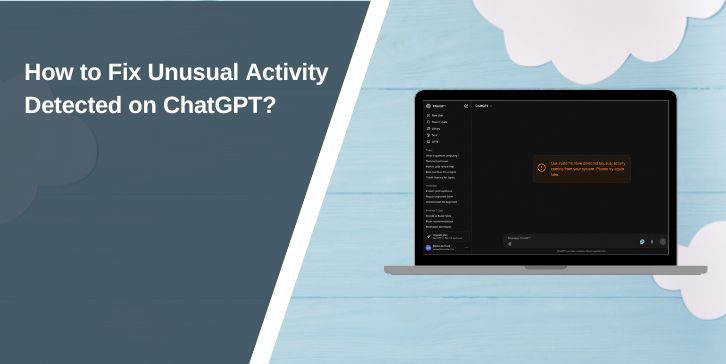
The unusual activity detected ChatGPT error usually appears when ChatGPT sees traffic that looks unsafe, automated, or different from normal use. It can happen while logging in, sending a prompt, opening the ChatGPT website, or using the mobile app.
This does not always mean your account is banned. It also does not always mean someone hacked your account. Many times, the cause is simple. A VPN, proxy, browser cookie, shared Wi-Fi, or repeated login attempt can trigger the warning.
A simple way to think about it is this. ChatGPT is checking whether the request looks normal. If your browser, device, account, or network sends odd signals, you may see the message. So the fix is not one magic button. You need to test the common causes one by one.
If you are facing unusual activity detected on ChatGPT, this guide will help you fix the problem in a simple order.
Why Does ChatGPT Say Unusual Activity Detected?
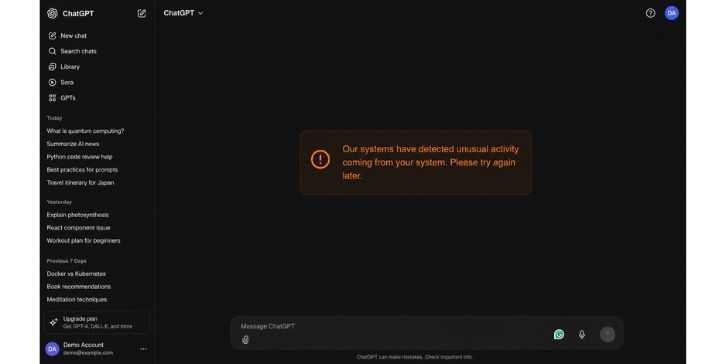
ChatGPT may show this message when its systems detect traffic that may look automated or unusual. That traffic can come from your browser, IP address, VPN server, device, or account session. Sometimes it happens after too many refreshes. Sometimes it happens because your network is shared with many other users.
Here are some common causes:
- VPN or proxy traffic using a flagged IP address
- Browser cookies causing a bad login session
- Cache files loading old ChatGPT data
- Privacy extensions blocking scripts or site checks
- Too many refreshes or repeated login attempts
- Public Wi-Fi, school Wi-Fi, or office Wi-Fi using shared traffic
- Account sharing across different locations
- A broken ChatGPT app session on iPhone or Android
- A temporary ChatGPT service or security check issue
The warning is not always your fault. That part matters. A normal user can get this error just because their VPN server or Wi-Fi network looks risky.
How to Fix Unusual Activity Detected on ChatGPT?
If you are facing this issue, try these fixes one by one. Do not skip straight to the last step. Start with VPN, browser, cookies, and network checks because those are common triggers for this ChatGPT suspicious activity error.
1. Turn Off Your VPN or Proxy
A VPN can cause ChatGPT to show unusual activity detected because many users may share the same VPN IP address. If that IP address gets flagged, your normal request may look unsafe too. A proxy can create the same problem.
Turn off your VPN fully. Then close ChatGPT and open it again. Do not just switch from one VPN country to another right away. Test without the VPN first, so you know if it is the real cause.
You should also check proxy settings on your device or browser. Some antivirus tools and privacy apps route traffic through their own filters. That can also change how ChatGPT sees your connection.
Try this:
- Disconnect the VPN
- Turn off proxy settings
- Close all ChatGPT tabs
- Reopen the browser
- Log in again
If ChatGPT works after this, the VPN or proxy was likely the issue.
2. Restart Your Browser and Device
This fix is simple, but don’t skip it. A browser can hold an old login session in the background. A device can also keep a weak or stuck network connection active. That can make the same error appear again.
Close the full browser, not only the ChatGPT tab. Then restart your computer or phone. Open ChatGPT again and try a normal prompt. Don’t refresh the page many times while testing.
This helps when the unusual activity detected warning came from a temporary session problem. It is also a good step after turning off a VPN.
3. Use Incognito or Private Browsing Mode
Private mode gives you a fresh browser session. It usually does not use your old cookies, old site data, or regular extension setup. That makes it a good test.
Open ChatGPT in an incognito or private window. Log in and check if the error still appears. If ChatGPT works there, your normal browser data is probably the problem.
If the error still appears in private mode, then look at your network, VPN, account, or device. That tells you the problem may not be only browser cookies.
This test is useful because it saves time. You don’t have to guess blindly.
4. Clear ChatGPT Cookies and Cache
Cookies help websites remember your login session. Cache helps pages load faster. But when this data becomes old or damaged, ChatGPT may not read your session properly.
Clear ChatGPT site data first if your browser allows it. You do not always need to delete your whole browsing history. Start with cookies and cache related to ChatGPT. Then reopen the website and sign in again.
Use this order:
- Clear ChatGPT cookies or site data
- Clear cached files if the error remains
- Restart the browser
- Sign in again
- Test ChatGPT without VPN
This fix is useful when ChatGPT works in private mode but fails in your normal browser. That is a strong sign that cookies, cache, or local site data may be involved.
5. Disable Browser Extensions for a Test
Some extensions change how websites load. Ad blockers, privacy blockers, script blockers, auto-refresh tools, and automation extensions can affect ChatGPT. Not always. But yes, it can happen.
Turn off extensions for a few minutes and test ChatGPT again. If the error disappears, turn them back on one by one. This helps you find the extension causing trouble.
Pay close attention to tools that block scripts or change browser requests. ChatGPT needs normal browser behavior to keep your session working. If an extension blocks the wrong part, the page may open but still show a warning.
6. Stop Refreshing Again and Again
When a page fails, many users keep pressing refresh. It feels normal. But with this error, it can make things worse.
Repeated refreshes, repeated login attempts, and fast prompts can look like bot behavior. If ChatGPT already warned you about unusual activity, slow down a bit. Close the tab and wait before trying again.
Do this instead:
- Stop refreshing the page
- Close extra ChatGPT tabs
- Turn off VPN if it is on
- Wait a little before retrying
- Try one clean login attempt
This does not mean you did anything wrong. It just means the system may be seeing too many actions too fast.
7. Switch to Another Network
Your network can trigger the warning. This is common on public Wi-Fi, school Wi-Fi, office Wi-Fi, library Wi-Fi, or shared apartment internet. Many people may use the same public IP address. If that IP gets flagged, you may get blocked too.
Try opening ChatGPT on mobile data. You can also try another Wi-Fi network. If ChatGPT works on mobile data but not Wi-Fi, the problem is likely your Wi-Fi network or IP address.
Here is a simple comparison:
| What Happens | What It May Mean |
|---|---|
| Works on mobile data | Your Wi-Fi or IP may be the issue |
| Works on another Wi-Fi | Your first network may be flagged |
| Fails on every network | Browser, account, or service issue may be more likely |
| Works after VPN is off | VPN traffic was likely the trigger |
This is only a test. But it gives a clear clue. If a different network works, you can stop blaming the browser for everything.
8. Check If Your Account Is Being Shared
Account sharing can create odd login patterns. For example, one account used from different cities, devices, or networks may look unusual. If you gave your login to someone else, take it back. Simple.
Change your password if you are unsure who has access. Also secure the email address linked to your OpenAI account. Your email matters because it may be used for login or account recovery.
You should do this if:
- You shared your ChatGPT login
- You used ChatGPT on a public computer
- You see unknown account activity
- Your email account feels unsafe
- The error appears on many devices
Do not send your password to anyone. Not to support. Not to a friend. Not to a random “fixer” online.
9. Log Out of Other Sessions and Secure Your Email
If you can access your account settings, sign out from other sessions if the option is available. Then change your password. This helps if another device is still using your account in the background.
Also check your email security. Use a strong password there too. If your email has two-factor authentication, turn it on. If someone controls your email, they may get into other accounts connected to it.
This step is not meant to scare you. Most unusual activity errors are not account theft. But when the warning keeps coming back, account safety is worth checking.
10. Update or Reinstall the ChatGPT App
If you see the error on the ChatGPT app, the app session may be stuck. This can happen on Android or iPhone after updates, network changes, or login problems.
Start with an app update. Then restart your phone. If the error still appears, log out and log back in. On Android, you can also clear app cache from settings if your phone allows it.
If nothing changes, reinstall the app. That gives you a fresh app session. After reinstalling, test ChatGPT on mobile data first. This helps you avoid a Wi-Fi issue while testing the app.
11. Try a Different Browser
A browser problem can also cause ChatGPT login or loading issues. Chrome, Edge, Firefox, Safari, and other browsers handle cookies and privacy settings in different ways. So a problem in one browser may not appear in another.
Try ChatGPT in another browser without extensions. If it works, your first browser likely has a setting, cookie, extension, or cache problem. You can then clean that browser instead of changing your whole device setup.
This fix is helpful when private mode partly works but normal browsing does not feel stable.
12. Check If ChatGPT Has a Temporary Service Issue
Sometimes the issue may not be on your side. ChatGPT can have temporary login problems, slow loading, or service checks. During that time, users may see different errors.
A quick test helps. Try ChatGPT on another device and another network. If it fails everywhere, and your account looks fine, wait and try again later. Do not keep changing settings for no reason.
This part is a little annoying because server-side issues are not always clear. But if the error appears across all devices and networks, it is not wise to blame only your browser.
13. Wait Before Trying Again
Some security warnings clear after the strange traffic stops. If you used a VPN, refreshed many times, or tried to log in again and again, waiting can help.
Close ChatGPT. Stop repeated attempts. Use a normal network next time you try. This works best after you already turned off VPN and cleared the bad session.
No need to sit there clicking again every minute. That usually does not help. It may even keep the pattern active.
14. Contact OpenAI Support If Nothing Works
If the unusual activity detected ChatGPT error still does not go away, contact OpenAI support. This should be the final step after you test browser, network, VPN, cookies, and account security.
When you contact support, give clear details. Do not send your password or private security codes.
Include this information:
- Exact error message
- Device name
- Browser or app version if you know it
- Wi-Fi or mobile data test result
- VPN or proxy status
- When the problem started
- Screenshot of the error
A clear support message saves time. It also shows what you already tried, so you do not get basic steps again.
How to Prevent This Error Again?
You can’t prevent every ChatGPT warning. Some checks happen automatically. But you can lower the chance by keeping your setup normal and safe.
Use a stable network when possible. Avoid jumping between many VPN locations. Keep your browser clean. Remove extensions you do not trust or use anymore. Also avoid sharing your ChatGPT account with other people.
Good habits help:
- Use one trusted device when possible
- Keep your browser updated
- Keep the ChatGPT app updated
- Avoid public Wi-Fi for account login when you can
- Do not use unknown proxy tools
- Do not refresh the page too many times
- Use a strong account password
- Secure your email account
Small things, but they matter. A normal browser, safe account, and stable network usually give ChatGPT fewer reasons to show unusual activity warnings.
Final Thoughts
The unusual activity detected ChatGPT error looks serious, but it is often fixable. In many cases, the cause is a VPN, proxy, browser cookie, extension, shared network, or repeated login attempt. Start with those simple fixes before thinking your account is banned.
If the error keeps showing, secure your account and test another device or network. And if nothing works after all that, contact support with clear details.
Did this error happen on your normal Wi-Fi, public Wi-Fi, or while using a VPN? Share that in the comments. It may help another reader find the right fix faster.