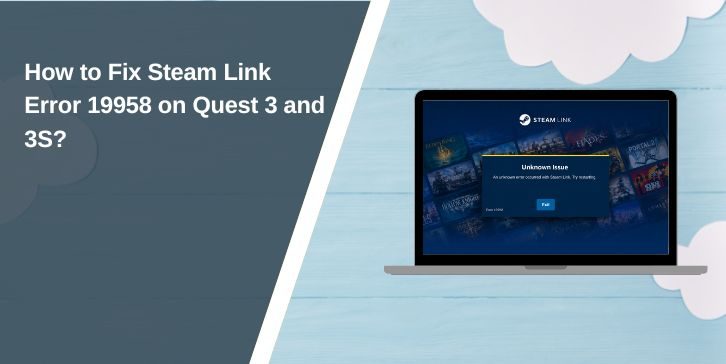
Steam Link error 19958 can appear when the app can’t start streaming from your computer. You may also see a message saying Steam Link couldn’t start streaming on the remote computer. The PC may appear online but the streaming session still fails.
This error often affects Steam Link users who play PC VR games on a Meta Quest headset. Still it can also involve Steam Remote Play on another supported device. The problem may come from SteamVR, device pairing, Windows security, your graphics driver, or the local network. Try the fixes below in order and test Steam Link after each one.
What Does “Steam Link Error 19958” Mean?
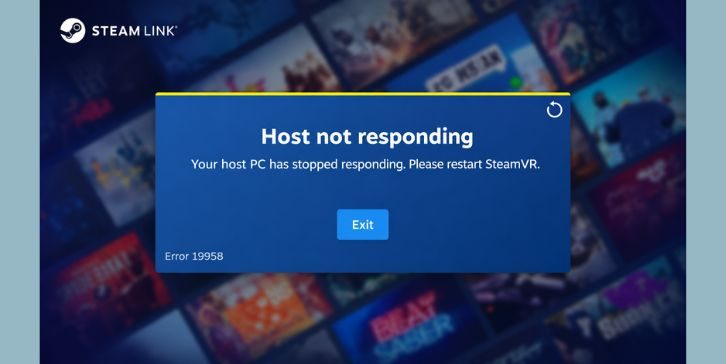
Steam Link error 19958 commonly means the client couldn’t begin a streaming session with the host PC. The Steam Link device may find the computer but fail when it tries to open the game or start SteamVR.
Valve doesn’t provide a clear public definition for every case involving this code. So the number alone can’t tell you which part failed. You need to check the host computer, Steam Remote Play settings, network connection, and client device to find the cause.
Why Does Steam Link Error 19958 Happen?
This error can start on the host PC or the device receiving the stream. It may also appear when the router stops both devices from communicating. Here are the common causes:
- Steam or SteamVR didn’t start correctly
- Steam Remote Play is turned off
- The client device is no longer paired with the computer
- The PC and Steam Link device use different local networks
- The headset is connected to a guest Wi-Fi network
- Windows has set the connection as a Public network
- Windows Firewall or antivirus software is blocking Steam
- A VPN or virtual network adapter changed the network route
- Steam, SteamVR, or the Steam Link app is outdated
- The graphics driver has an update or encoding problem
- Weak Wi-Fi or heavy downloads are affecting the connection
- Some SteamVR files are missing or damaged
How to Fix Steam Link Error 19958?
If you’re facing this issue, try these fixes one by one. Start with the quick checks before changing any network or security settings. After every fix open Steam Link again and check if streaming starts.
1. Restart Steam Link and the Host PC
A temporary Steam or SteamVR session can stop the next stream from opening. Close the Steam Link app on your phone, television, or Meta Quest headset. Then exit SteamVR and Steam on the host computer. Restart the PC and the receiving device.
After the restart open Steam first and make sure you’re signed in. Meta Quest users should then open SteamVR and wait until it loads fully. Start Steam Link last and try connecting again.
2. Check Your Steam Link and SteamVR Setup
Make sure the host computer is ready before looking for a more serious fault. Steam must be running and connected to your account. If you use Steam Link on Meta Quest then SteamVR must also be installed on the PC.
Check these parts of the setup:
- The computer runs a supported version of Windows
- Steam is open and signed in
- SteamVR is installed for VR streaming
- The PC has a supported graphics card
- The Meta Quest or other client device has enough free storage
- The Steam Link app can see the correct host PC
Meta Quest users also need a stable wireless network. The host computer should connect to the router through Ethernet when possible. The headset can then use a strong 5 GHz Wi-Fi connection.
3. Enable Remote Play and Pair the Device Again
Steam Link can’t connect if Remote Play is disabled on the computer. An old pairing record may also stop a device that connected correctly in the past.
Follow these steps on the host PC:
- Open Steam.
- Select Steam in the upper-left corner.
- Open Settings.
- Select Remote Play.
- Turn on Enable Remote Play.
- Check if your Steam Link device appears in the paired device list.
If the device is missing then open Steam Link and begin pairing again. Enter the pairing code on the host computer when Steam asks for it. If the old device entry remains but doesn’t work remove it and create a fresh pairing.
4. Connect Both Devices to the Same Local Network
The host PC and Steam Link device must communicate through the local network. Connect them to the same main router. Avoid placing the client on guest Wi-Fi because many routers stop guest devices from reaching computers on the main network.
The Wi-Fi name can sometimes be misleading. Mesh systems and homes with two routers may place devices on separate network segments even when both have internet access. Temporarily connect both devices through one router and test again. If Steam Link works there then the original network layout caused the problem.
You can also test Remote Play from another phone or computer. If every device fails then check the host PC and router. If only Meta Quest fails then focus on SteamVR, the headset app, and VR streaming settings.
5. Set the Windows Network Profile to Private
Windows applies stricter sharing rules when a connection uses the Public profile. This can stop Steam Link from finding or communicating with the host computer.
On a trusted home network follow these steps:
- Open Windows Settings.
- Select Network & Internet.
- Open Wi-Fi or Ethernet based on your connection.
- Select the active network.
- Change Network profile type to Private.
- Restart Steam and test the connection.
Don’t select Private while using public Wi-Fi at a hotel, airport, or cafe. This setting is meant for a network you know and trust.
6. Allow Steam and SteamVR Through Windows Firewall
Windows Firewall may block local Steam traffic even when the PC and client use the same router. Open Windows Security and go to Firewall & network protection. Select Allow an app through firewall and check the permissions for Steam.
Allow Steam on your trusted Private network. Meta Quest users should also check SteamVR and related VR programs. If your antivirus has its own firewall then review its allowed-app list as well.
Don’t leave the firewall or antivirus disabled. You can turn third-party protection off for a short test if you understand the risk. Turn it back on after the test and create an app exception if security software caused the error.
7. Improve the Wi-Fi and Router Connection
Steam Link needs more than basic internet access. It needs a fast and stable path between the receiving device and the host PC. A weak local connection can stop the stream before the game appears.
Try these network checks:
- Connect the host PC to the router with an Ethernet cable
- Use the 5 GHz Wi-Fi band for Meta Quest or another wireless client
- Move the headset or client closer to the router
- Pause game downloads and cloud backups
- Restart the router
- Disconnect unused devices that are moving large files
- Check the router maker’s site for a firmware update
Wait until the router has fully restarted before testing Steam Link. If possible compare Wi-Fi with a temporary wired connection on a supported client. This can show whether the wireless signal is causing error 19958.
8. Update Steam, SteamVR, and the Steam Link App
Different software versions may fail to complete the streaming request. Restart Steam to let it check for client updates. Open the Steam Library and install any pending SteamVR update if you use a VR headset.
Next update the Steam Link app through the store on your client device. Meta Quest users should also check for a headset system update. Restart the headset after the update finishes because some system changes don’t take effect right away.
Don’t forget the graphics driver on the host computer. Download the correct driver from NVIDIA, AMD, or Intel based on your graphics card. Restart Windows after installing it and test the stream again. If error 19958 began just after a driver update then check whether the graphics provider offers a safe rollback option.
9. Verify the SteamVR Installation Files
Damaged or missing SteamVR files can stop VR streaming while normal Steam games continue to work. Steam can scan the installation and replace files that don’t match the expected version.
To verify SteamVR:
- Open your Steam Library.
- Find SteamVR.
- Right-click it and select Properties.
- Open Installed Files.
- Select Verify integrity of tool files.
- Wait for Steam to complete the scan.
- Restart SteamVR and reconnect the headset.
Users who aren’t streaming to a VR headset can skip this fix. Instead verify the files of the game that won’t start through Remote Play.
10. Turn Off Your VPN for a Quick Test
A VPN can send Steam traffic through a different network route. Some VPN apps also install virtual adapters that remain active when the main VPN window looks disconnected.
Disconnect the VPN on both devices and close its app. Restart Steam and test the connection. If this fixes the error then check whether your VPN supports local network access or split tunnelling.
Virtualization programs can create extra adapters too. Hyper-V, virtual machine tools, and some security apps may add them. Don’t delete network drivers if you don’t know what they control. Disable only the program you know and test one change at a time.
11. Change the Remote Play Host Settings
The host computer uses its graphics card to encode the video stream. Error 19958 may appear when hardware encoding doesn’t start correctly. Steam’s Advanced Host Options let you test another setup.
Open Steam Settings and go to Remote Play. Enter Advanced Host Options and try these changes one at a time:
- Turn hardware encoding off and test the stream.
- Turn it back on if disabling it doesn’t help.
- Lower the streaming resolution for a test.
- Reduce the bitrate if the network is unstable.
- Enable network traffic priority if the option appears.
Test Steam Link after each change. Don’t change every setting at once because you won’t know which one helped. Restore any option that makes no difference.
12. Reinstall Steam Link or Contact Steam Support
If none of the earlier fixes work then uninstall the Steam Link app from the receiving device. Restart that device and install the app again from its official store. You’ll need to pair it with the host PC once more.
Avoid reinstalling the full Steam client first. That takes longer and may remove settings without fixing a client-side fault. Test another Remote Play device before taking that step. If another phone or computer connects but Meta Quest doesn’t then the problem likely sits in the VR connection path.
Contact Steam Support if error 19958 continues. Record the exact message and take a screenshot. Include your client device, Windows version, graphics card, connection type, and the fixes you already tried. Those details make it easier to separate a SteamVR fault from a local network problem.
How to Prevent Steam Link Error 19958?
A steady network and updated software can lower the chance of this error returning. Keep the host PC connected to the same trusted network and avoid making several streaming changes at once.
- Keep Steam, SteamVR, and the Steam Link app updated
- Use Ethernet between the host computer and router when possible
- Connect wireless clients through a strong 5 GHz signal
- Keep Steam and SteamVR allowed through the Private firewall profile
- Avoid guest Wi-Fi for local streaming
- Pause large downloads before starting a game
- Let SteamVR load fully before connecting Meta Quest
Check your setup after changing routers, antivirus software, VPN services, or graphics drivers. Any of those changes can affect local streaming even when normal internet access still works.
Final Thoughts
Steam Link error 19958 usually appears when the client can’t start a streaming session with the host PC. Begin by restarting Steam and pairing the device again. Then check the local network, Windows firewall permissions, software updates, and SteamVR files.
If ordinary Remote Play works but Meta Quest still fails then focus on SteamVR, the Quest app, and graphics encoding. If every client fails then the host computer or router is the more likely source. Found a fix that worked on your device? Share it in the comments so other Steam Link users can try it too.